Monitor Inputs
Monitor Shortcuts
You create your Monitor Shortcuts by selecting the "Add Monitor Target" button.
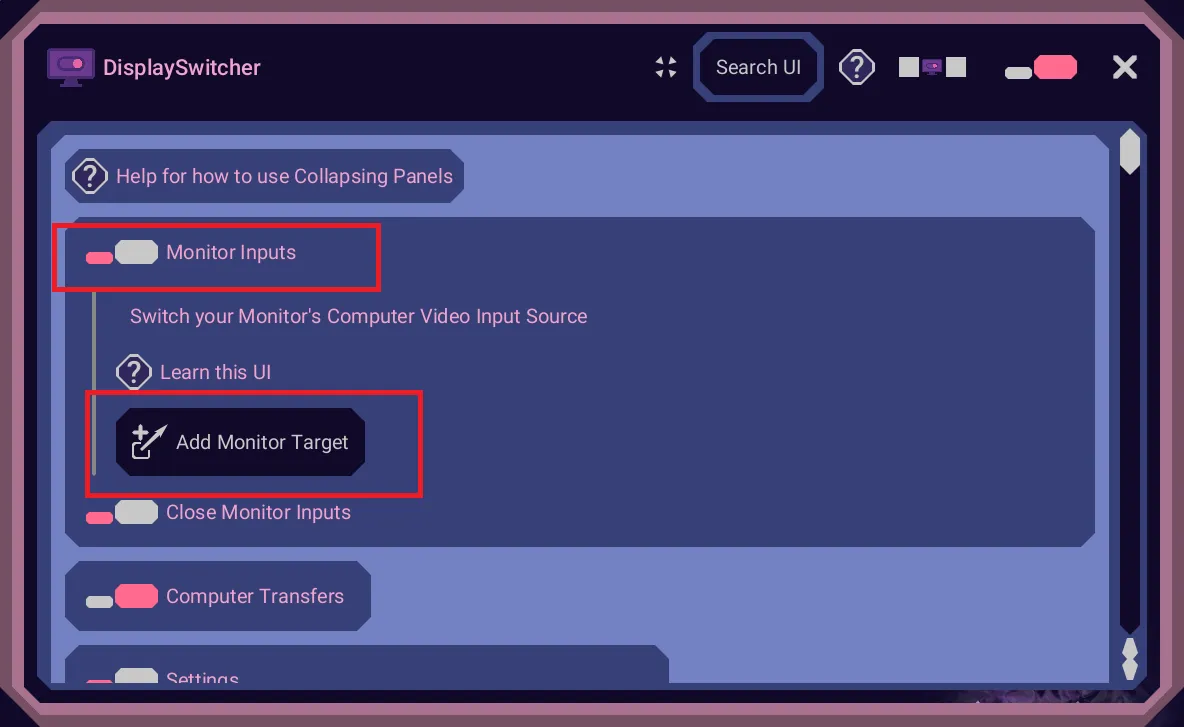
Then choose the monitor you want the command to go to. We only have one monitor in this example.
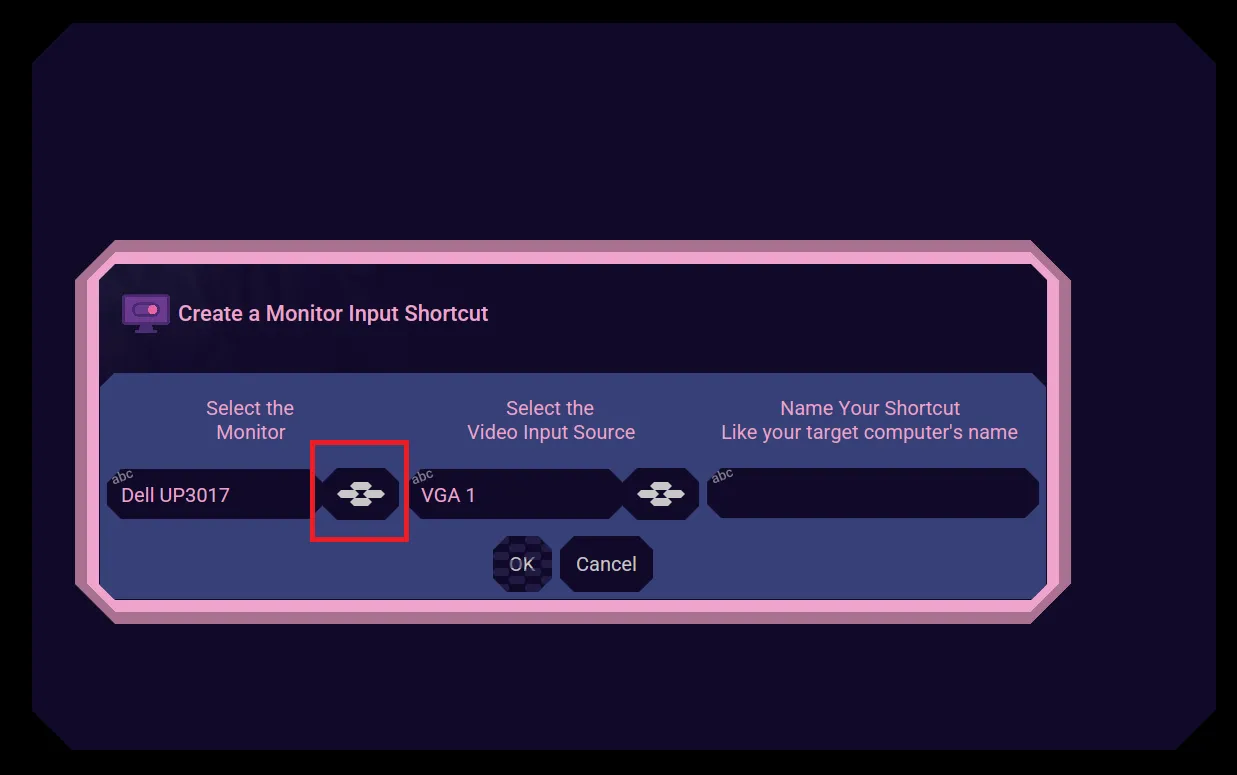
Then select the Video Input Source like HDMI 1.
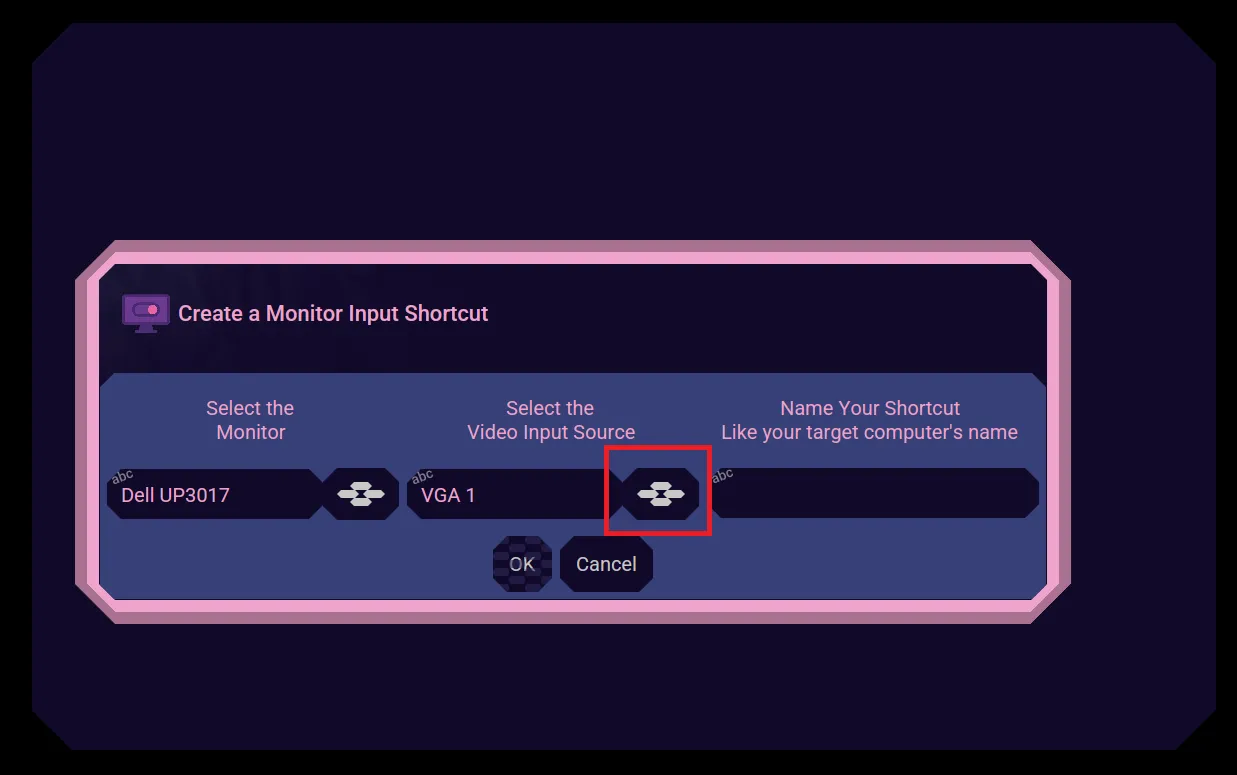
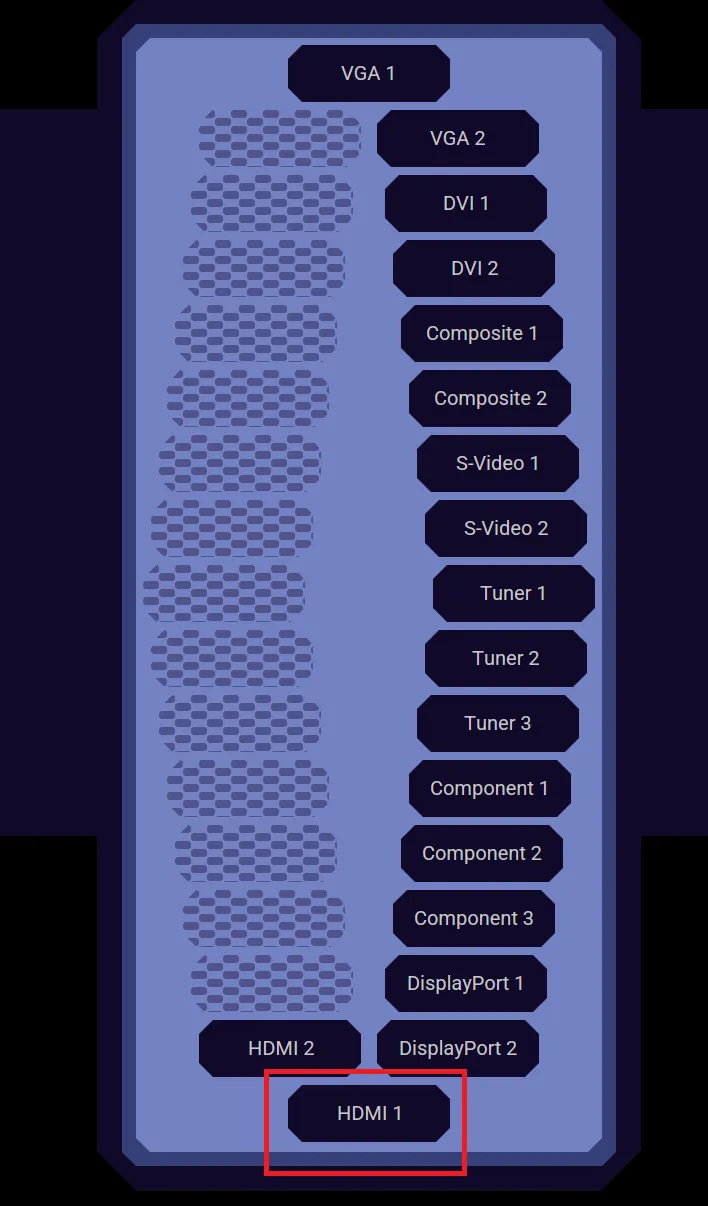
Then give your shortcut a name. For example, the name of the computer whoes display will show on your monitor when you switch the monitor to the HDMI 1 video input.
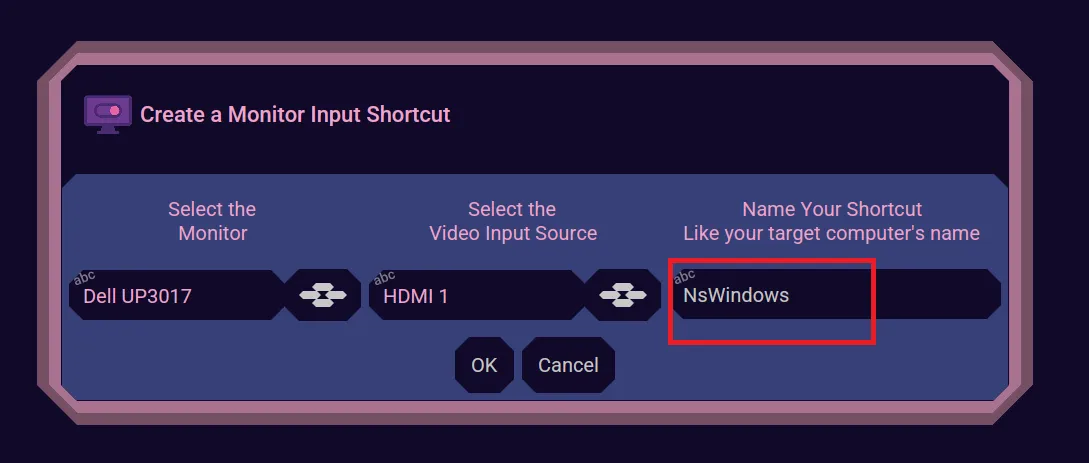
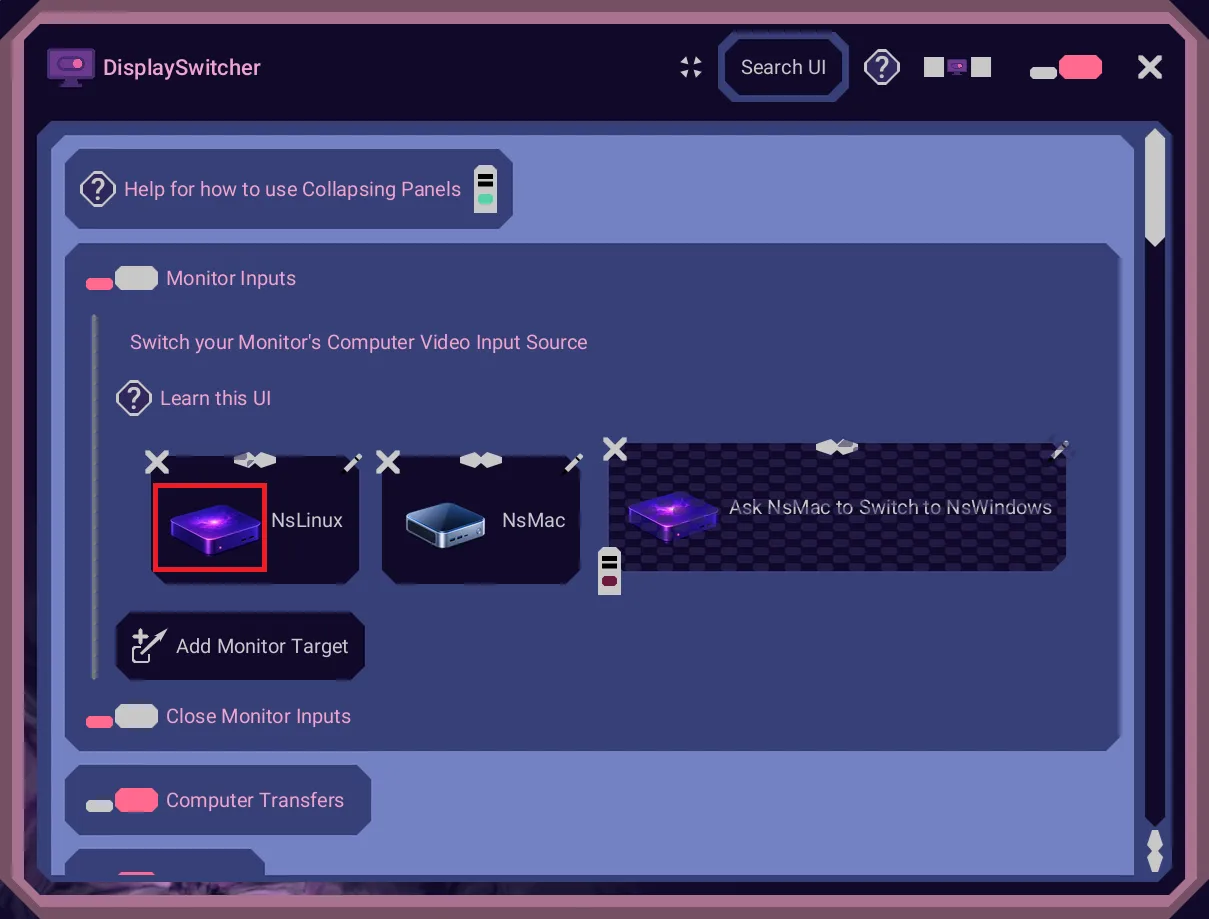
The shortcut then appears. You can edit the shortcut with the pencil icon in the upper right.
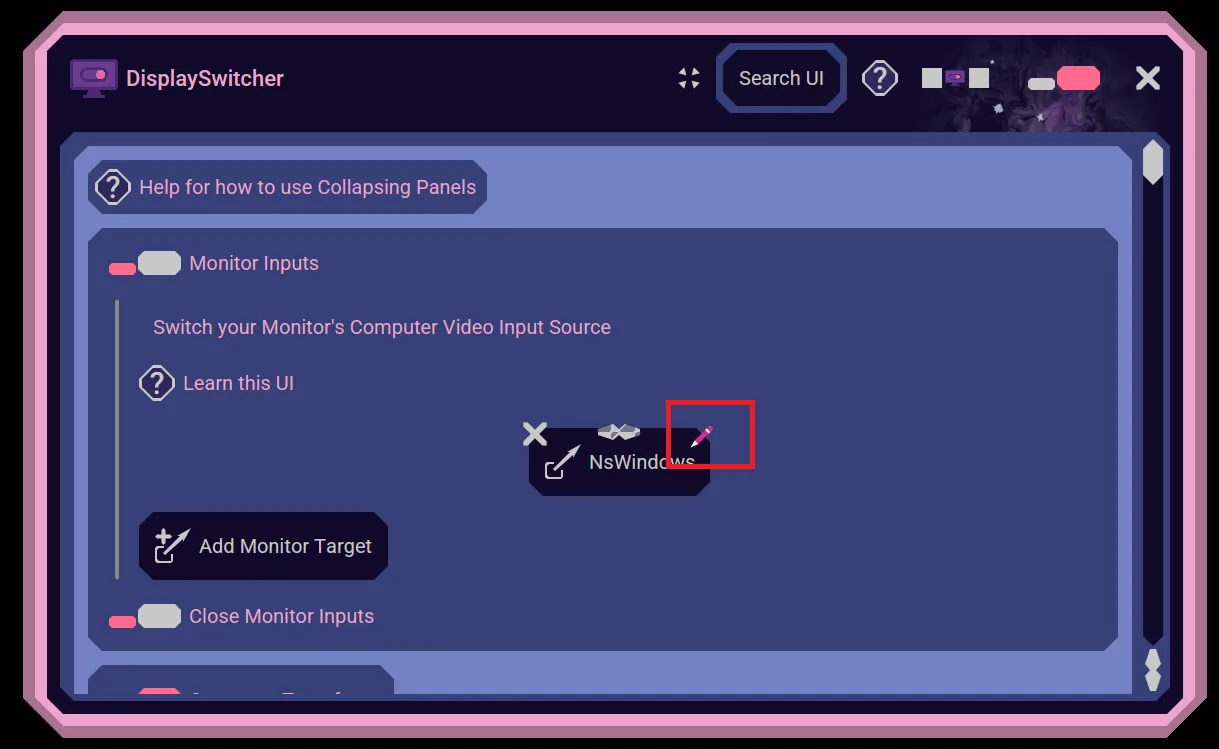
You can delete the shortcut with the delete button in the upper left.
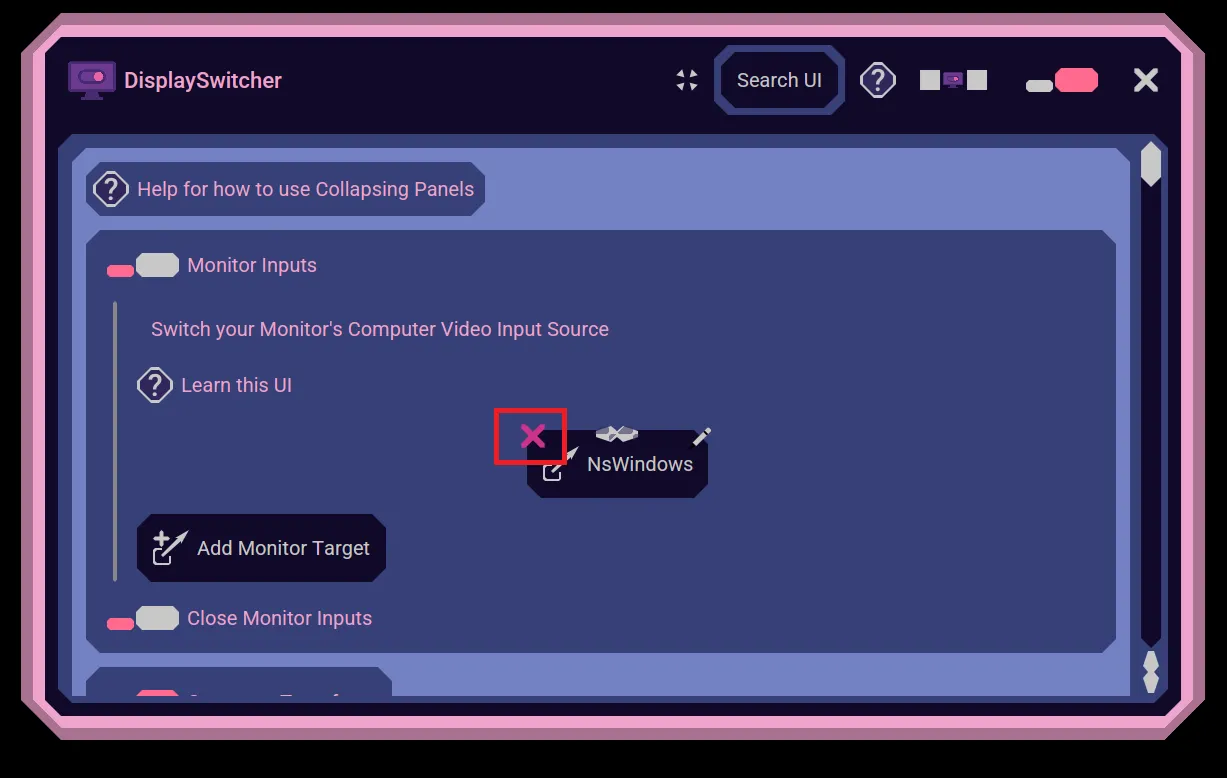
When you have more than one shortcut, you can order them in the order that makes sense to you. Just use the left and right arrows at the top of a shortcut to move it left or right in the sorting order.
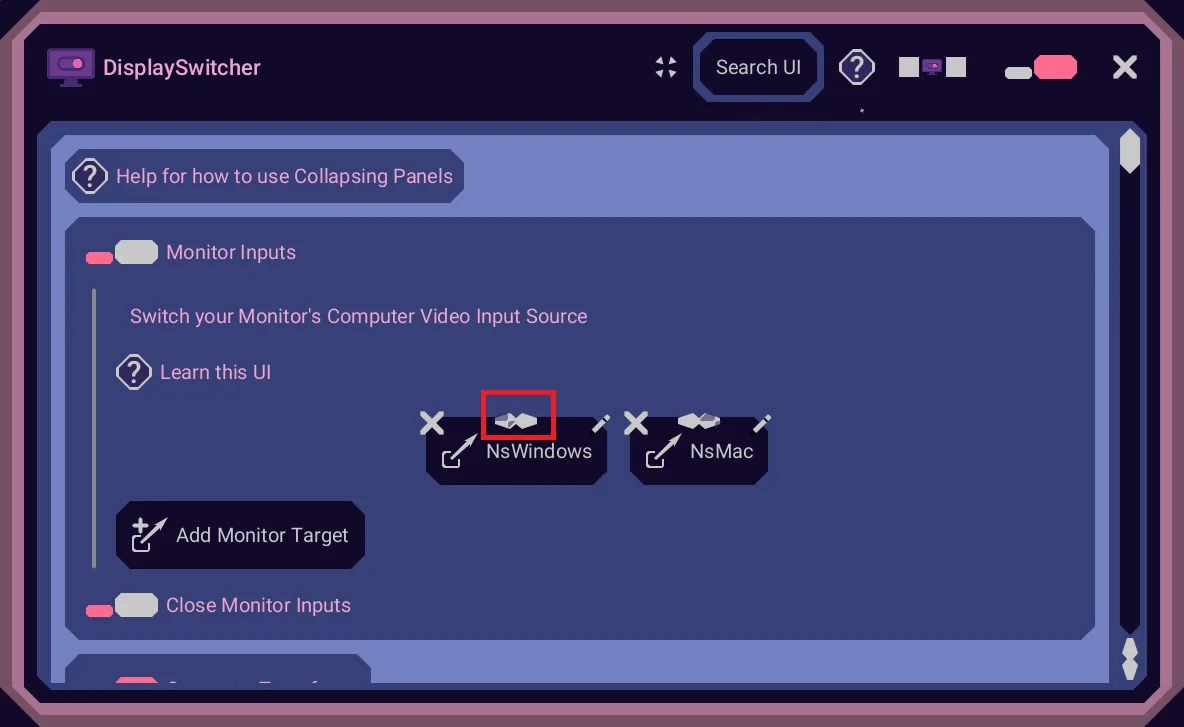
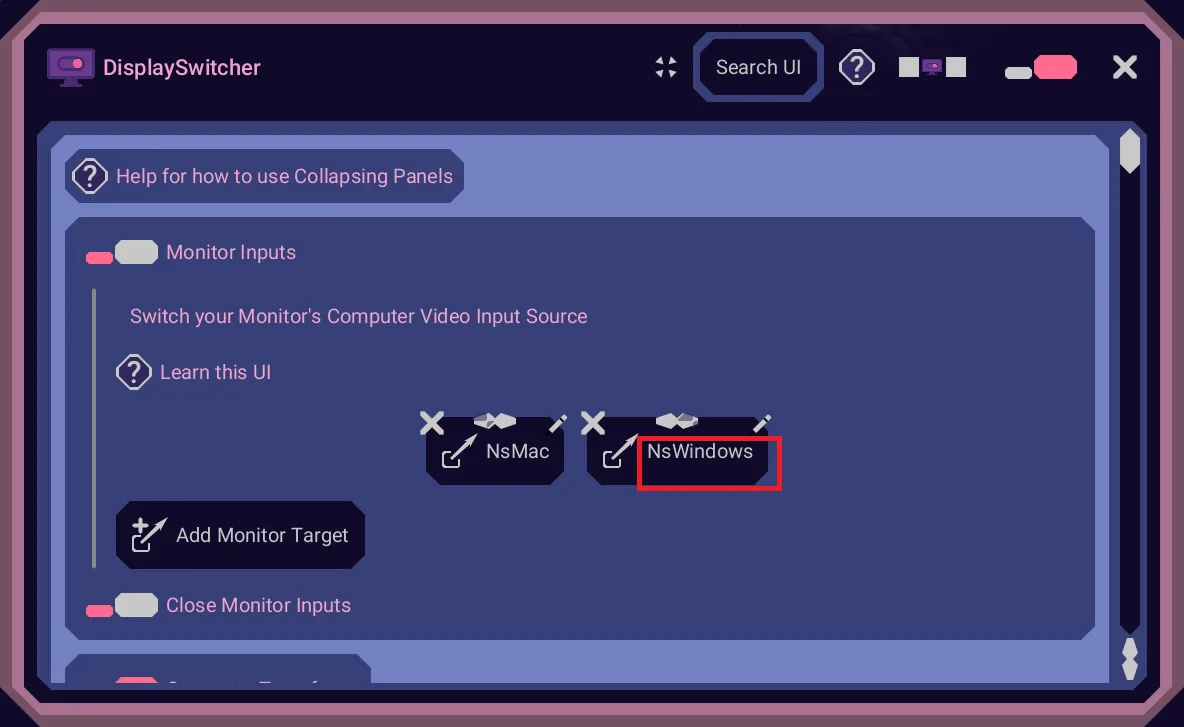
When you want to switch your monitor, just click the window shortcut button.
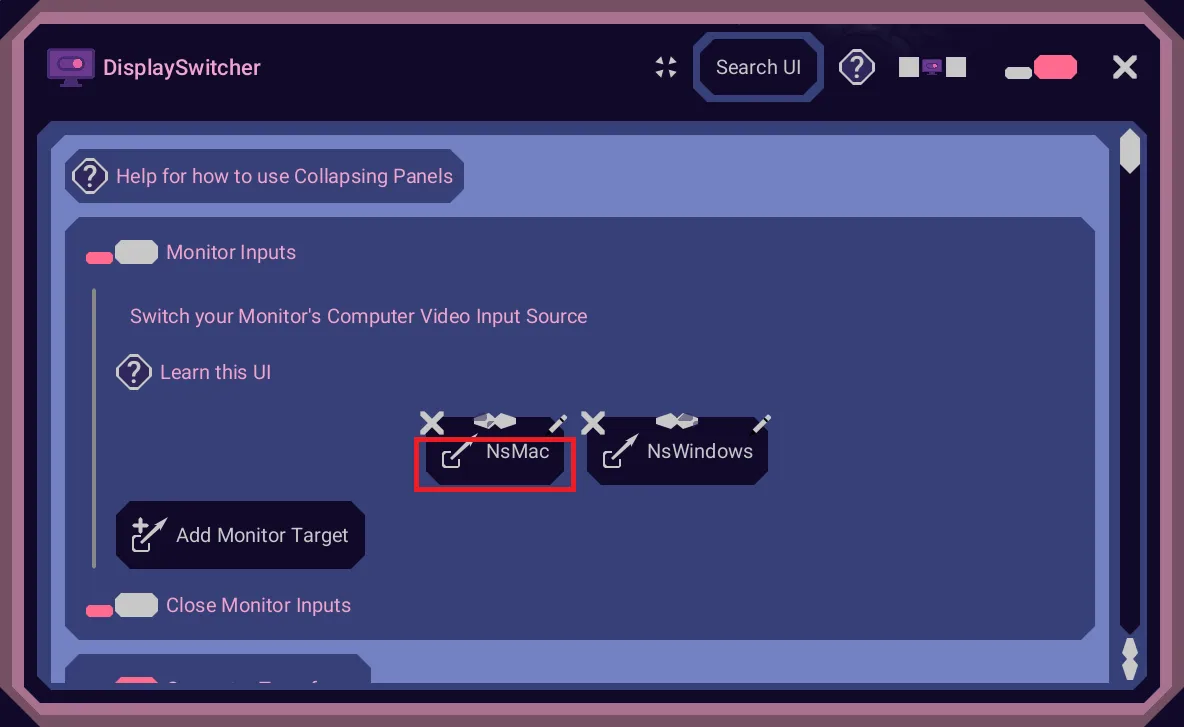
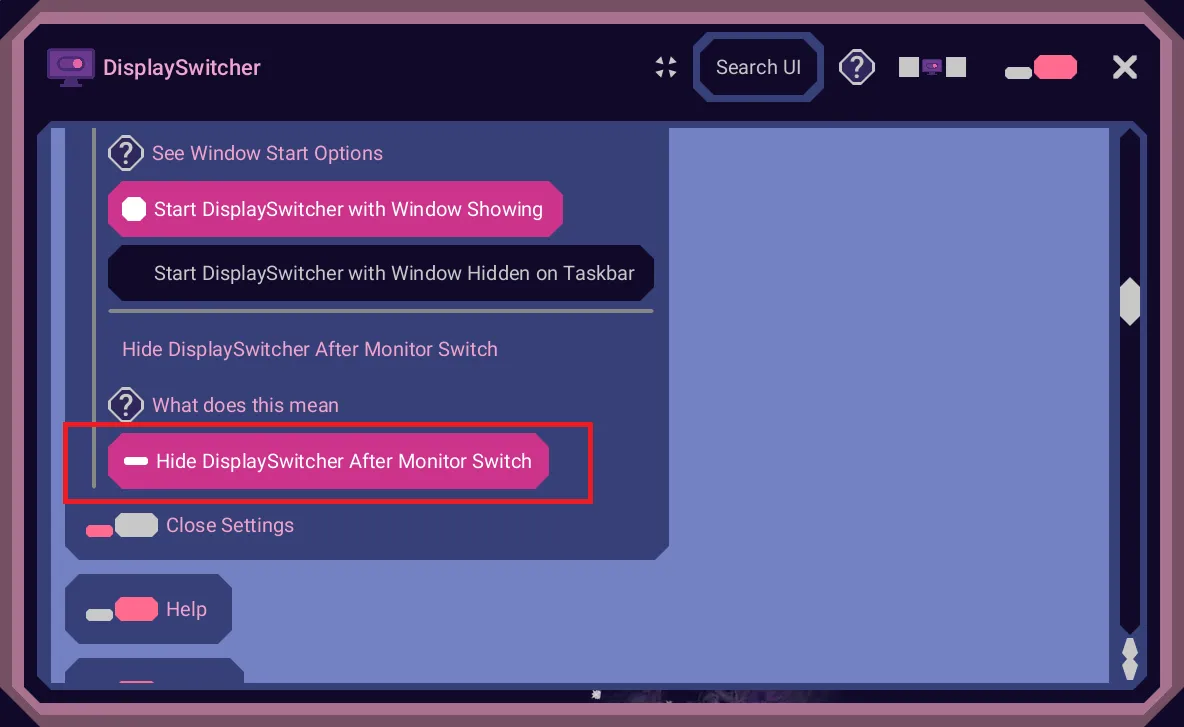
It will send the command to your monitor and optionally hide the DisplaySwitcher window. In Settings you can specify if you want the auto hide of the DisplaySwitcher window or not.
Panel Flow Layout
The Monitor Inputs panel flows the Monitor Shortcuts in the available space from the window size.
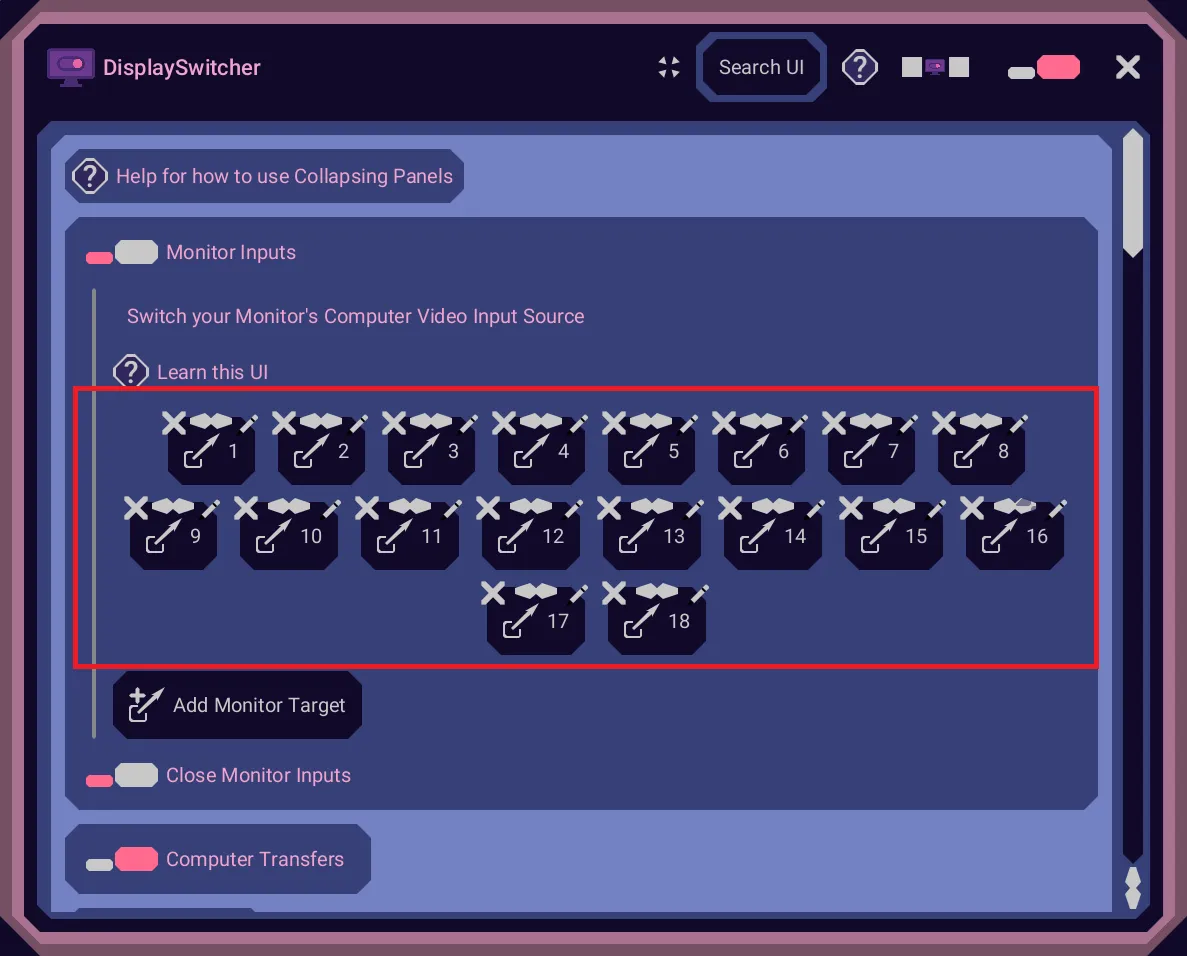
This can let you size the DisplaySwitcher window to show just your monitor shortcuts to make the window small and out of the way. You might decide to position your shortcuts so they list horizontally or vertically.


If you need to make the DisplaySwitcher window size even smaller, then you can use the Make Small button in the title bar.
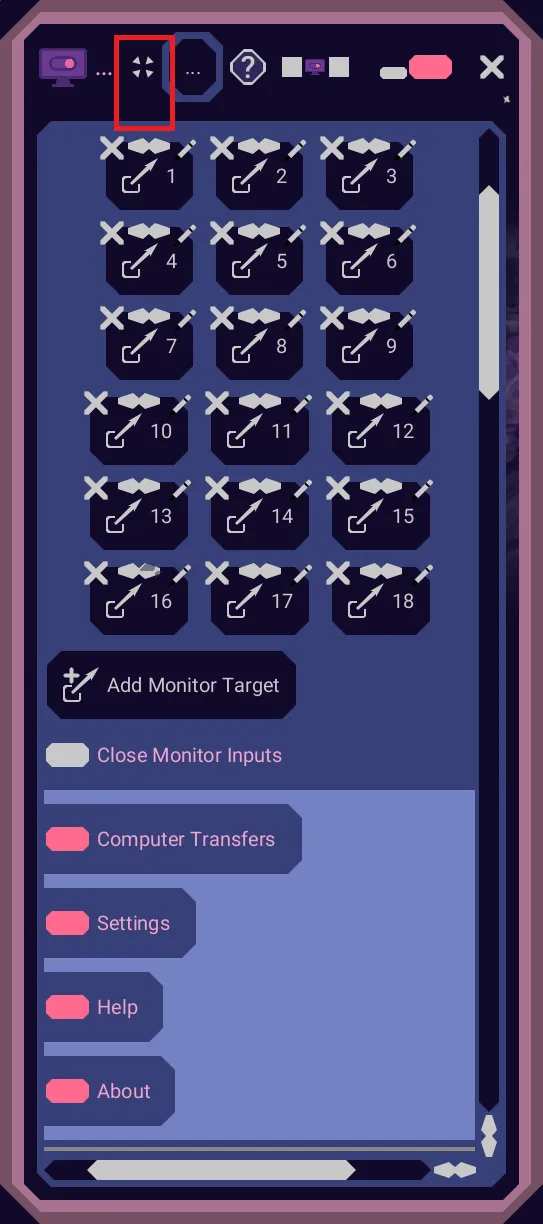

The state of that button is remembered for the next time you open DisplaySwitcher. You are not likely to have this many shortcuts, but this example uses many of them to make its point.

Remote DisplaySwitcher Monitor Targets
Some operating systems do not implement the monitor switching standard correctly and thus fail to switch the monitor's input when requested. DisplaySwitcher has a feature to allow you to make this work. Just run DisplaySwitcher on another one of your computers that is connected to the same monitor and ask that computer to do the switch for you. For example, here on this computer we have an operating system that fails to switch the monitor when the local computer's DisplaySwitcher application asks it to. So, we create a REMOTE Monitor Target. We select the remote computer NsMac, which successfully can change the monitor's input. We then ask it to switch the monitor input to HDMI 1, which is the input to the NsWindows computer.
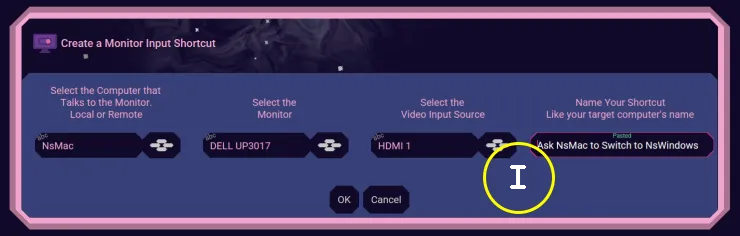
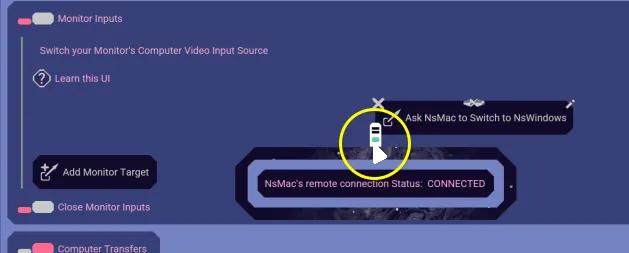
Now DisplaySwitcher can succeed in switching your monitor even though this computer's operating system fails to do so! Use the remote computer icon to know when that remote computer is online or not. Green means it is connected. Red means it is disconnected.
Monitor Shortcut Images
You can change the image icon for your monitor shortcut.
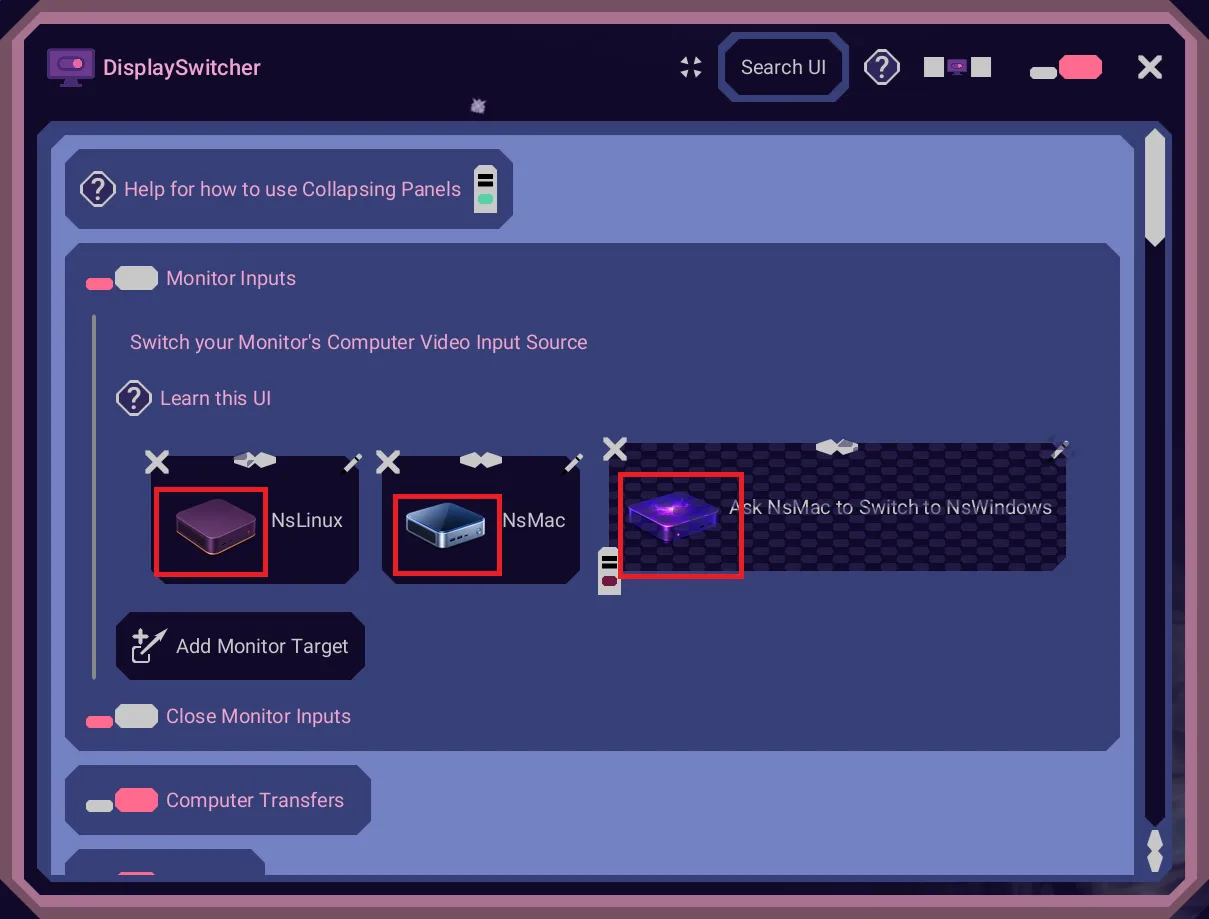
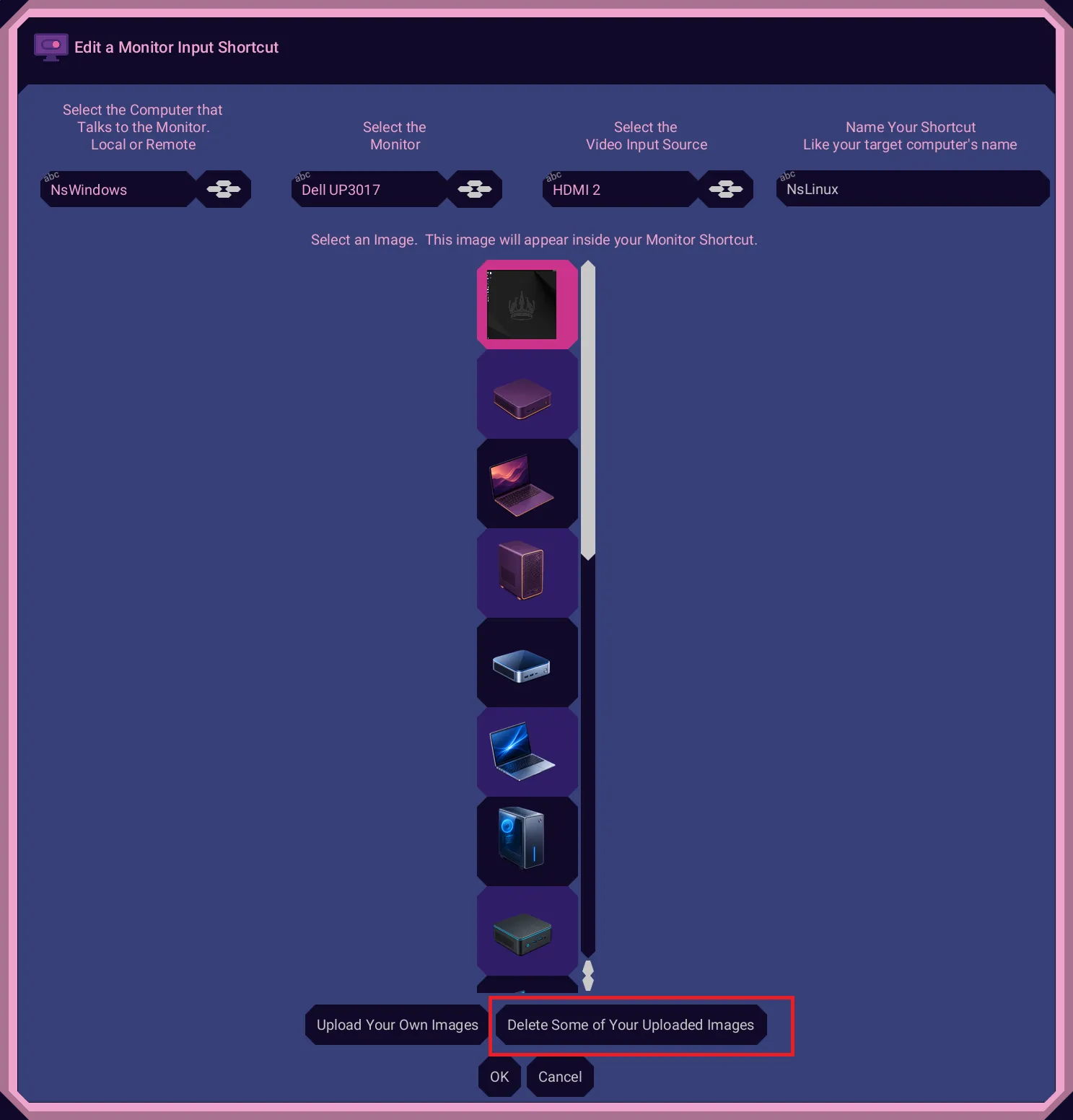
You can choose from one of the built in images or you can choose to upload your own images.
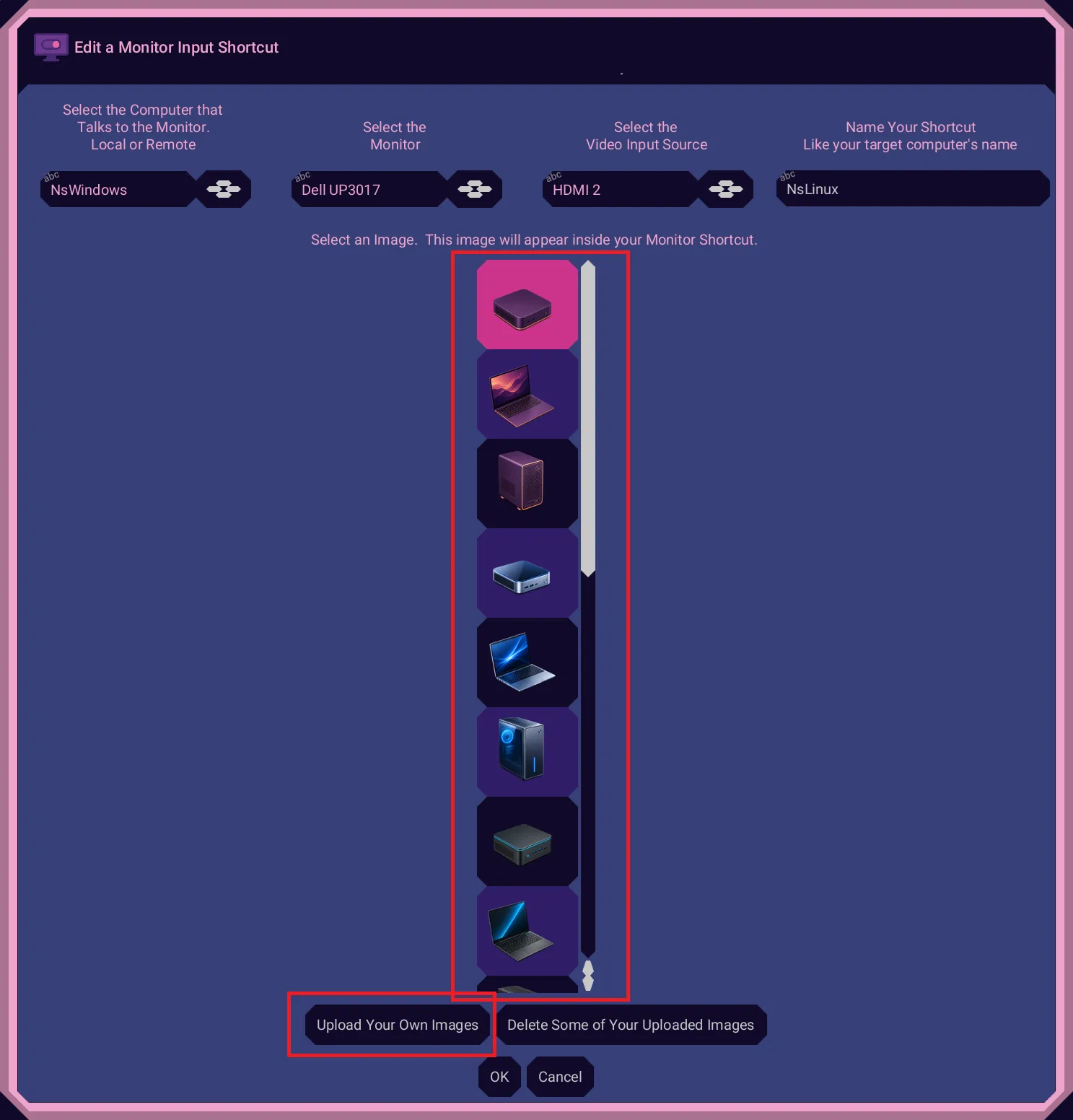
If you want to upload an image, choose any image file and it will be scaled to the icon's size.
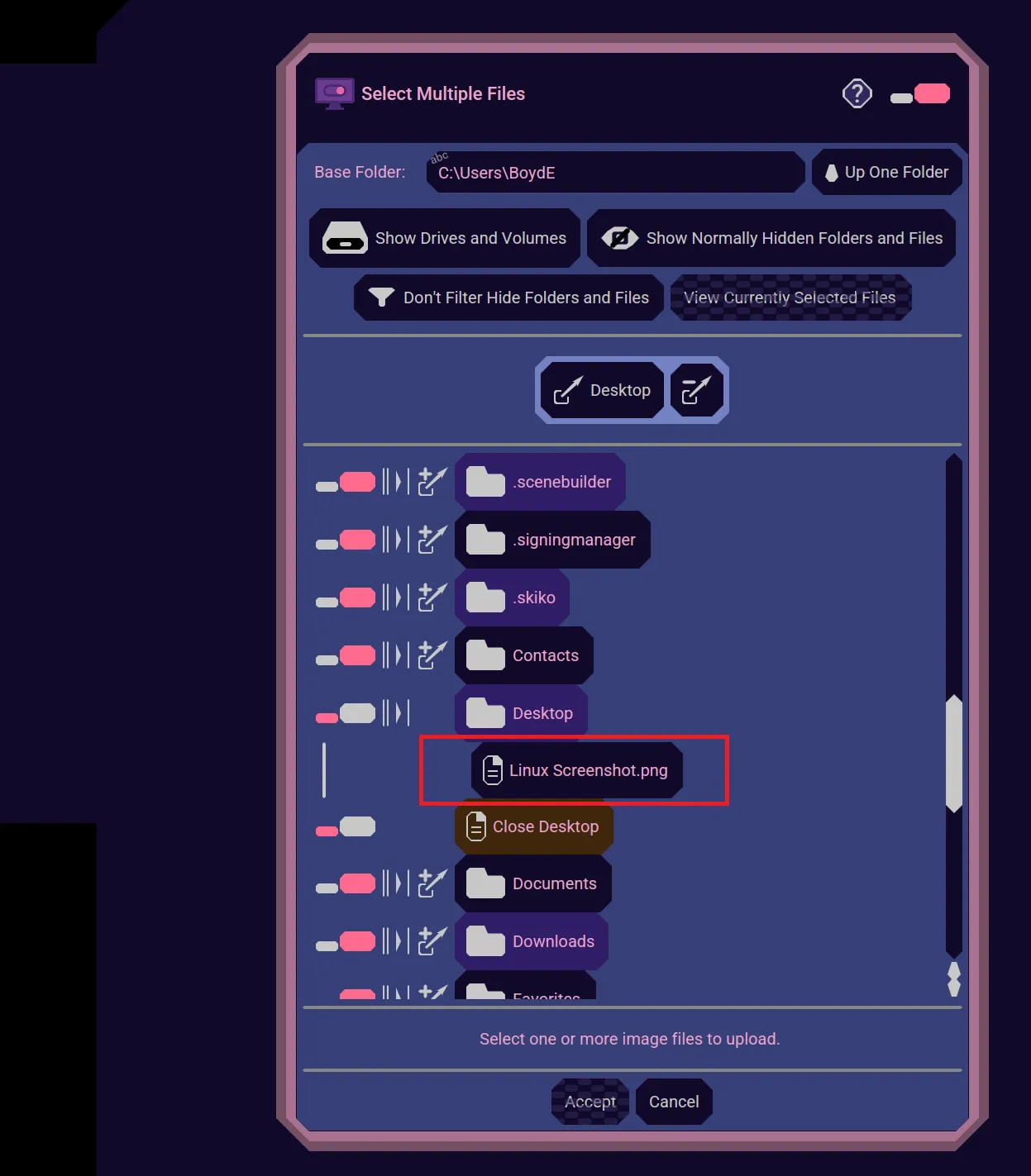
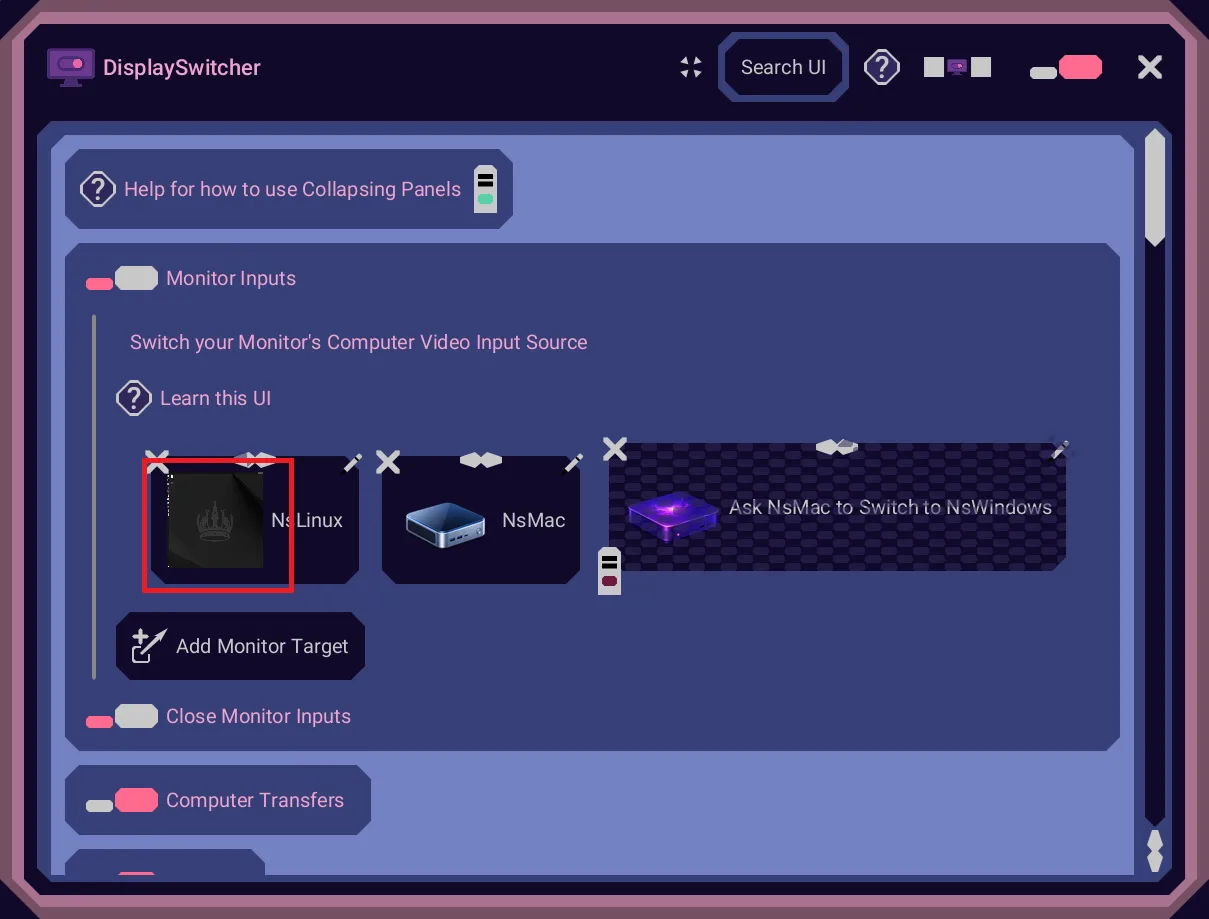
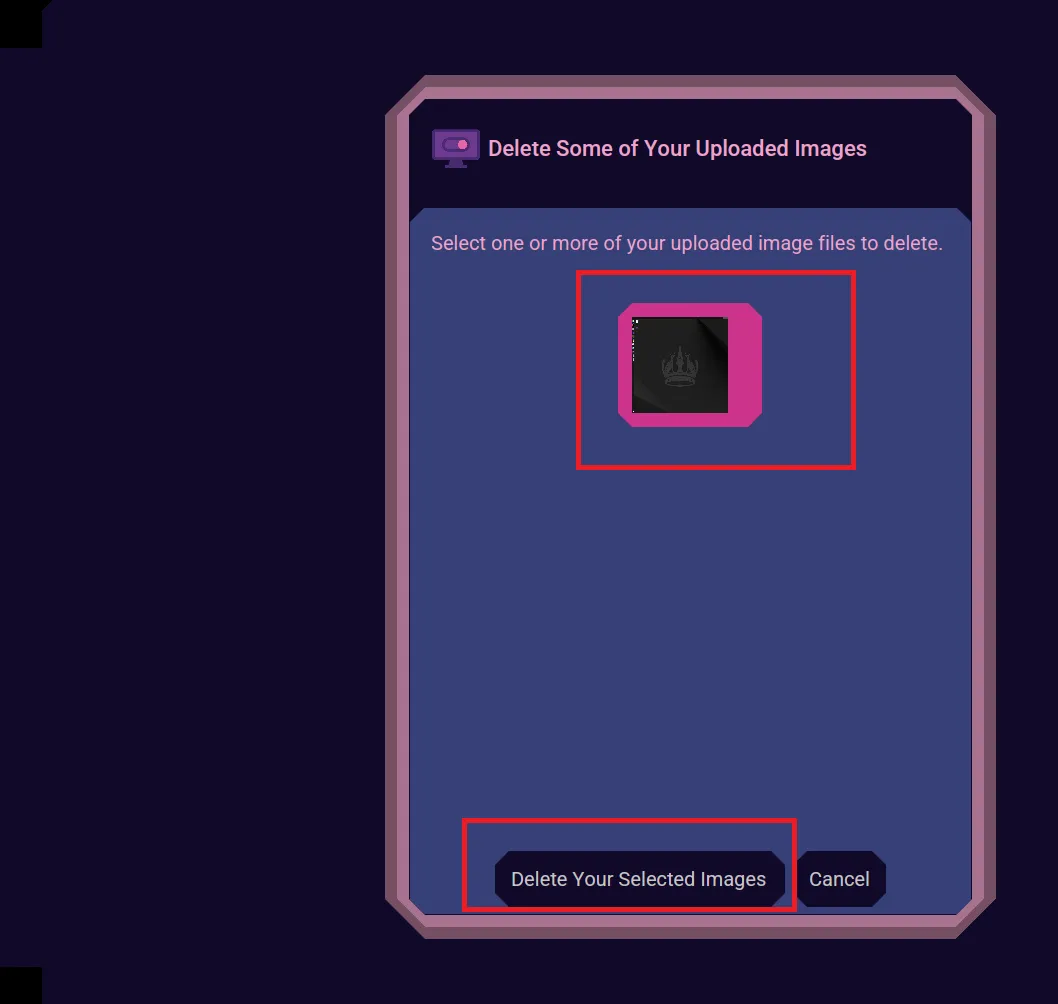
You can also delete images you have uploaded. If you delete an uploaded image that one of your monitor shortcuts is using, then it will automatically be replaced with a default image.