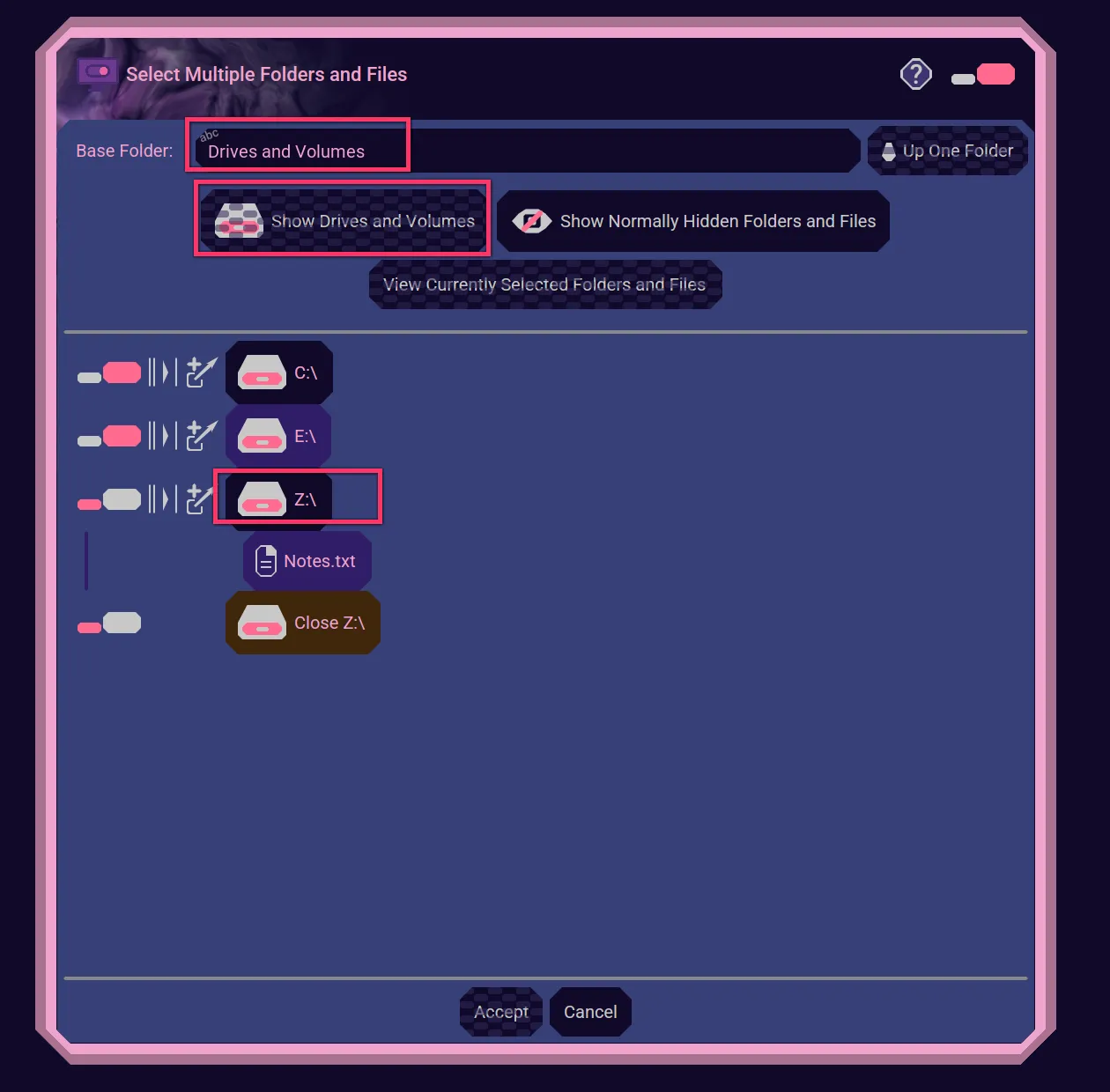
Advanced File Chooser
The Nebula Software Advanced File Chooser lets you select items when the application ask you for them. For example, a Drive, Volume, Folder, or File. A single one or multiple ones at a time.
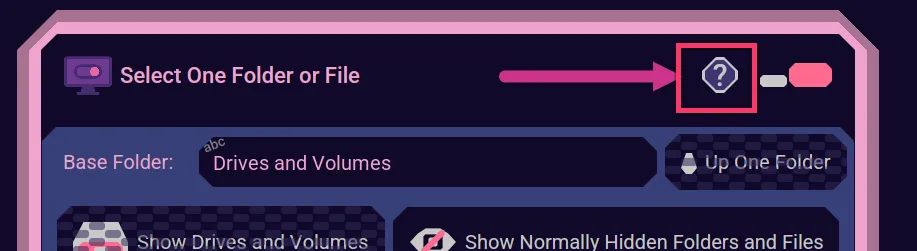
Help
Use this button to get to the documentation and video.
Selection Reminder
This reminds you what you are supposed to be selecting.

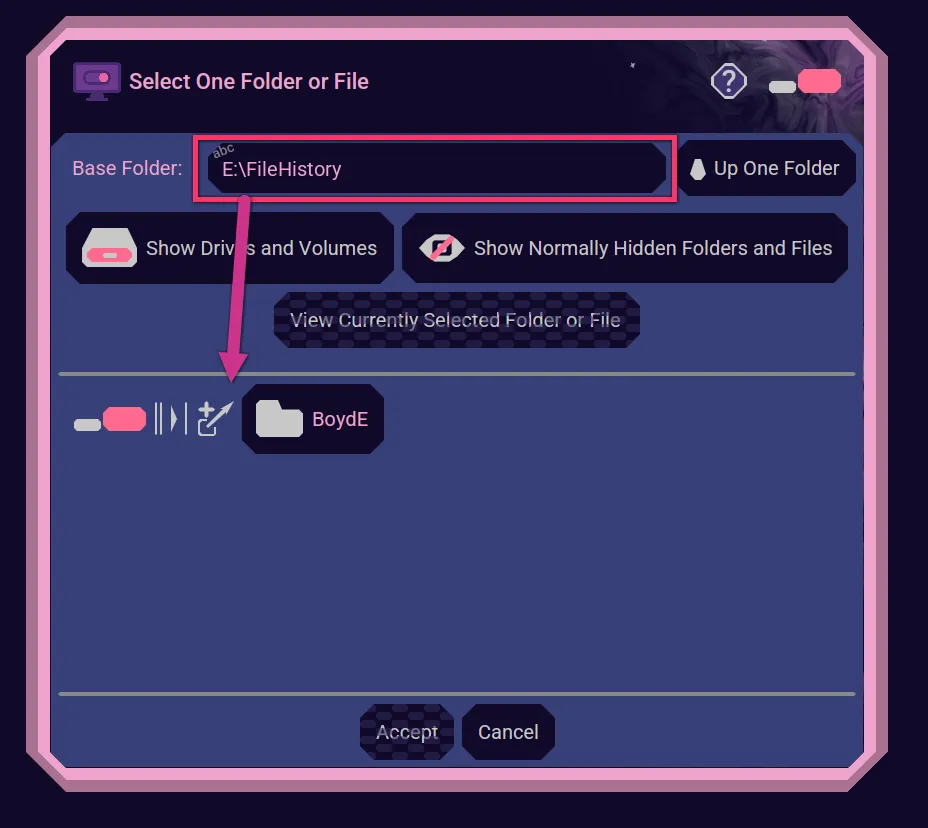
Base Folder
The Base Folder tells you what the top level is of what is being displayed in the listing.
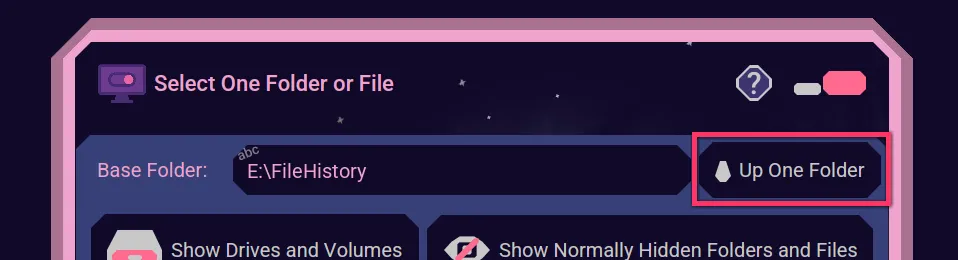
Up One Folder
Use this button to change the Base Folder to be one level up.
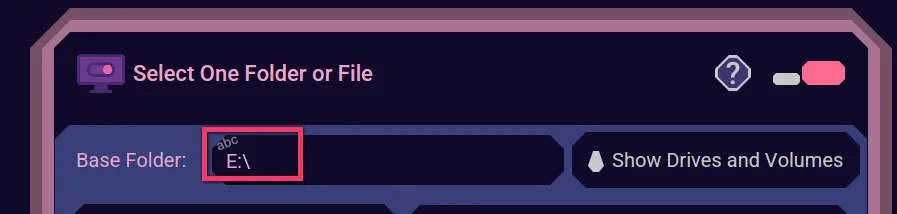
Show Drives and Volumes
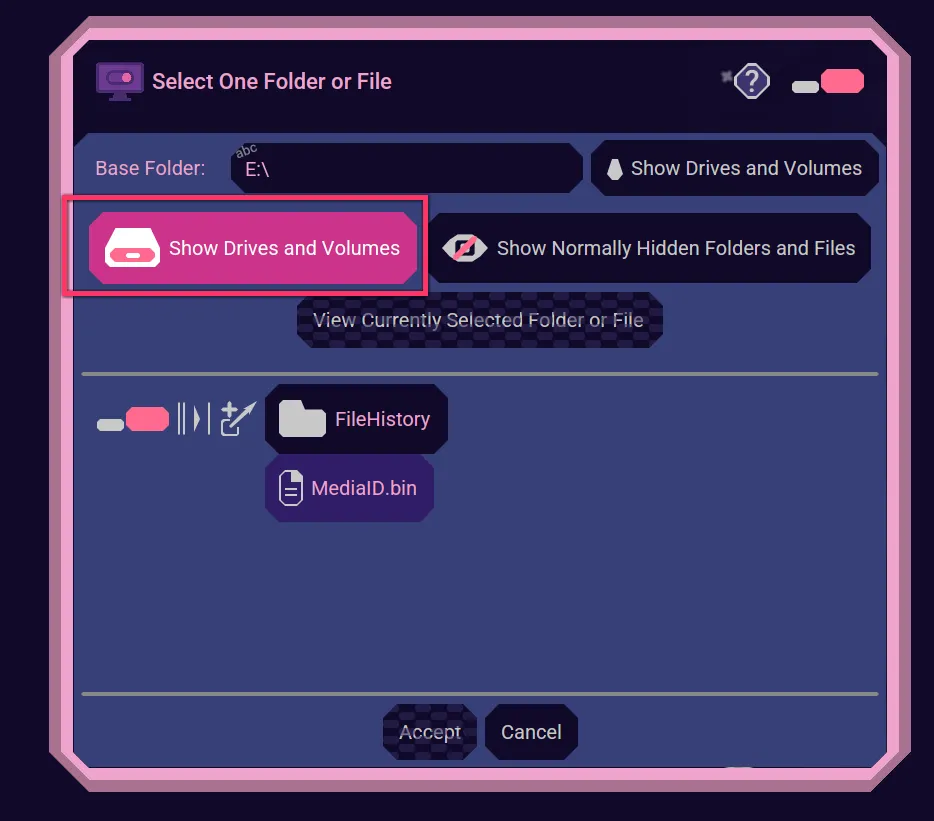
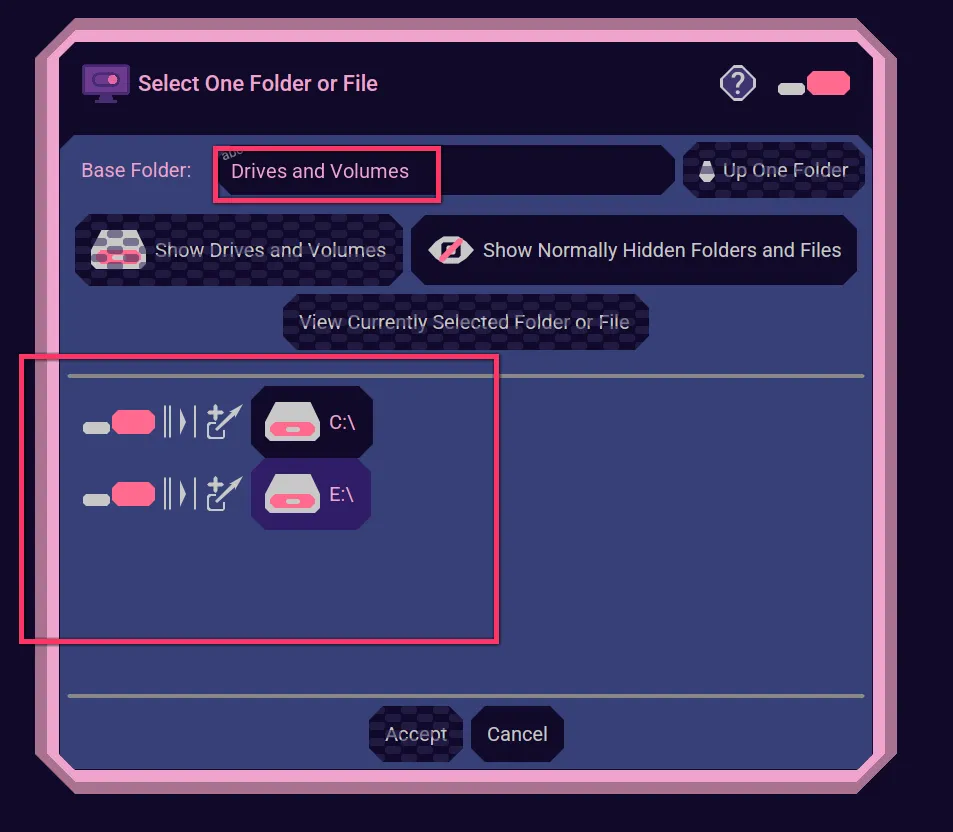
No matter what your Base Folder is currently set to, click the Show Drives and Volumes button to go all the way to the top.
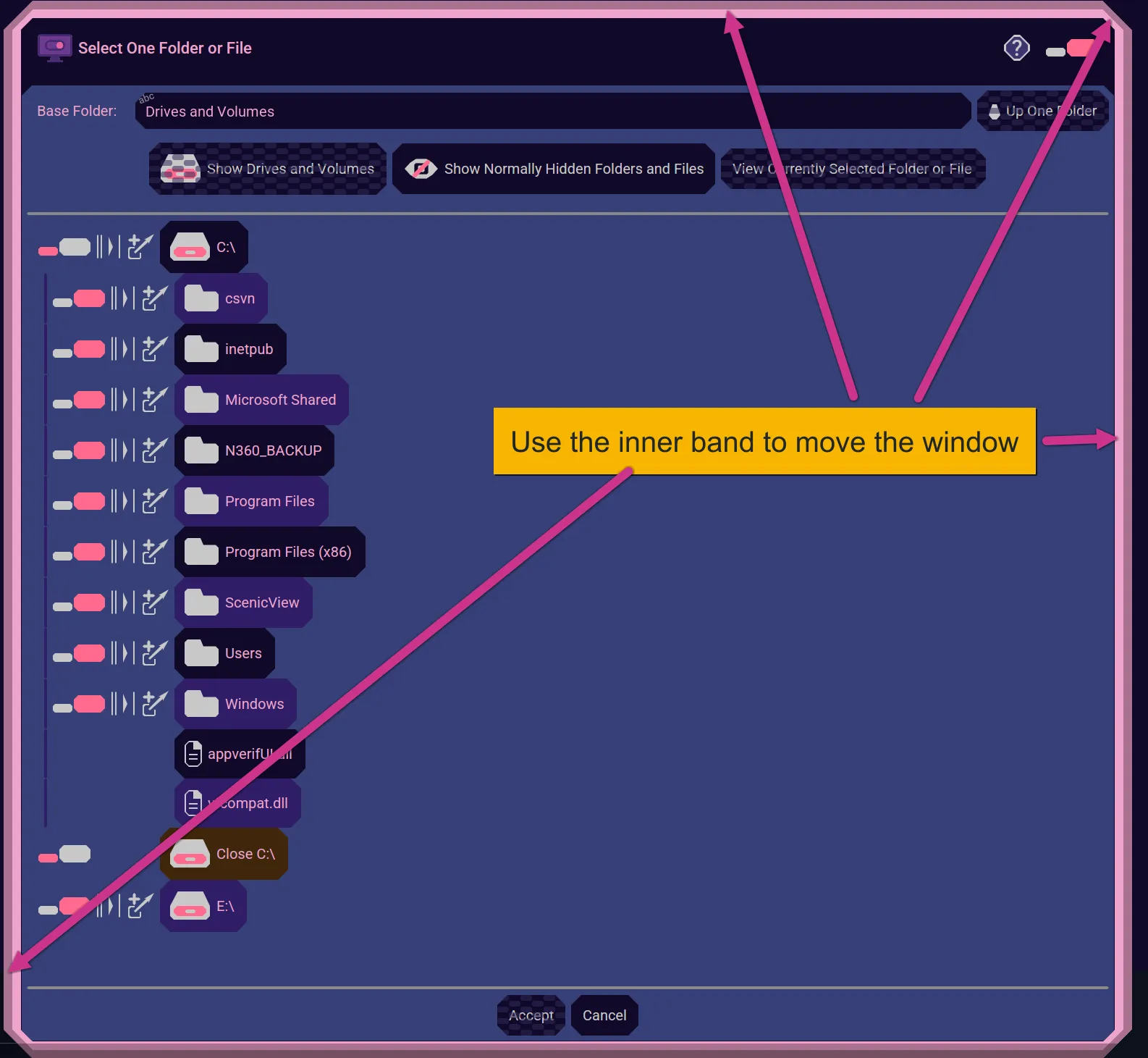
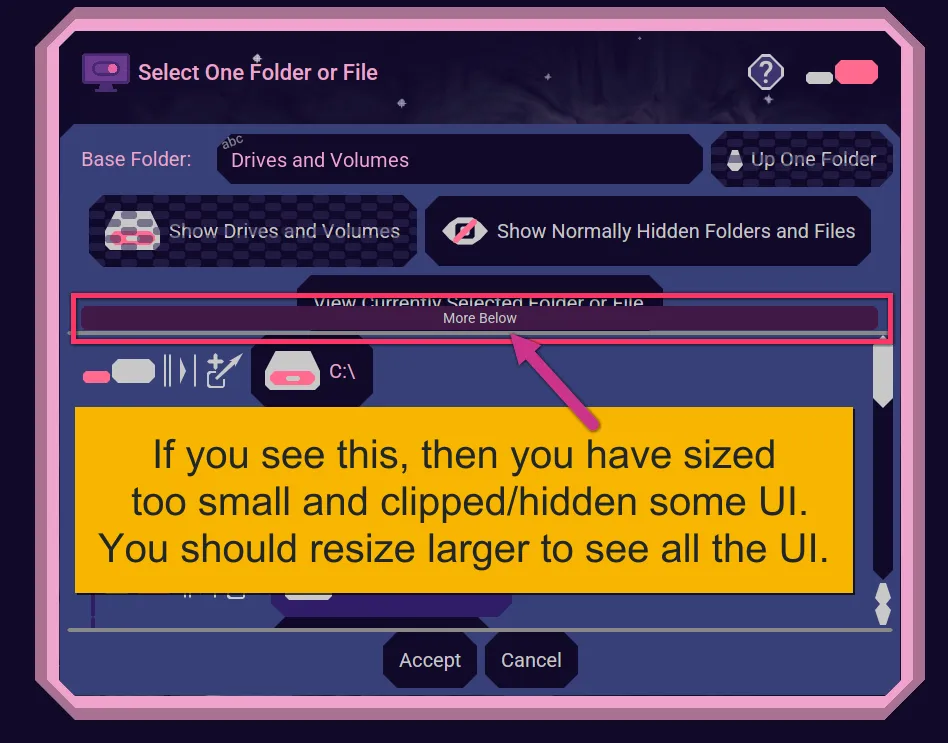
Resizing the Window
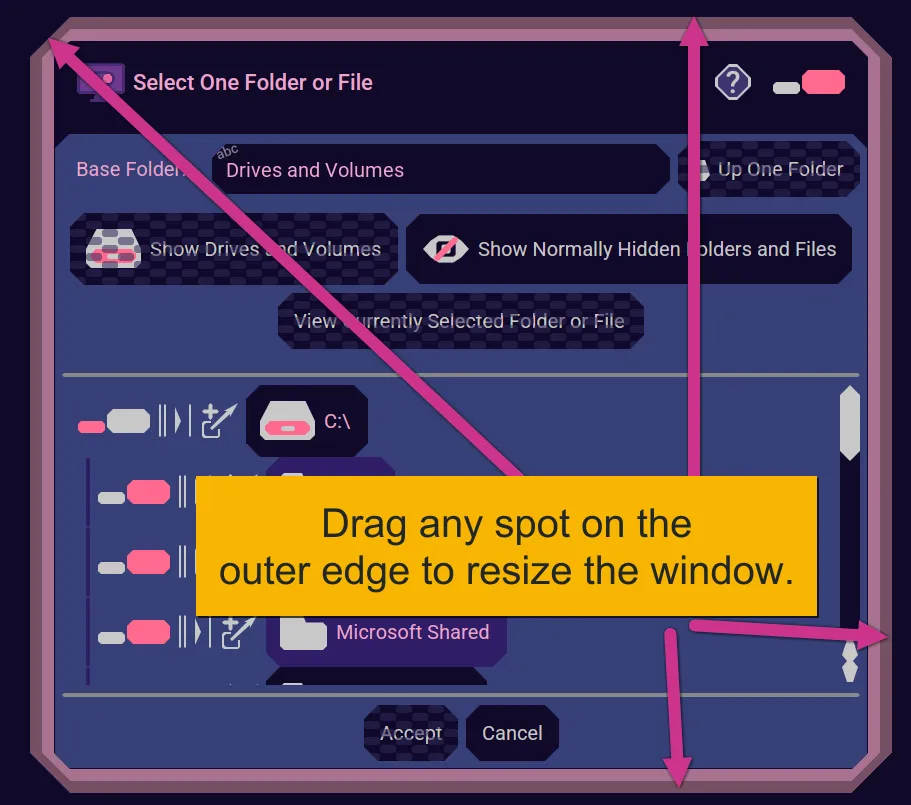
Get more room to view the listing area by resizing the Window.
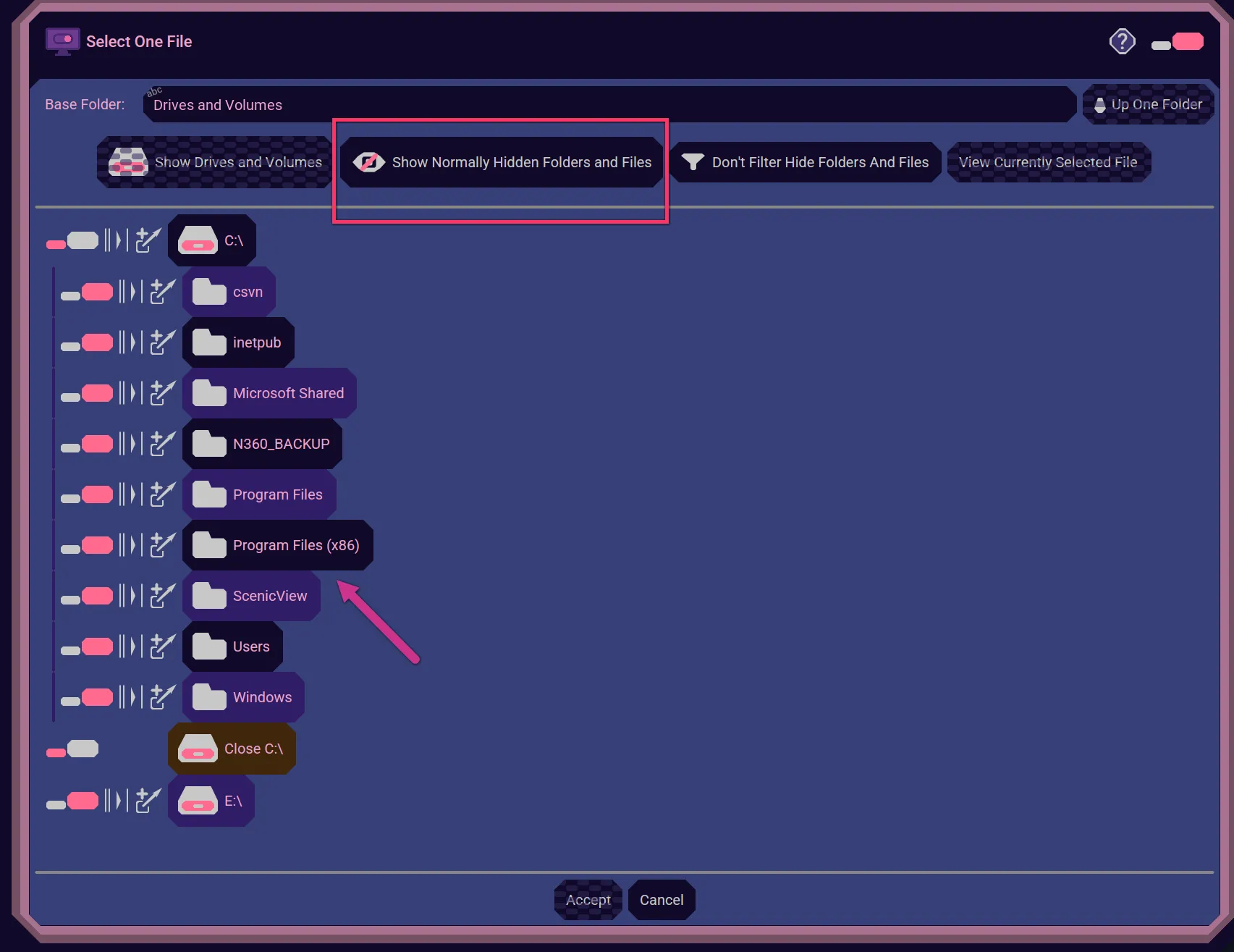
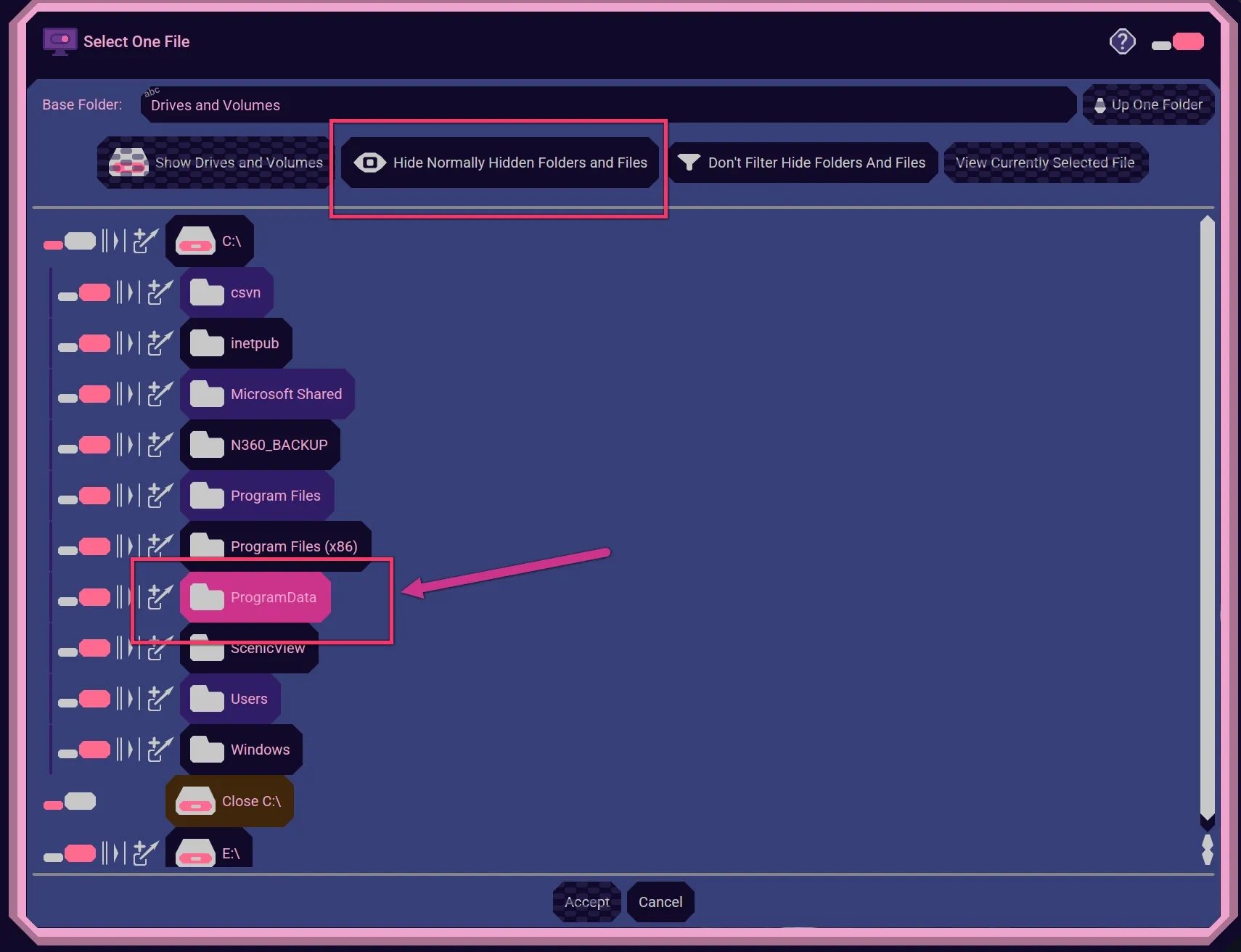
Show Normally Hidden Folders and Files
The operating system ("OS"), like Linux, Mac, or Windows, often "hide" folders and files from folder listings because the OS thinks the user doesn't need to see them. If you need to see some hidden folder or file, then click the Show Normally Hidden Folders and Files button. For example, "ProgramData" is hidden here, but shown after clicking the button.
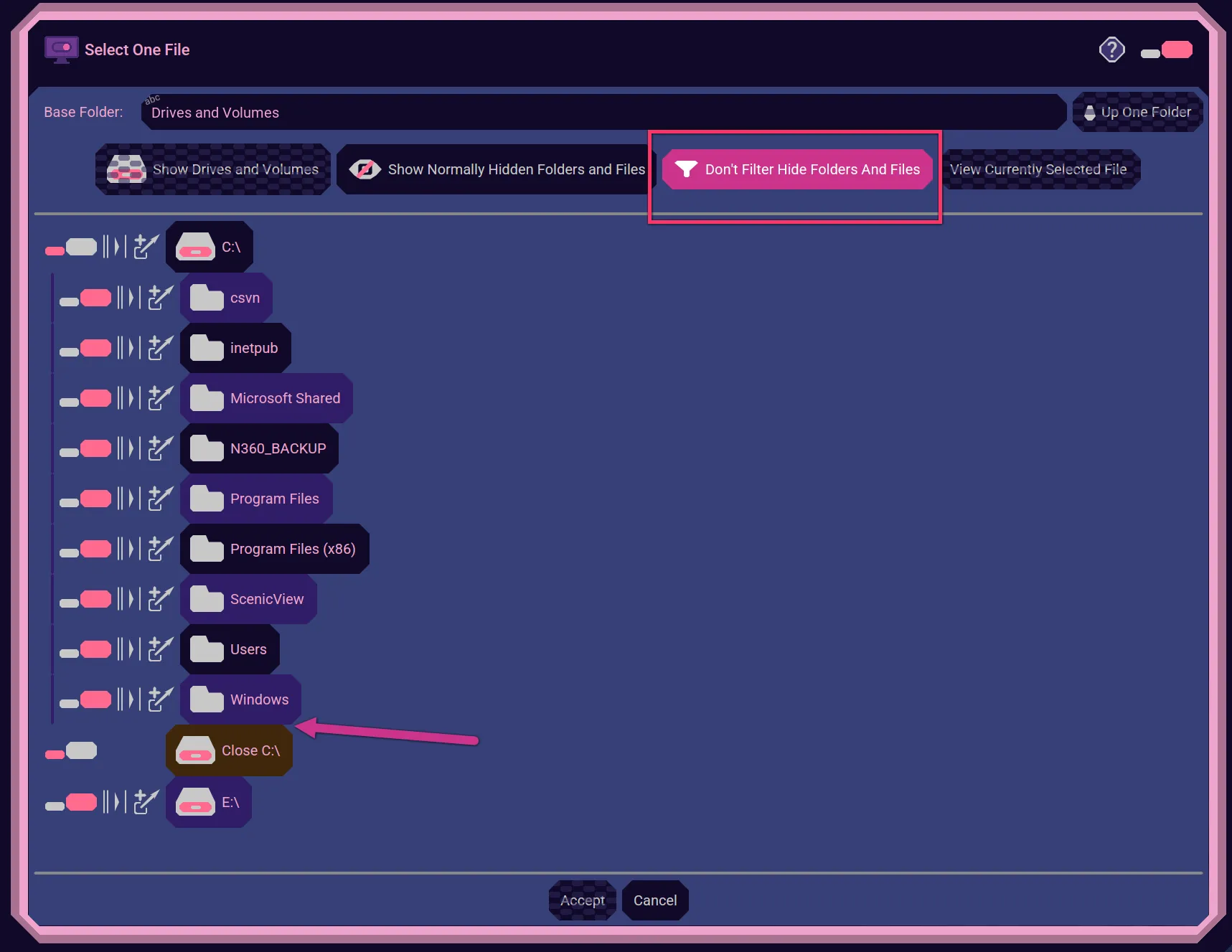
Don't Filter Hide Folders and Files
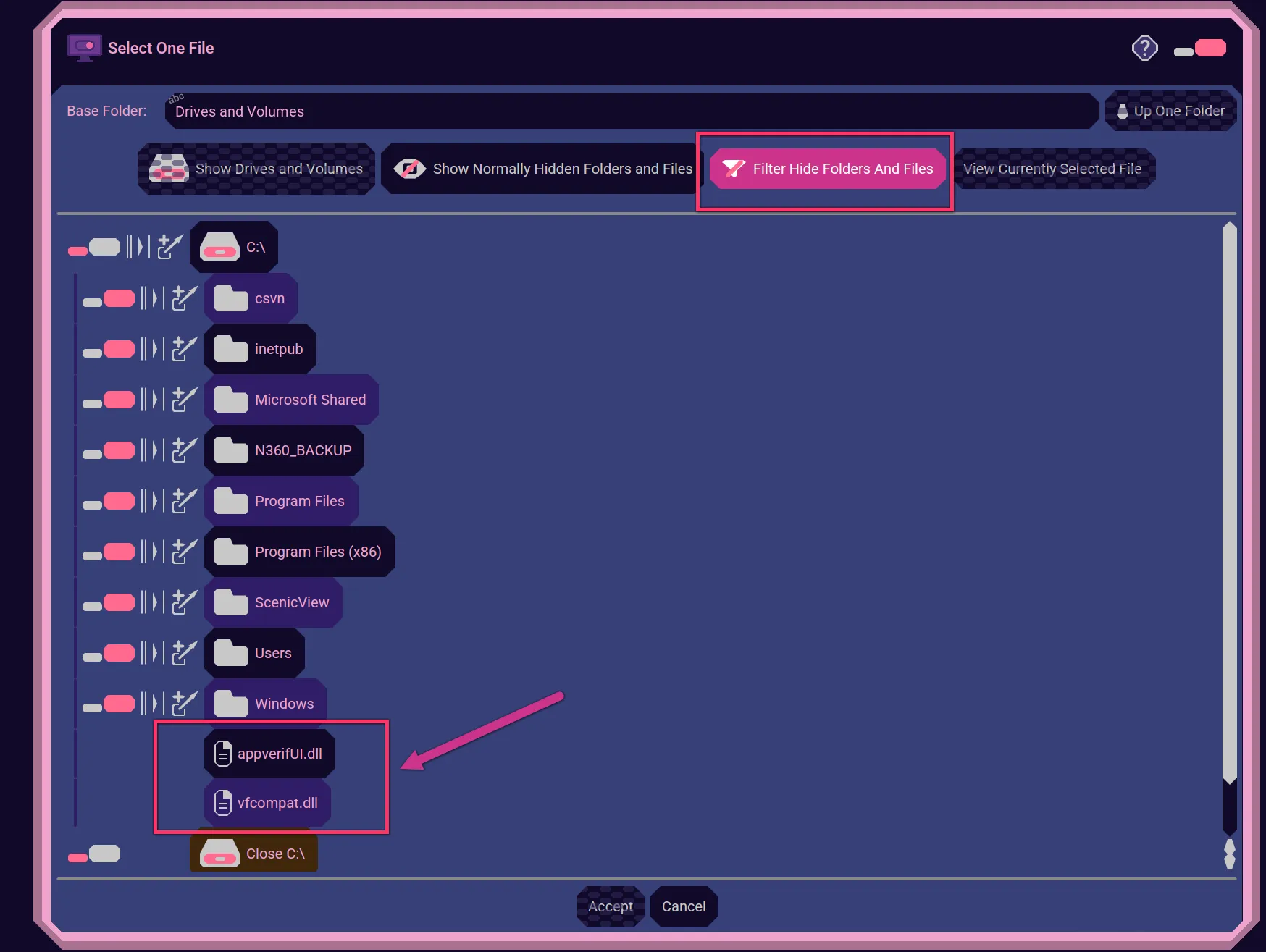
The File Chooser may be configured to filter the folders and files listing. For example, it may be filtering out any files that are not ending in ".png" for you to see only image files to choose an image.
Sometimes you may need to turn off the filter so you can see other files that you know are still valid to select.
For example, in these screenshots, you can see the files ending in ".dll" were being filtered out from display.
Shortcuts
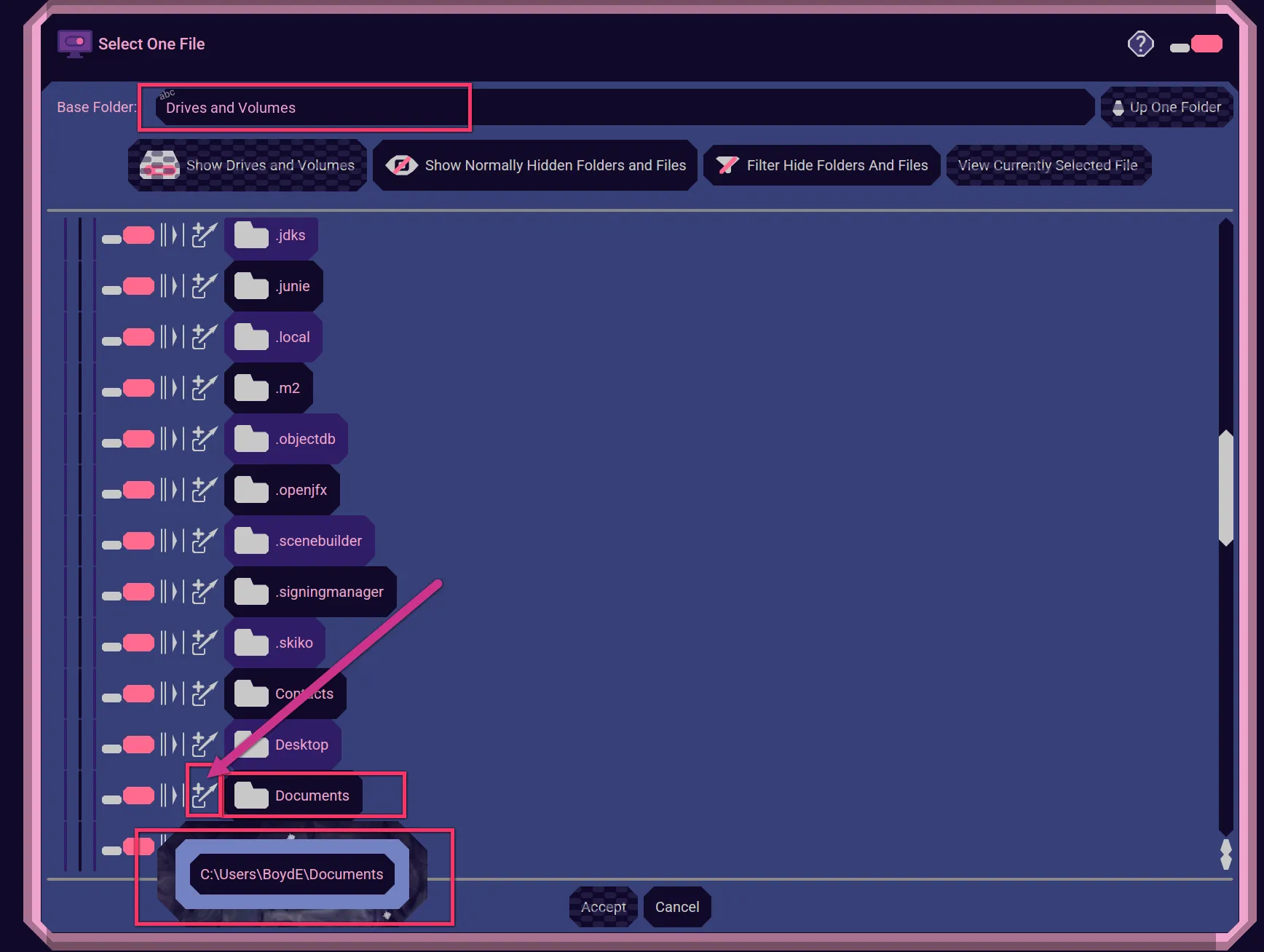
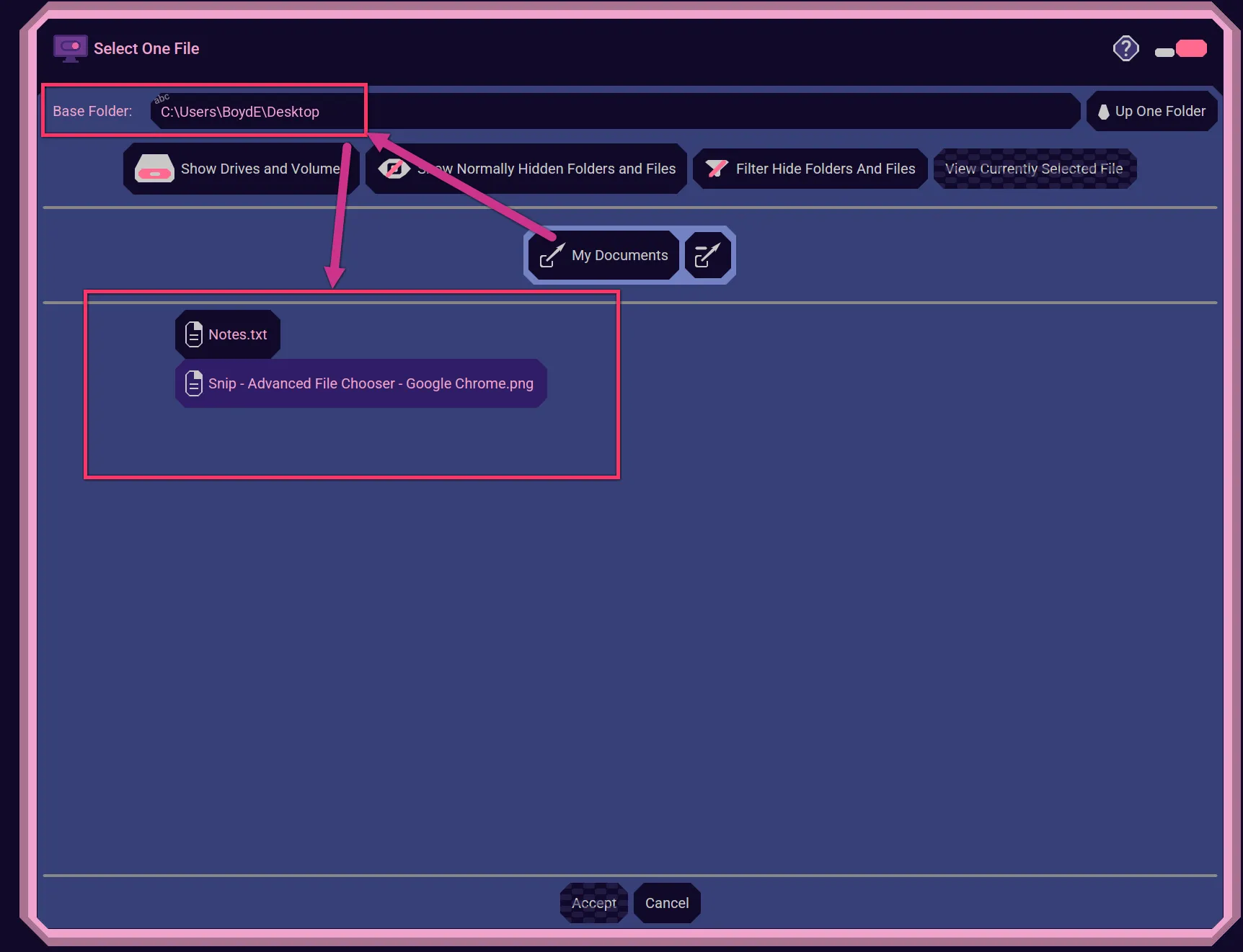
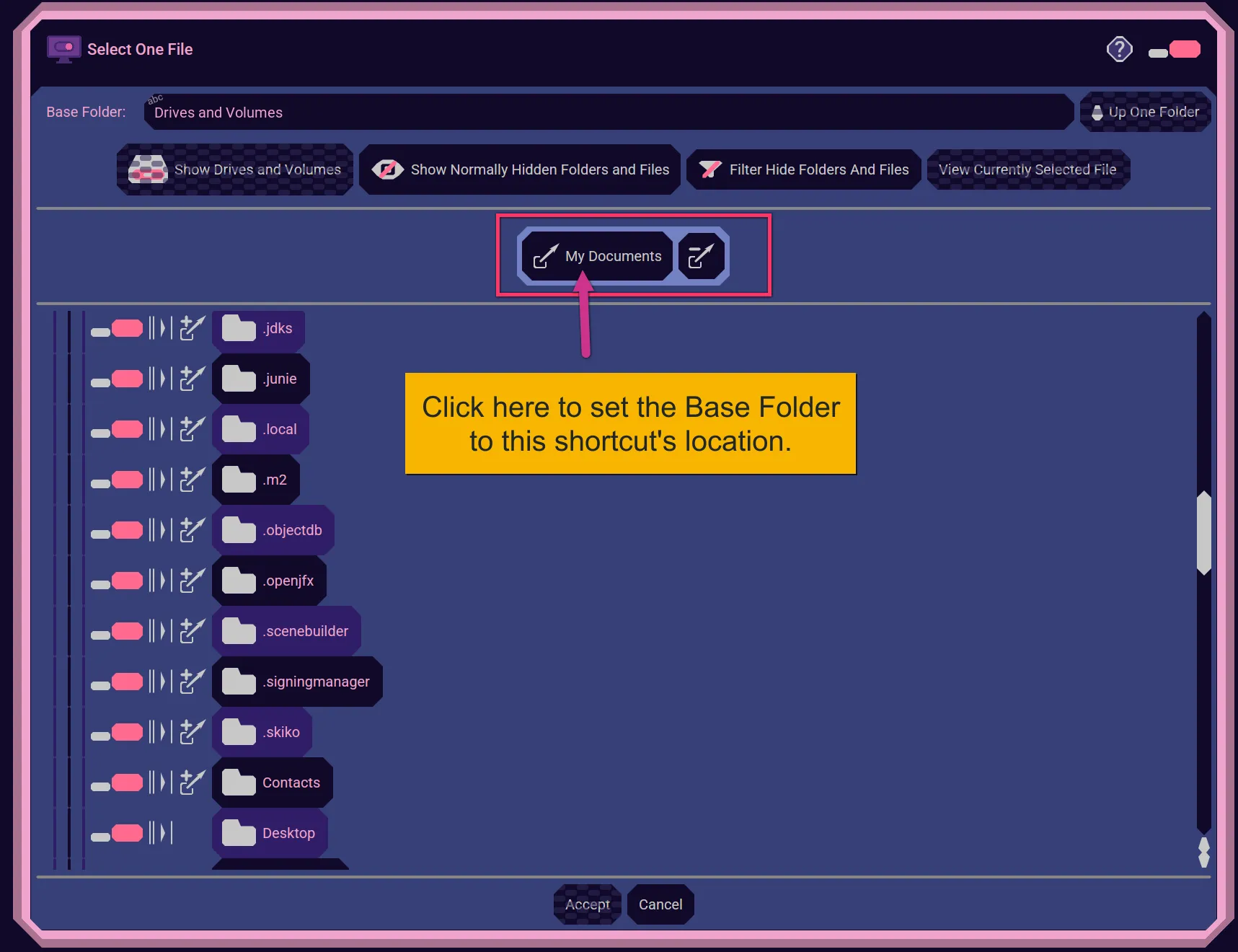
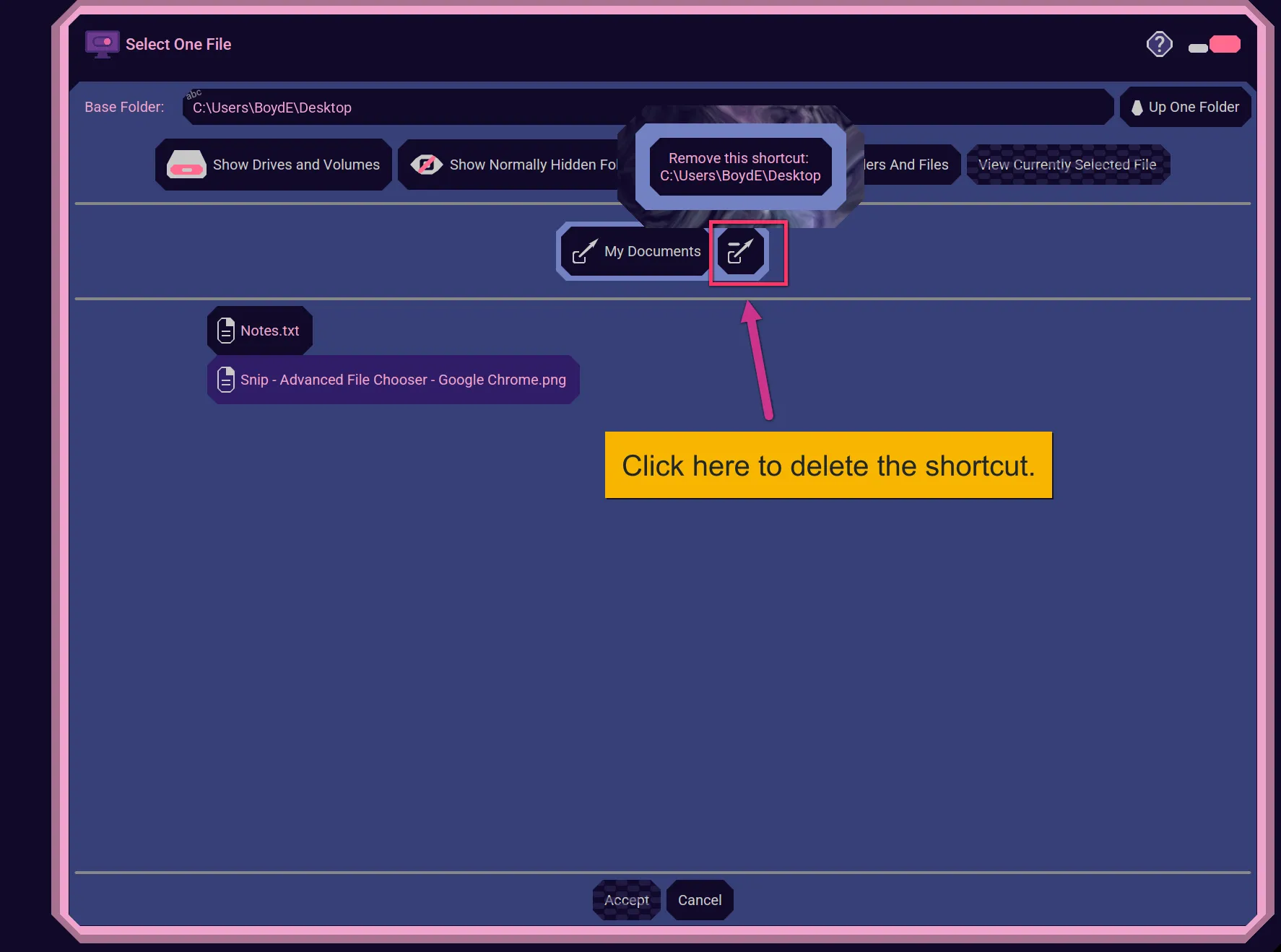
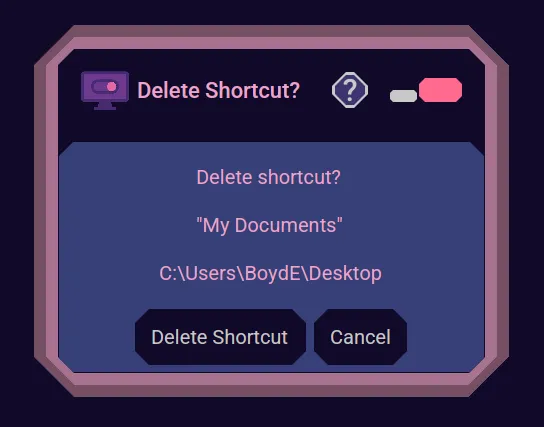
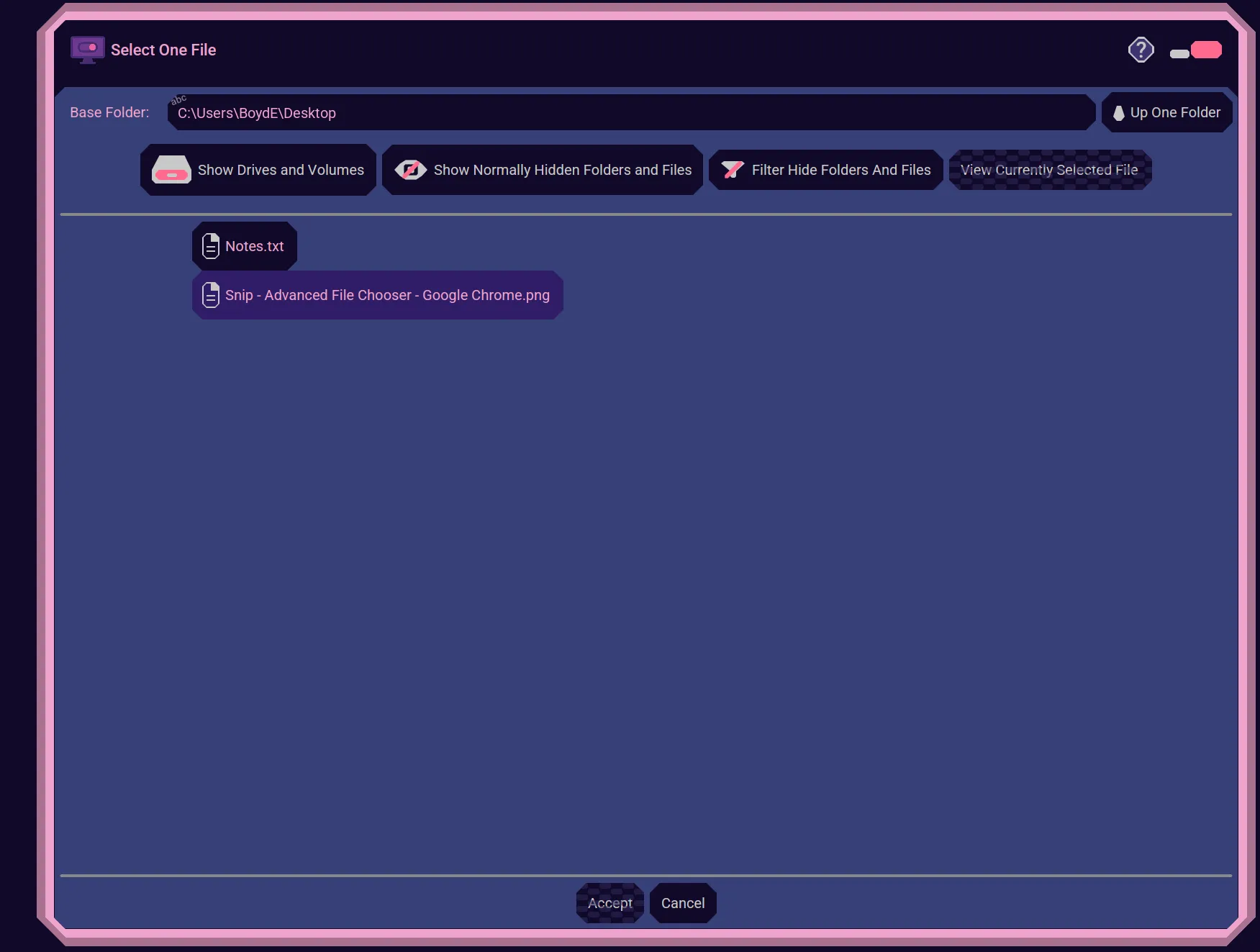
You can create shortcuts to your prefered folder locations. For example, here we choose to make "My Documents" shortcut to "C:\Users\BoydE\Documents".

Expand and Collapse
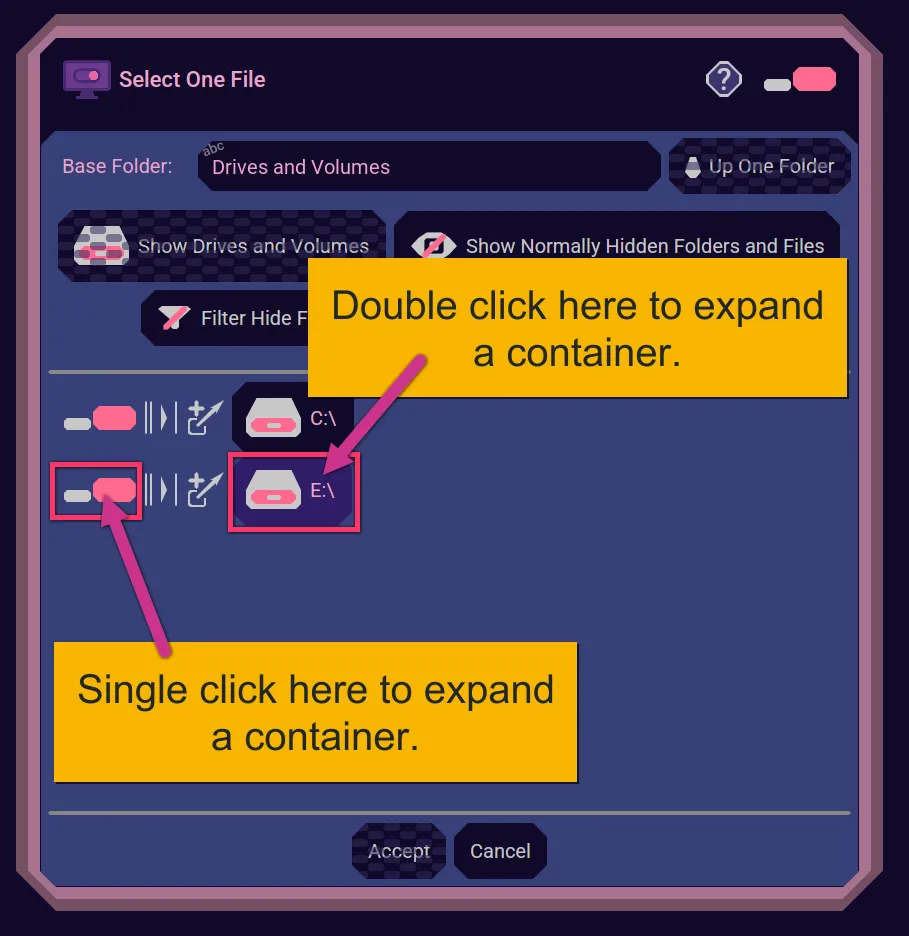
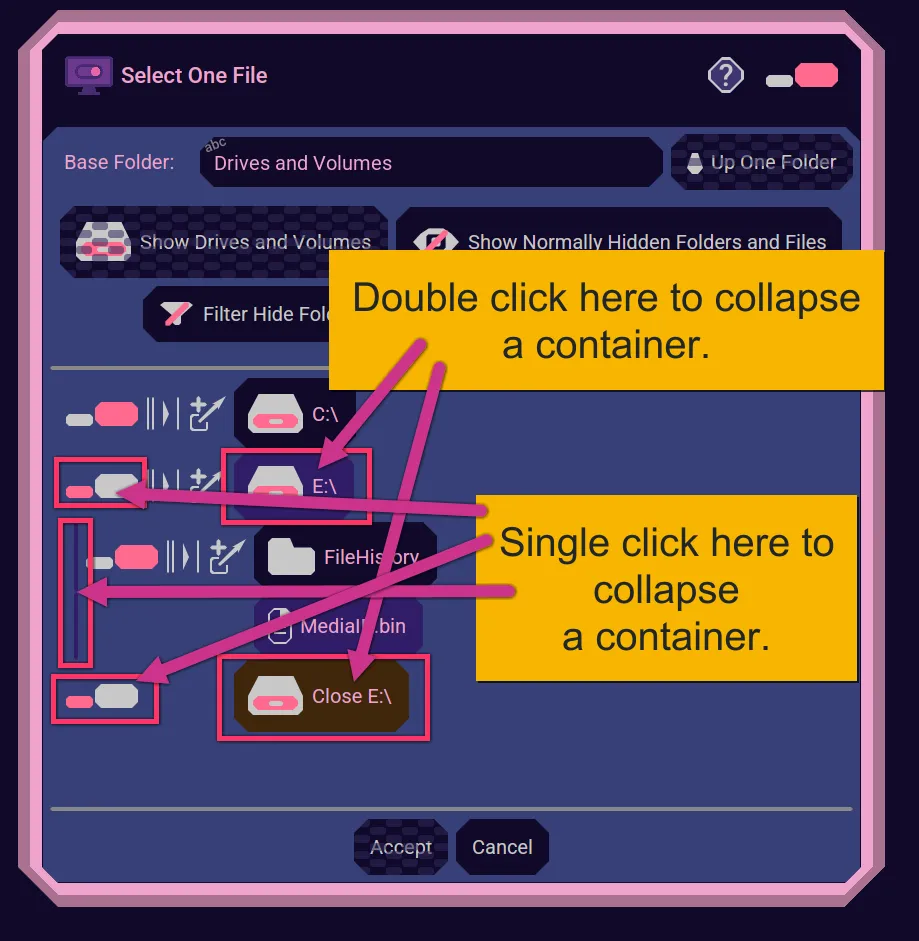
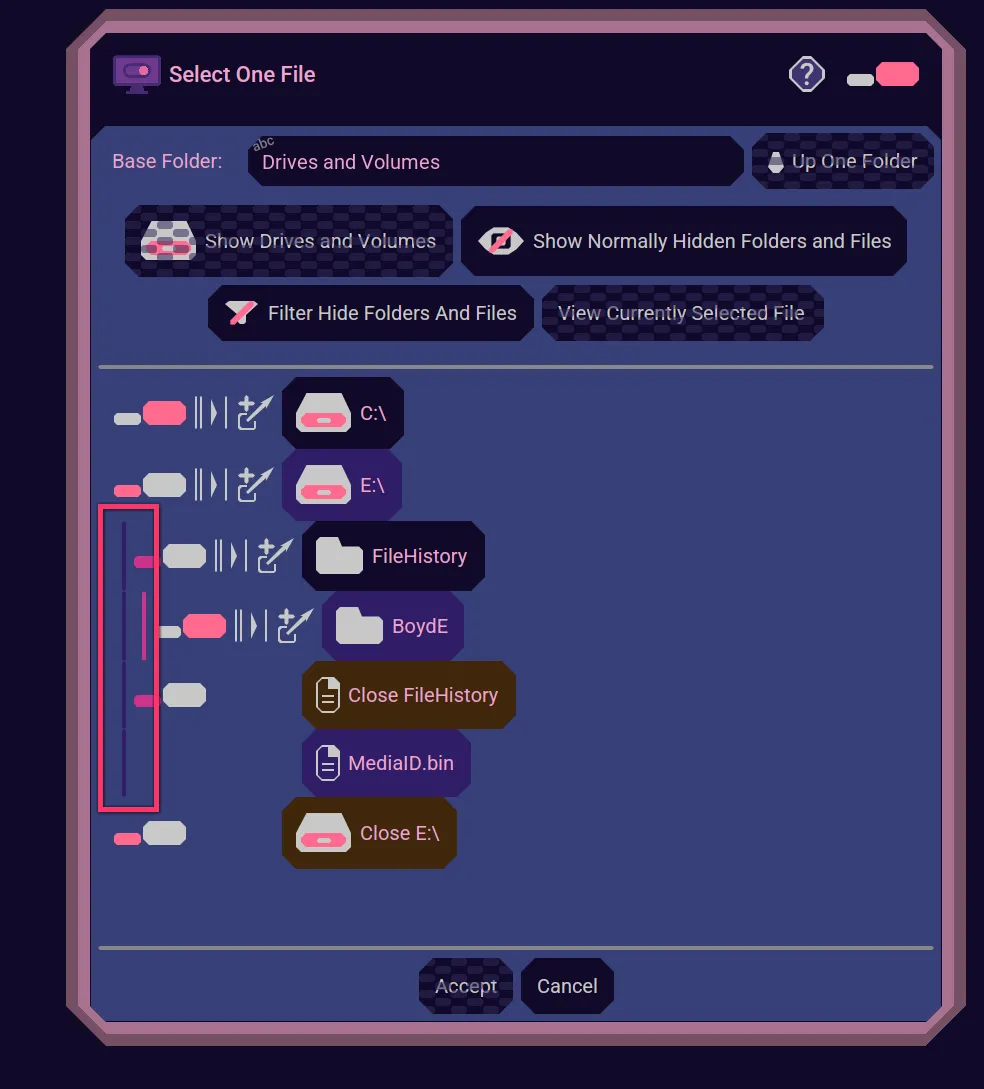
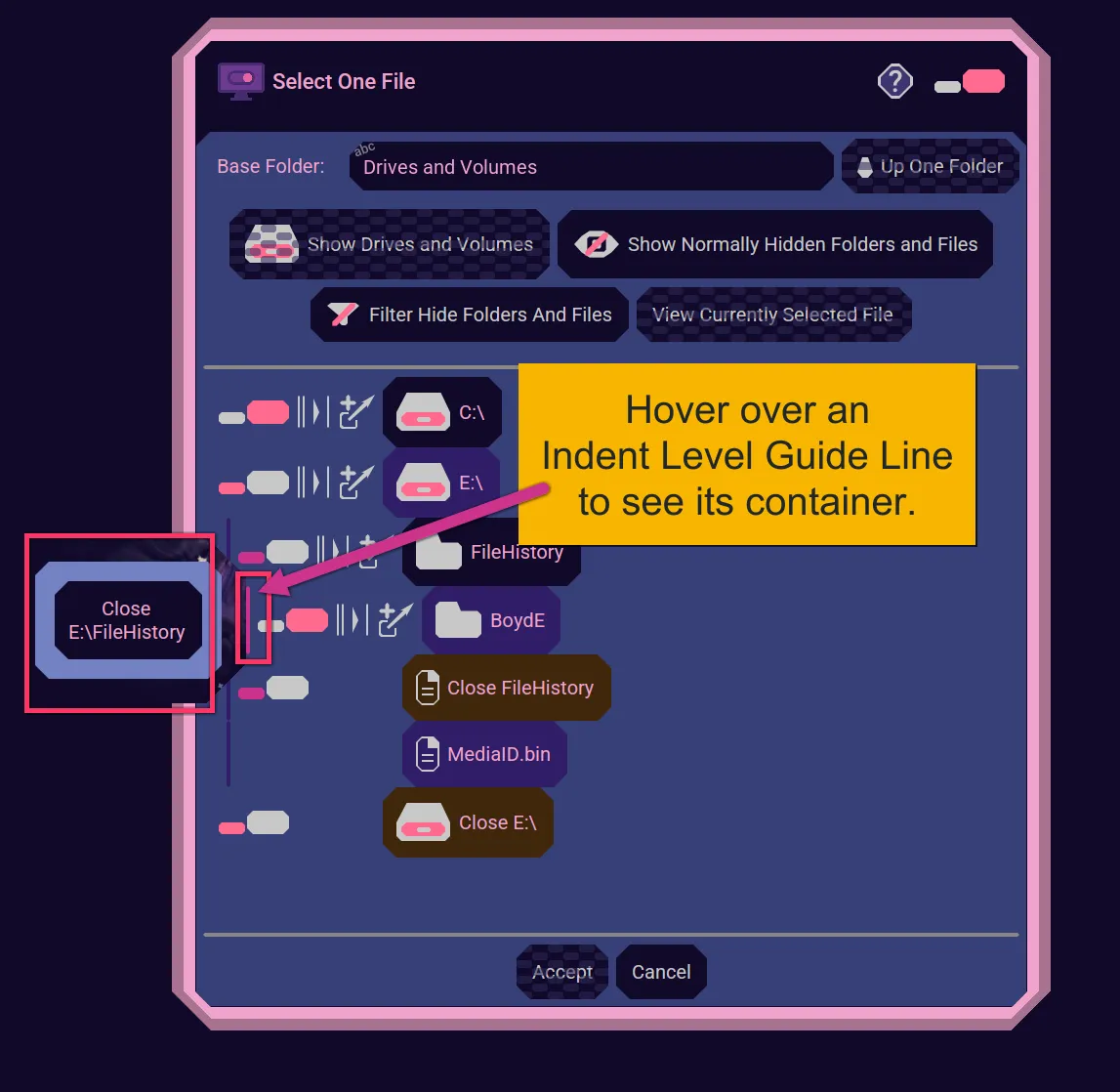
You expand and collapse a container (a Drive, Volume, or Folder) by either single or double clicking in various areas.
Scrolling
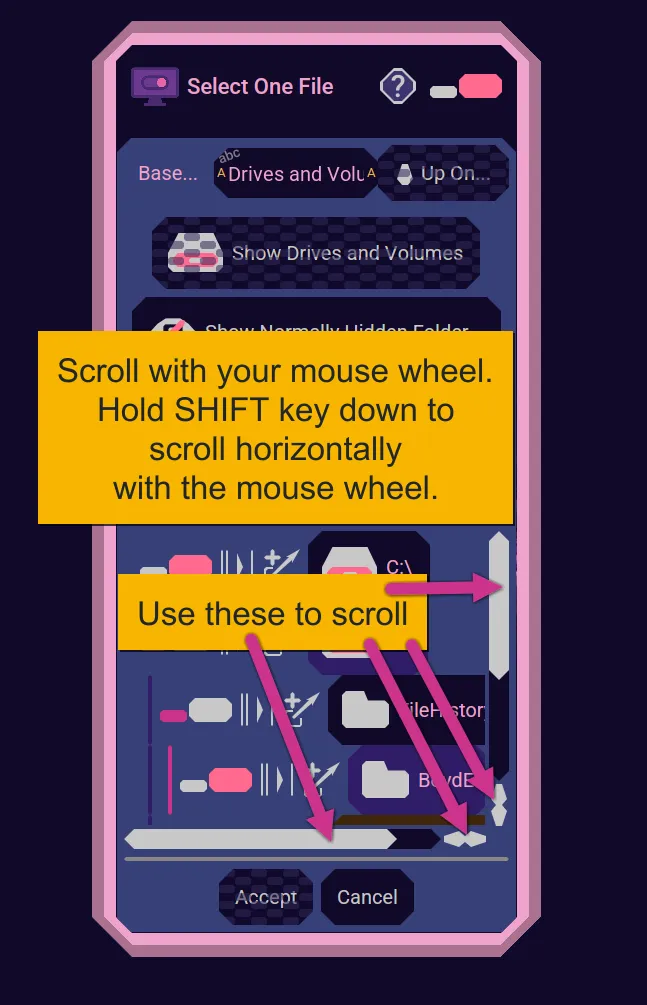
Scroll the listing via the vertical or horizontal scrollbars and there increment buttons. You may also scroll using the wheel on your mouse. Hold the SHIFT key down while using the mouse wheel to scroll horizontally.
Selecting
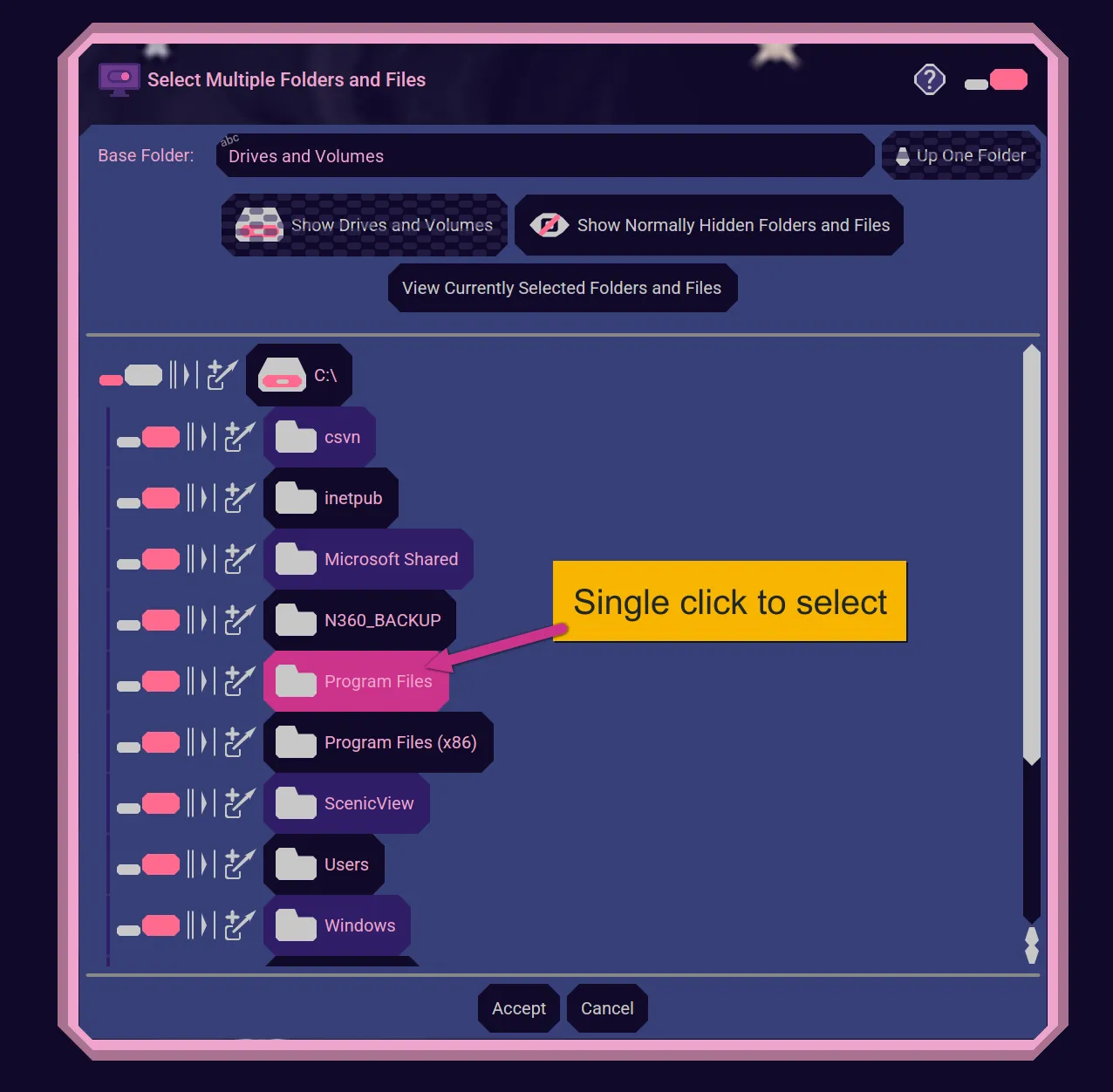
Single click a name label to select it. Single click it again to deselect it.
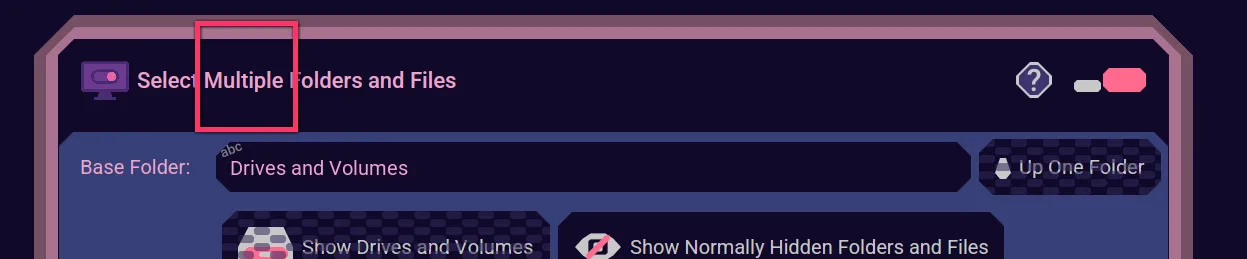
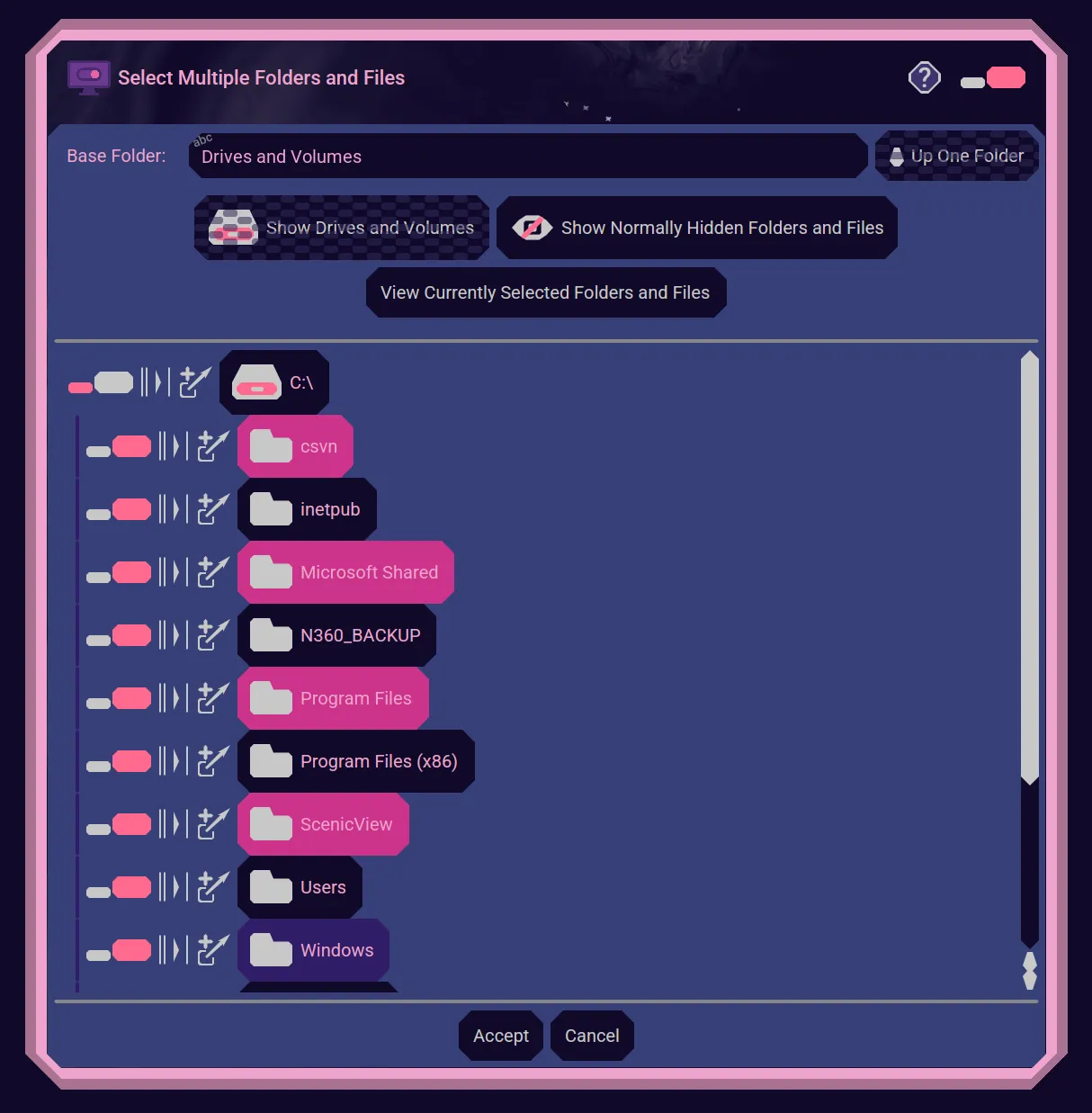
If the File Chooser is allowing you to select more than one item, then you can drag select one or more intervals.

Hold the SHIFT key down while dragging to deselect while dragging. After drag selecting one or more intervals, you can then single click to continue selecting or deselecting.
Accept Selection
When you have selected one or more items, you can see a listing of them here.
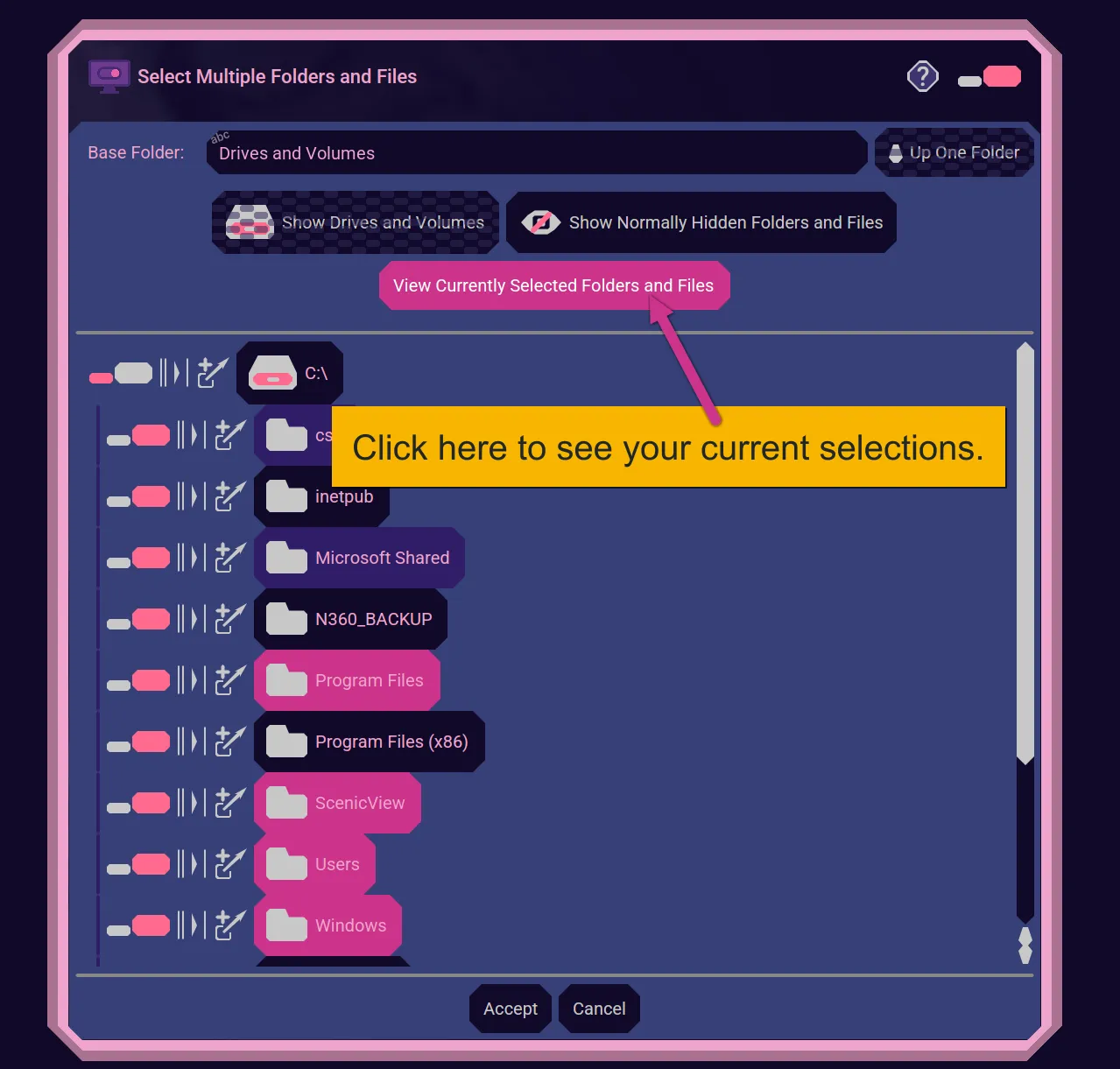
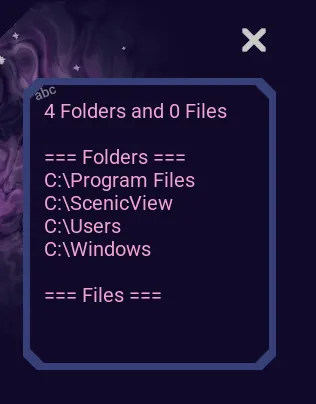
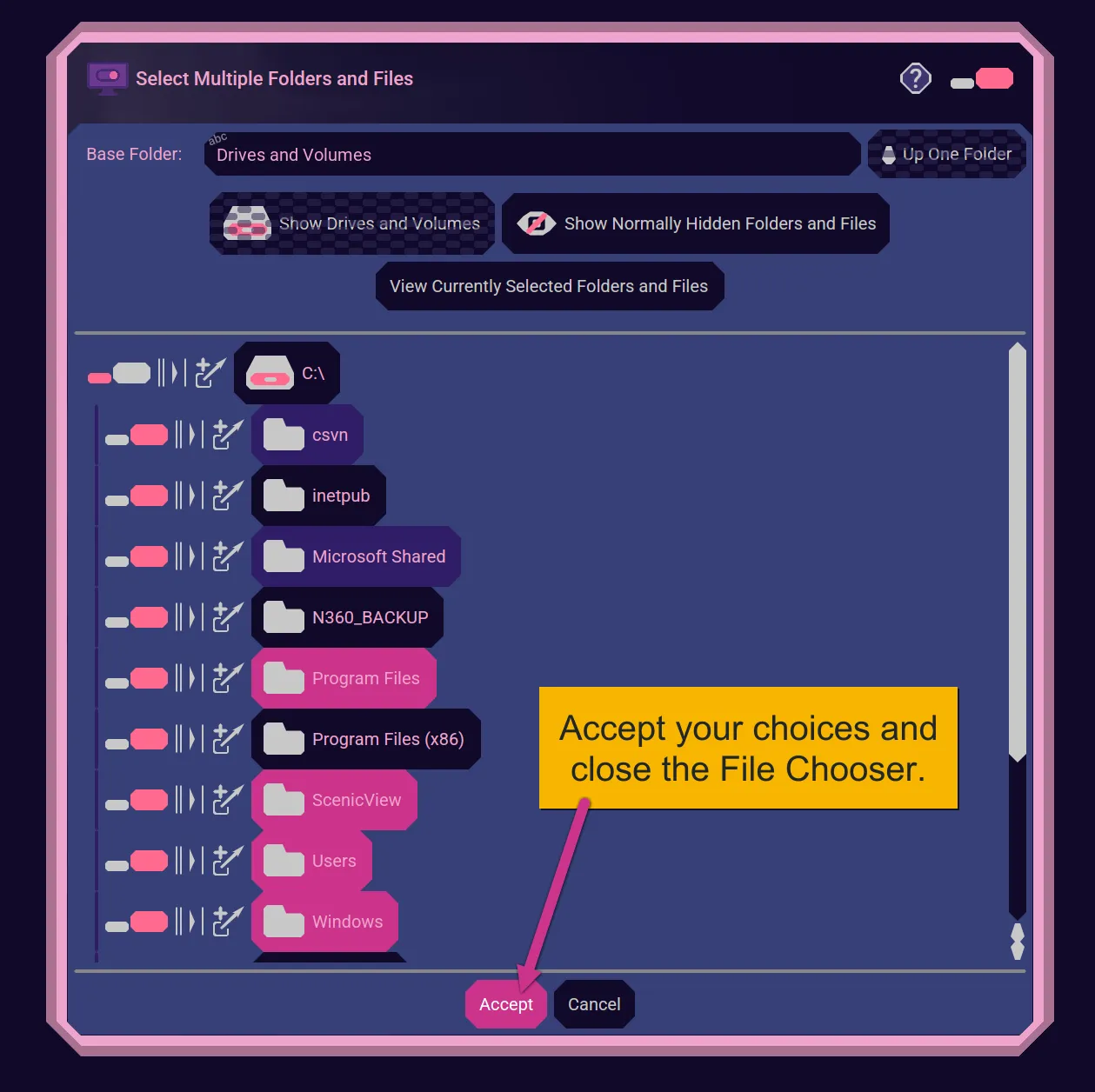
When you have selected one or more items and are satisfied with your choices, then click Accept to close the File Chooser and send your selections back to the application.
Network Shares
Linux, Mac, and Windows allow you to mount network shared locations as virtual disk volumes. The Nebula Software Advanced File Chooser can access these under "Disks and Volumes".
Here are some examples.
Linux
Select Linux Files application.

Choose "Other Locations".
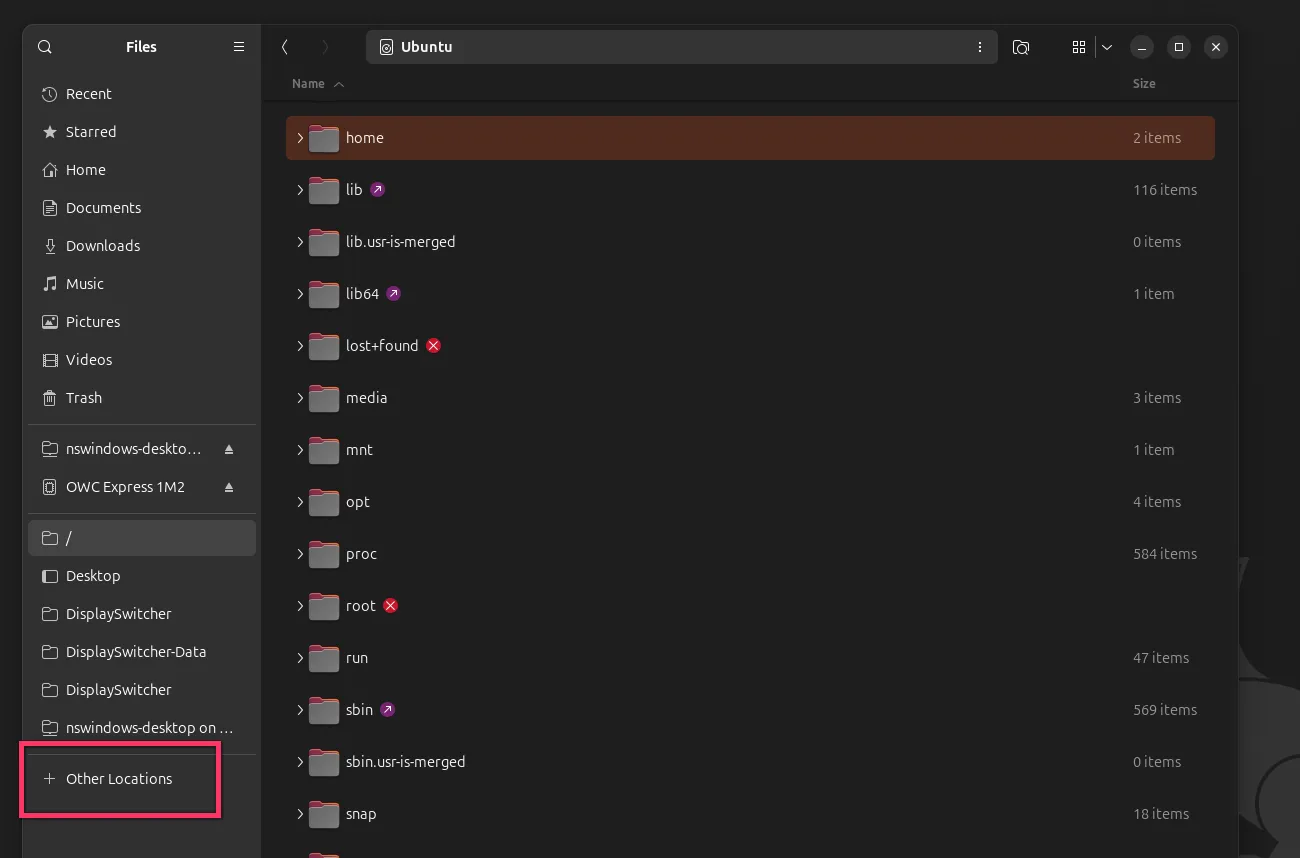
Click in the "+ Other Locations" text field and enter your network share, like "smb://nswindows/nswindows-desktop".
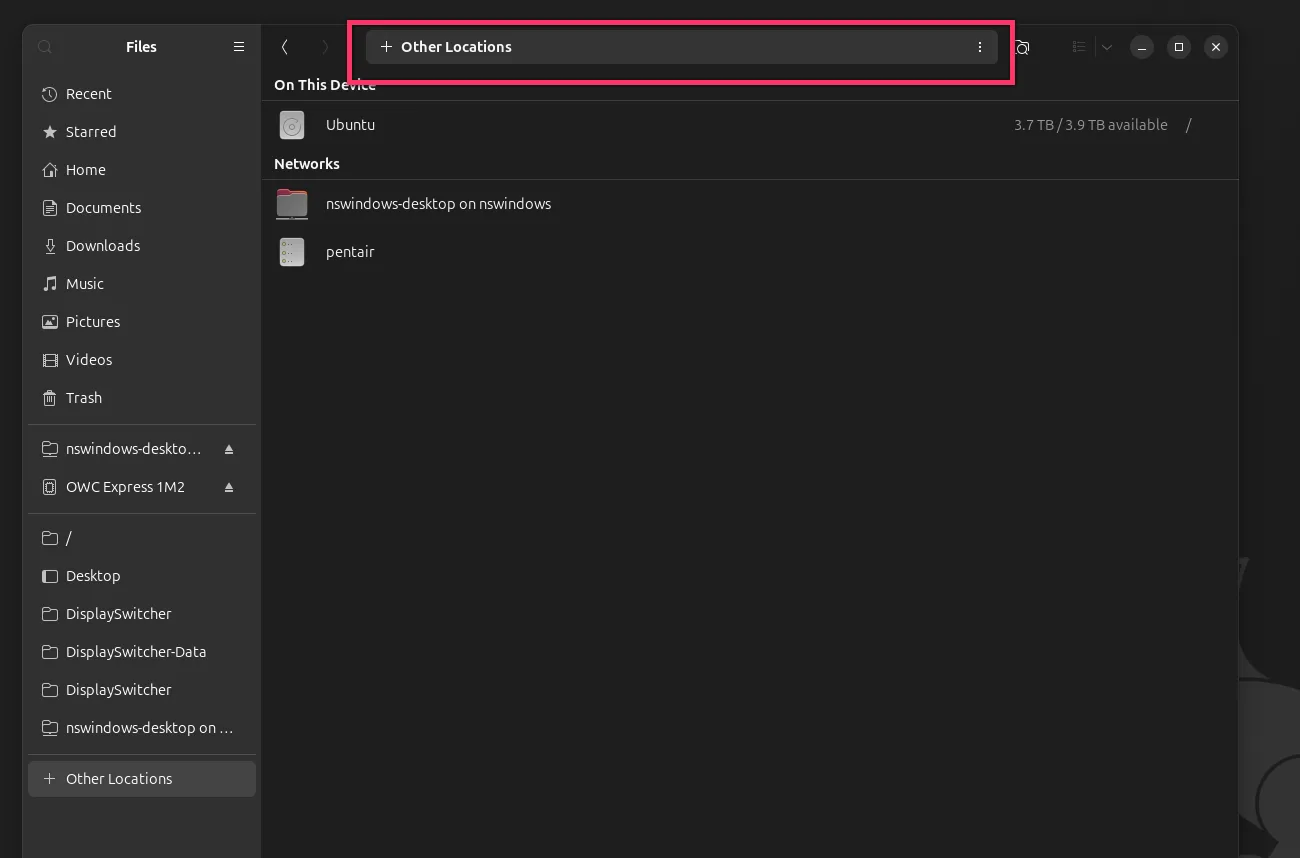
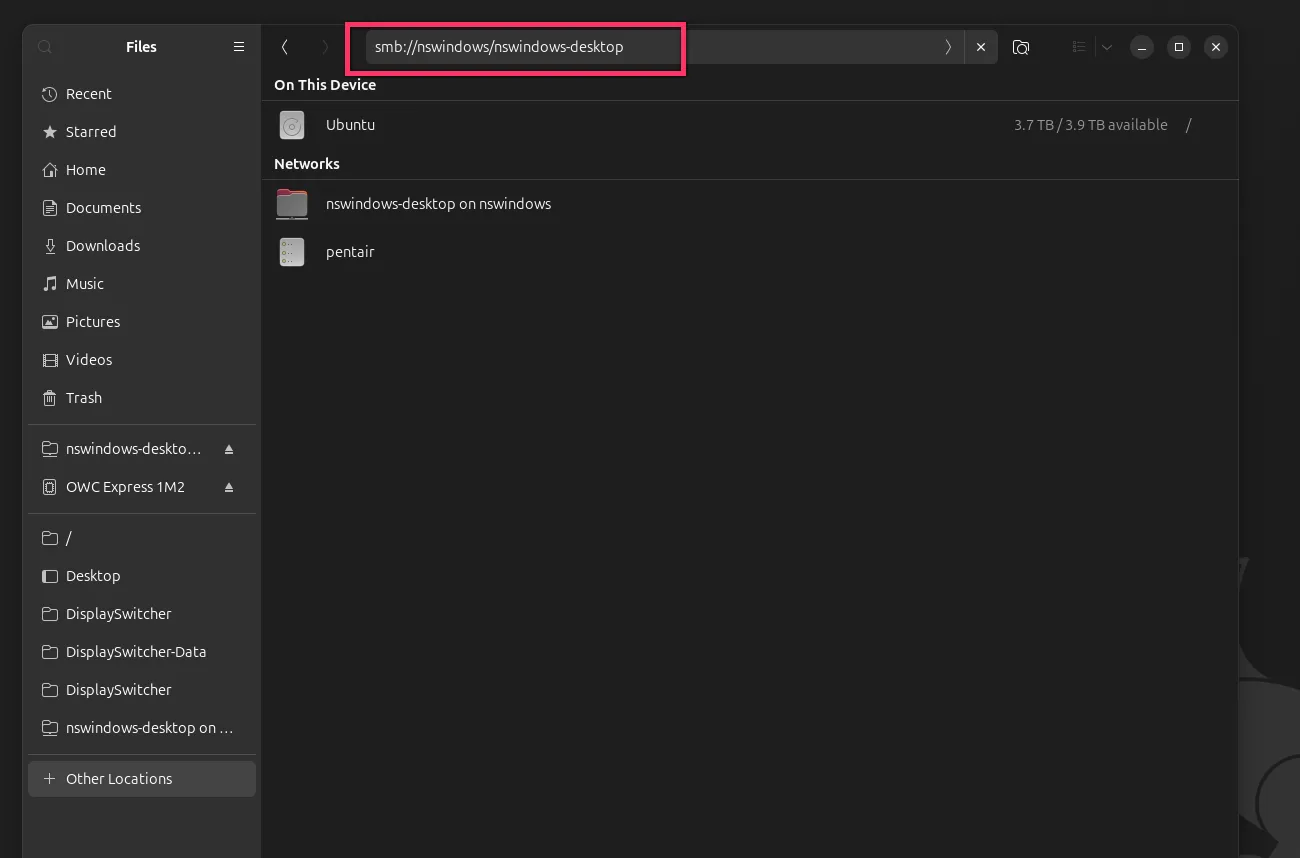
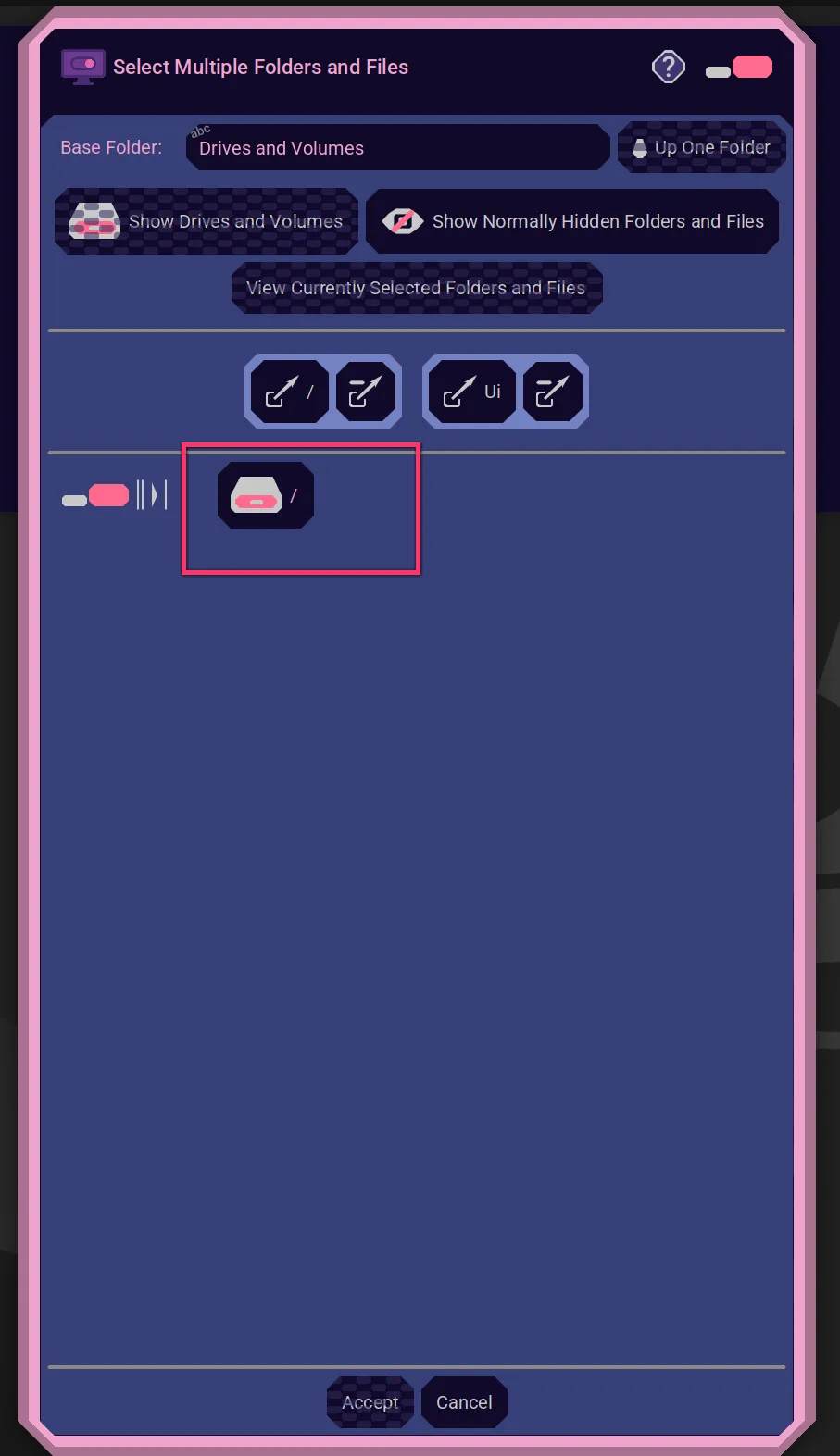
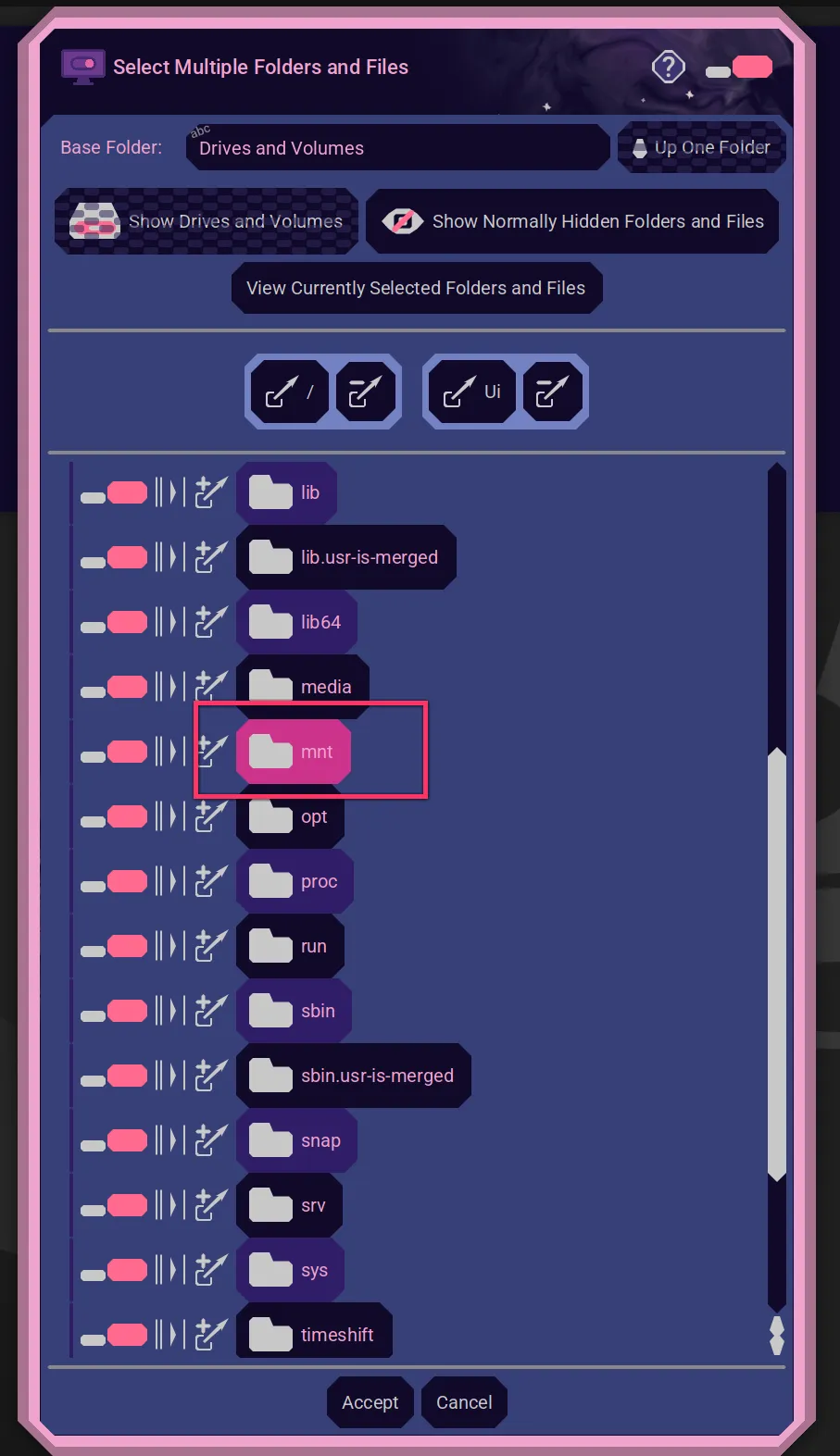
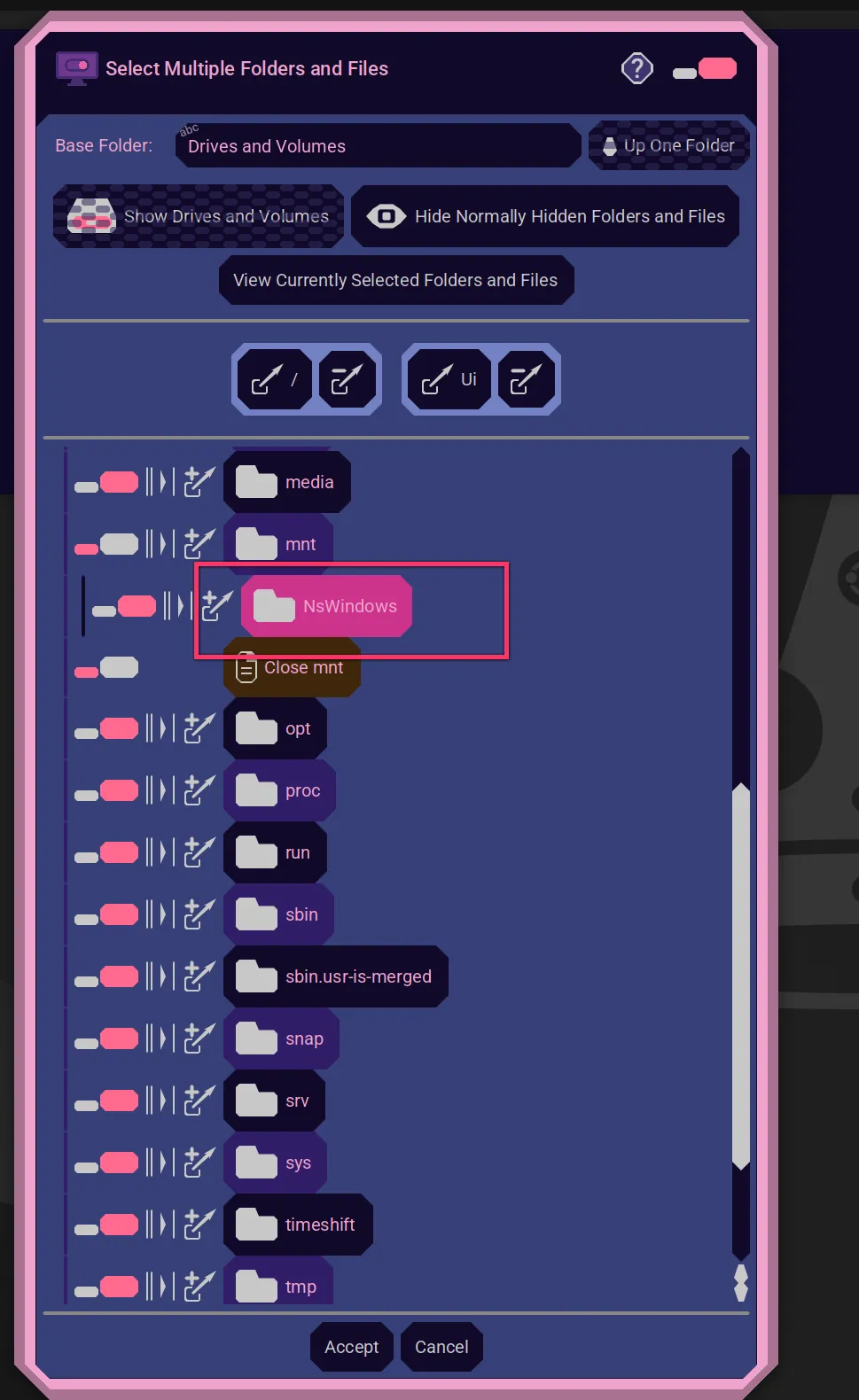
Linux network shares show up under "/mnt". So, you can find them in the Nebula Software Advanced File Chooser here...
Mac
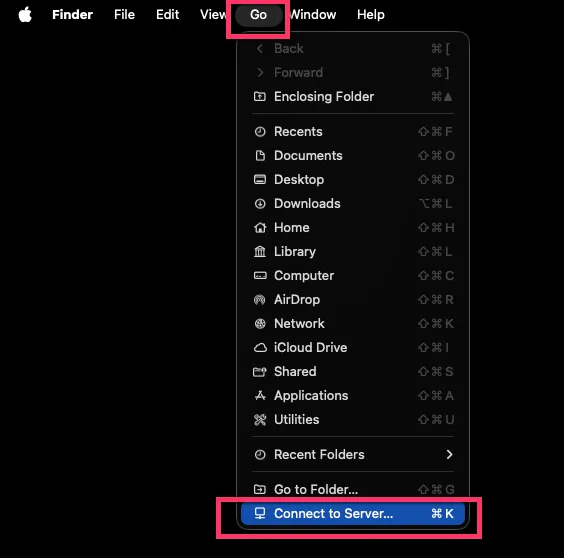
Choose the menu "Go > Connect to Server".
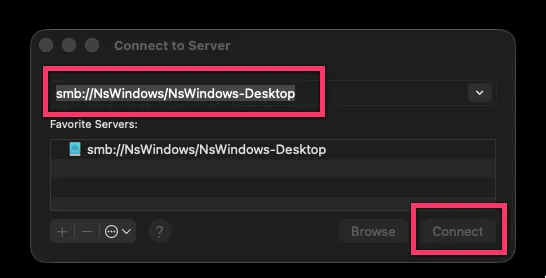
Enter a network share, like "smb://NsWindows/NsWindows-Desktop".
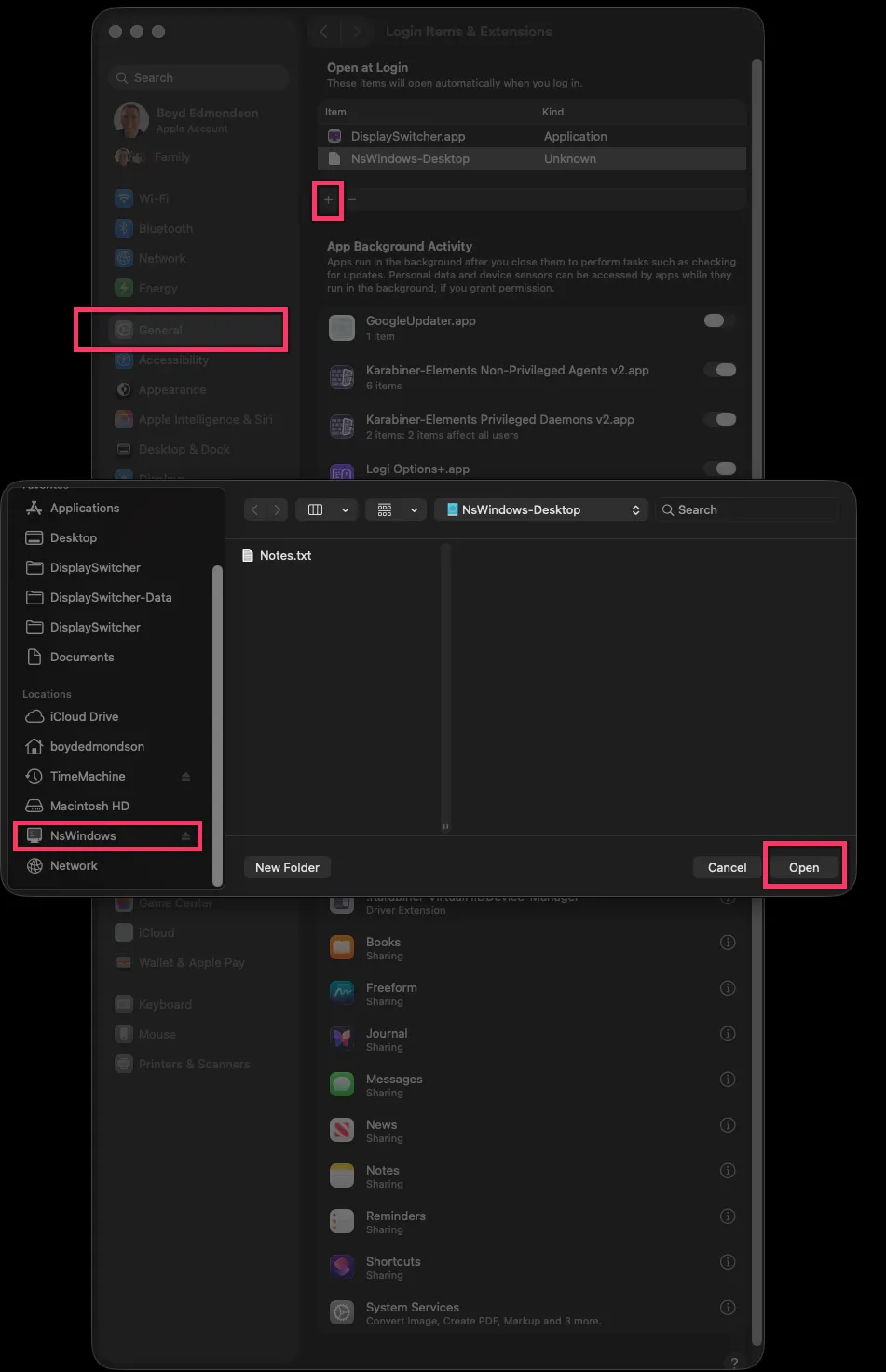
You might then choose to map this network volume at logon by using macOS "Settings > General > Open at Login".
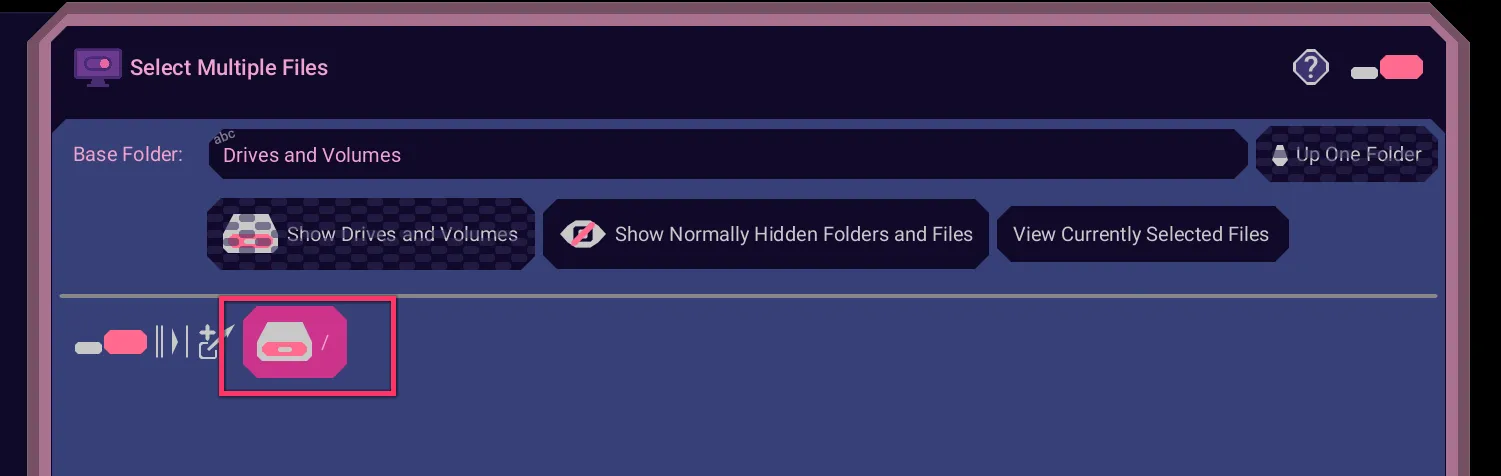
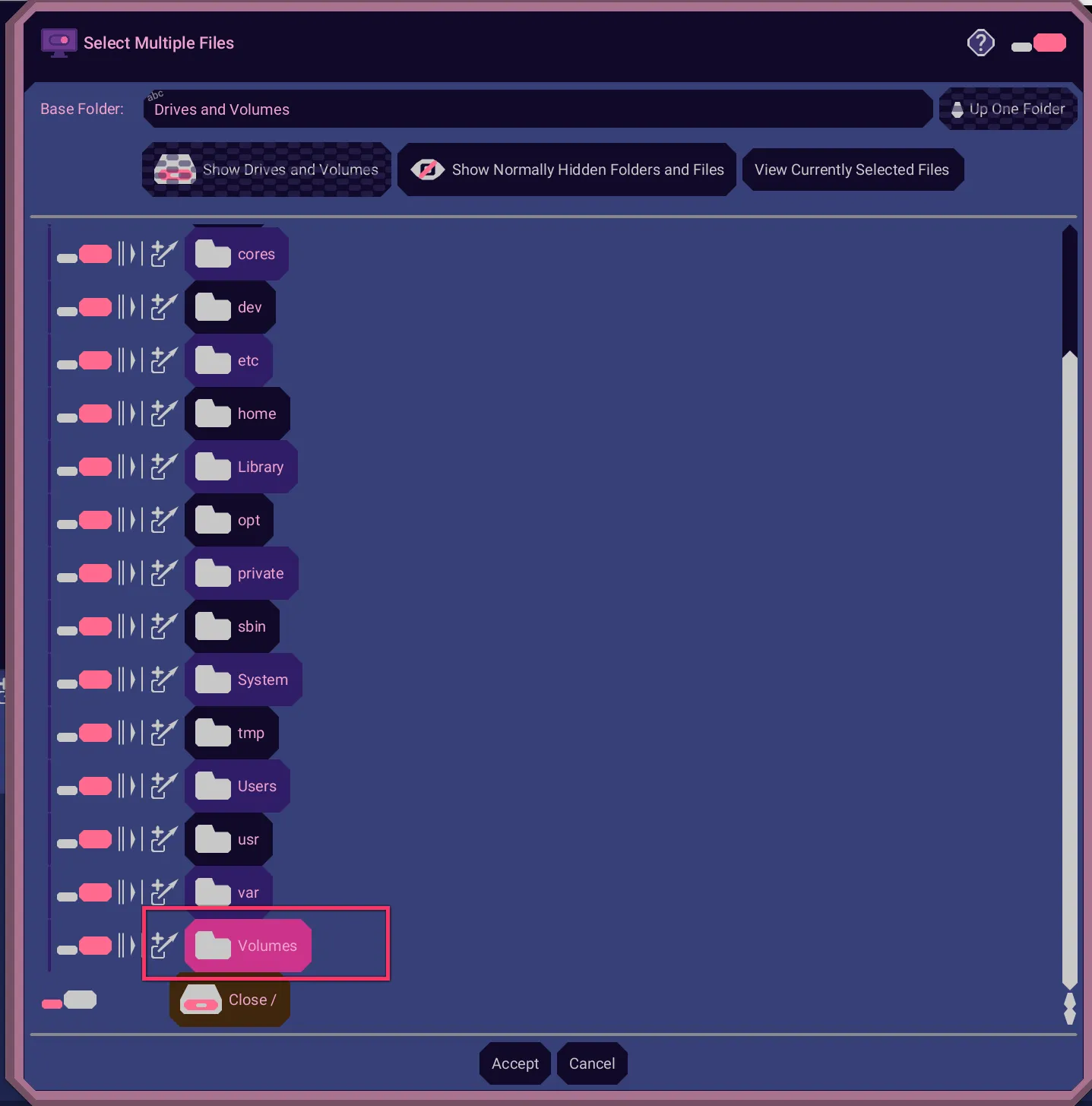
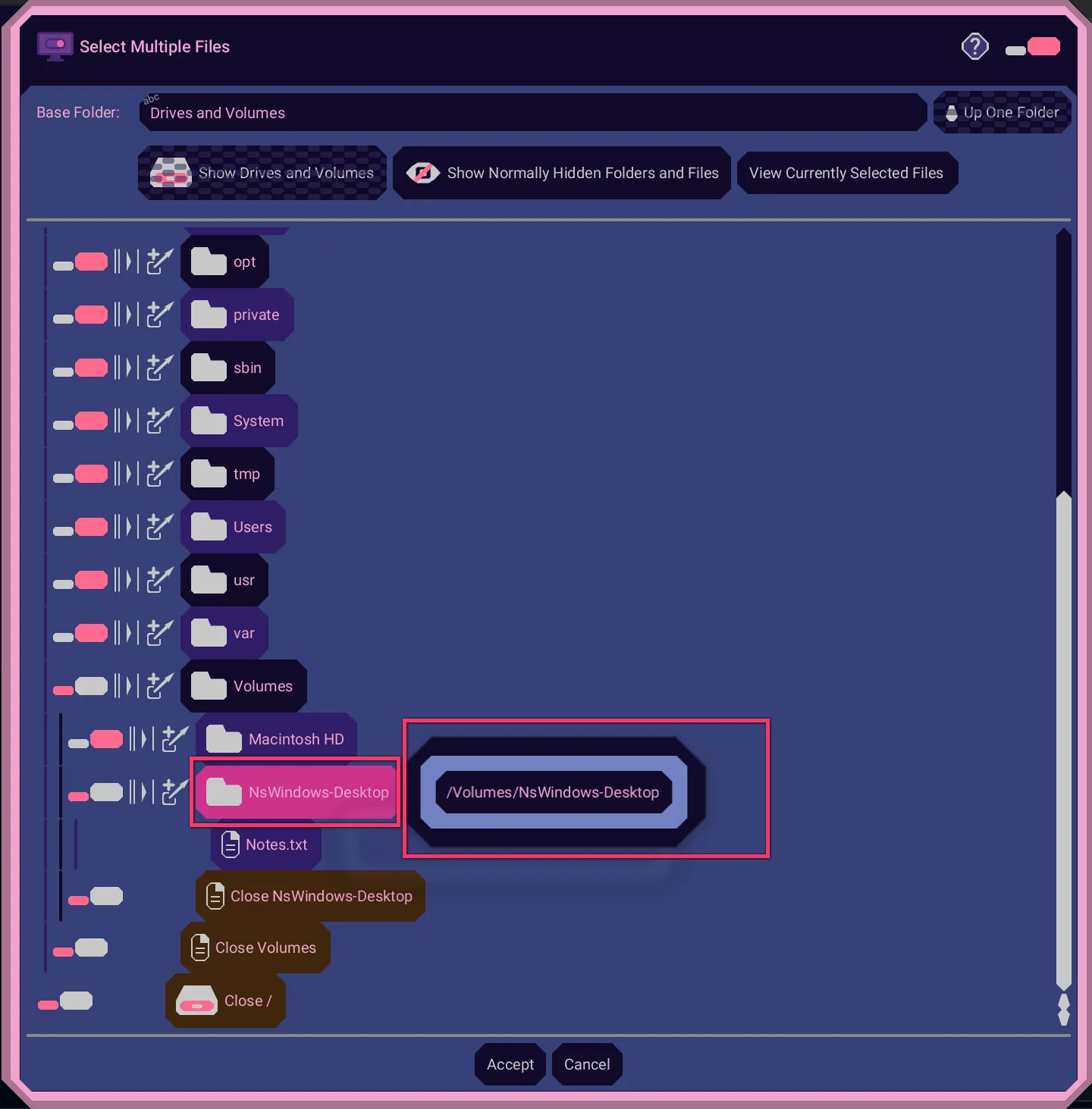
macOS shows these connected network volumes under "/Volumes". That means you can find them here in the Nebula Software Advanced File Chooser.
Windows
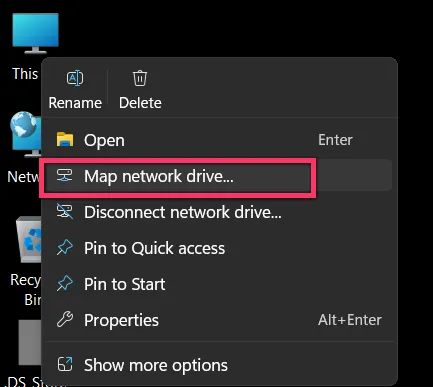
Right click "This PC" and select "Map network drive...".
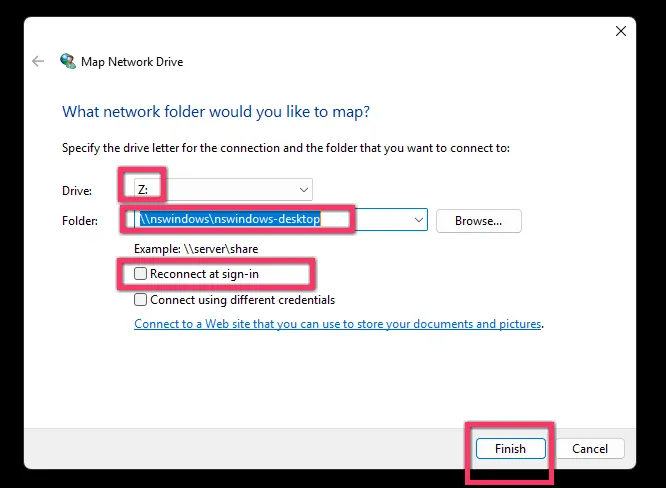
Enter the protocol to access your network share, like "\\nswindows\nswindows-desktop". Choose options, like "Reconnect at sign-in", and the drive letter, like "Z:".
Windows OS displays these shares by their assigned drive letters, so you can find them at the Show Drives and Volumes level of the Nebula Software Advanced File Chooser.