Settings: Animated Window Backgrounds
The backgrounds of Nebula Software applications' windows can show animated effects.
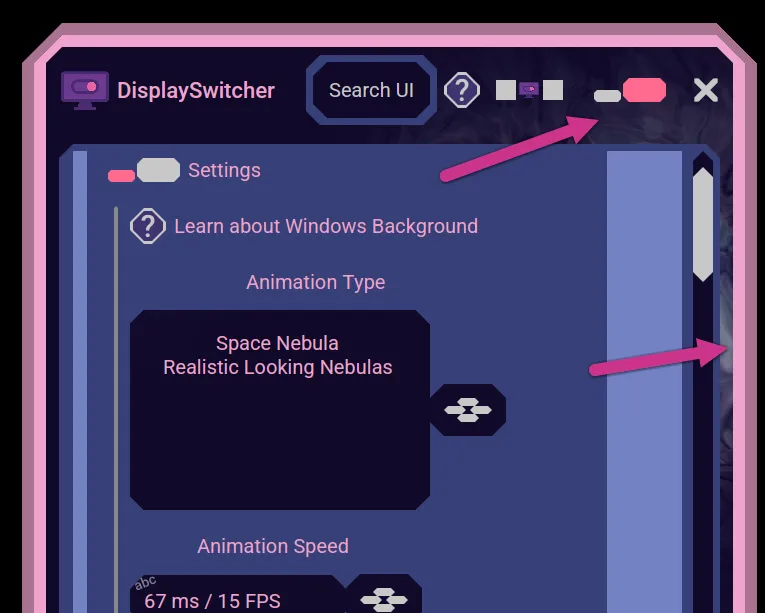
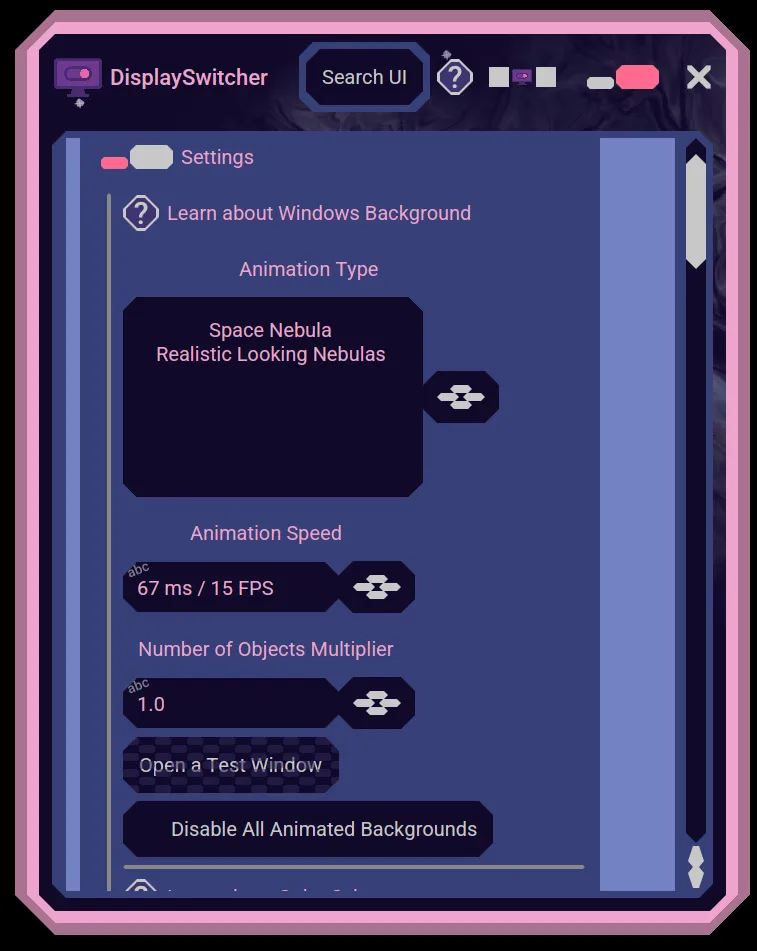
Here is where you can set your preferences for those window backgrounds.
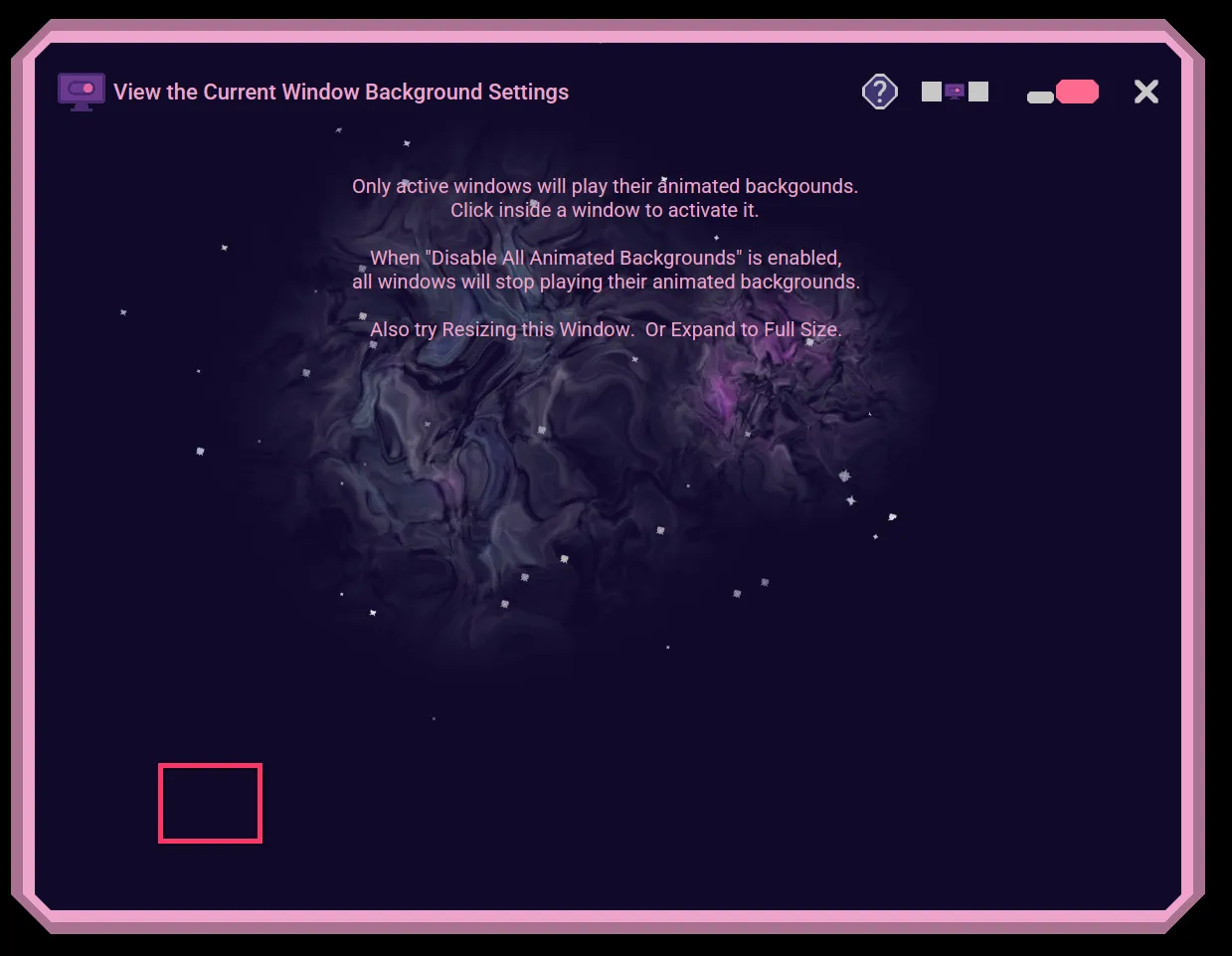
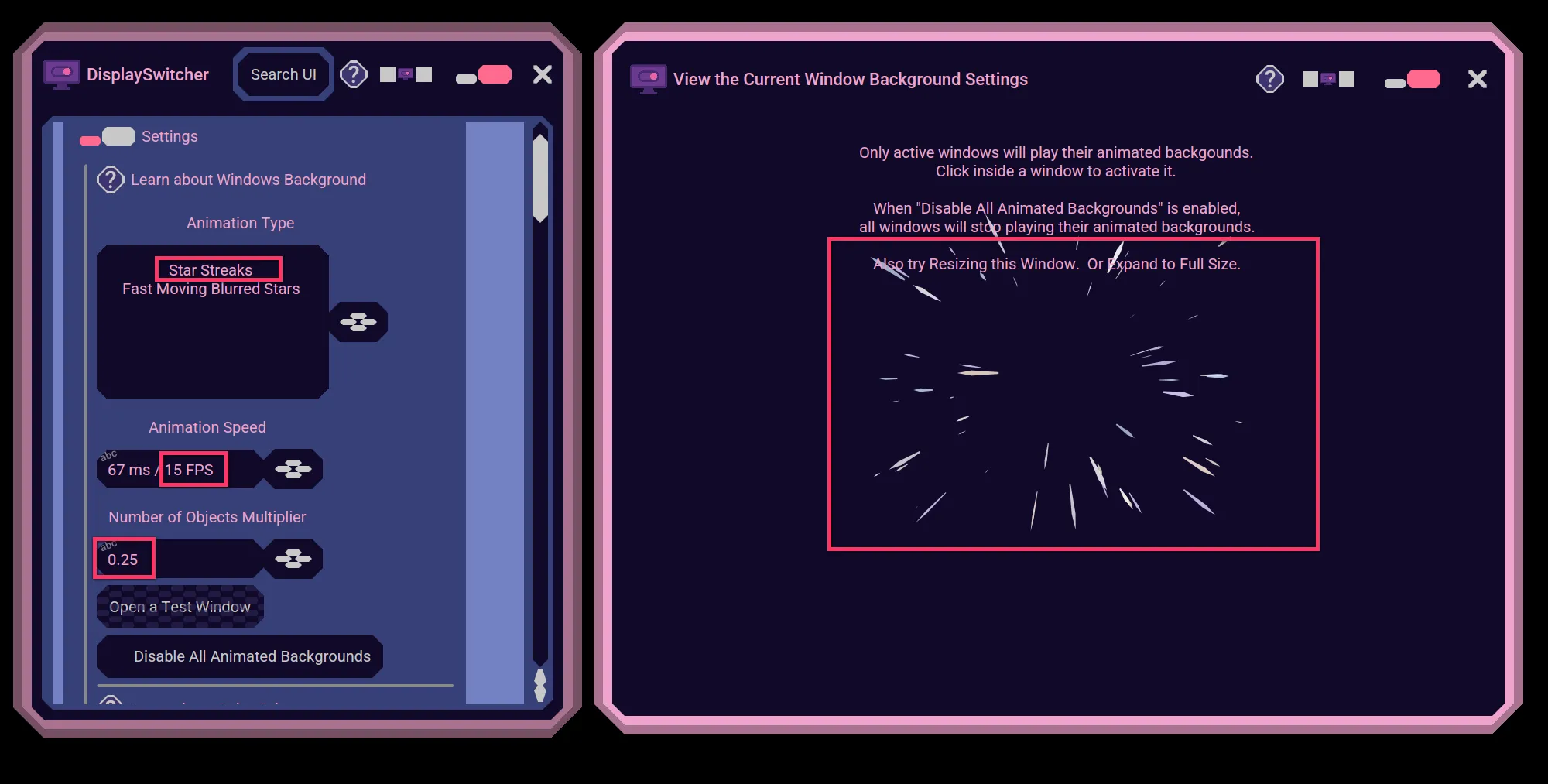
Use the "Open a Test Window" button to open a window where you can see the changes you make for these Settings. You can resize the window to see more of its background.
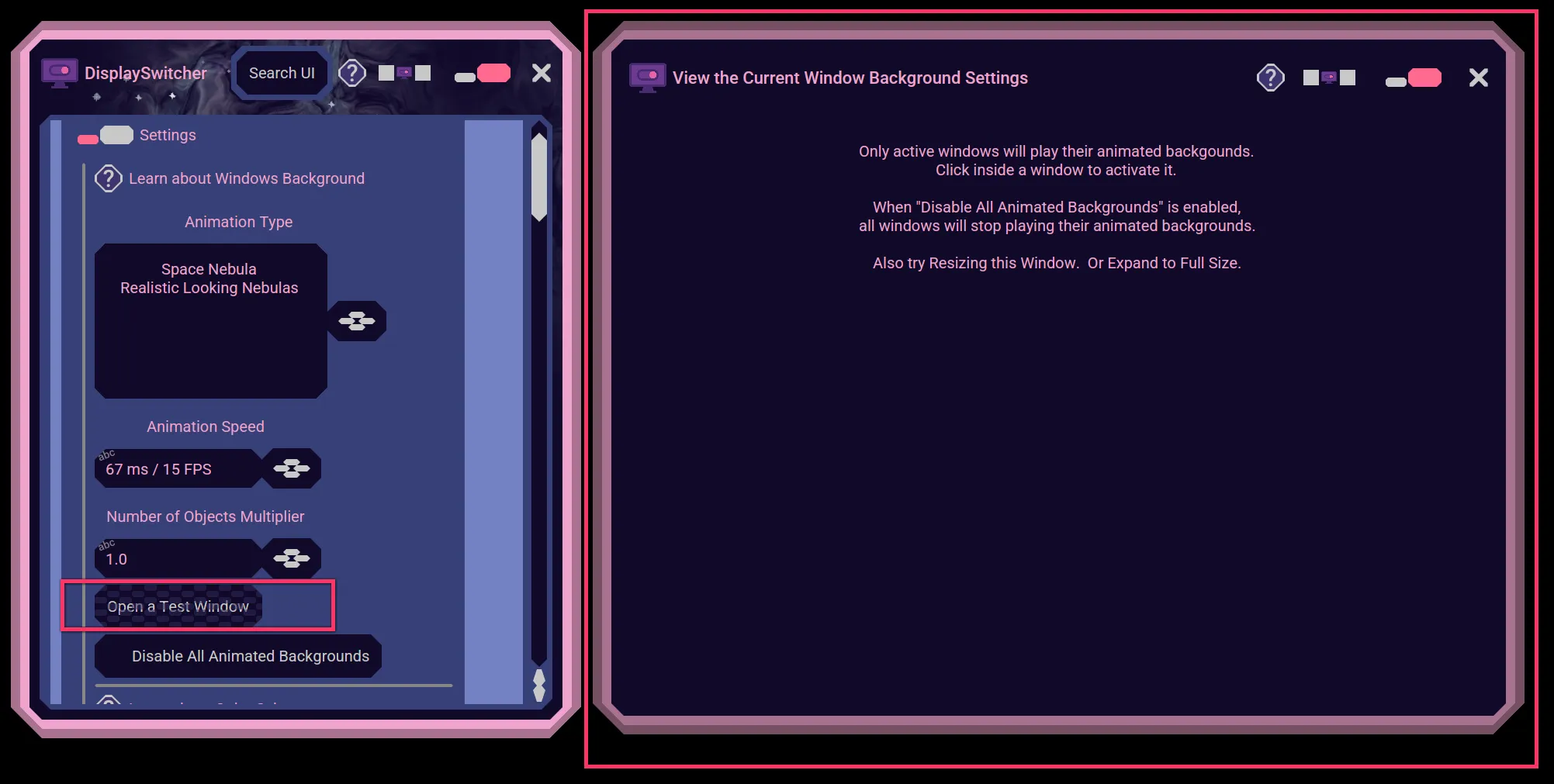
Note that only the active window will play its background animation. Click inside a window to make it active. Click outside the window to deactivate it.
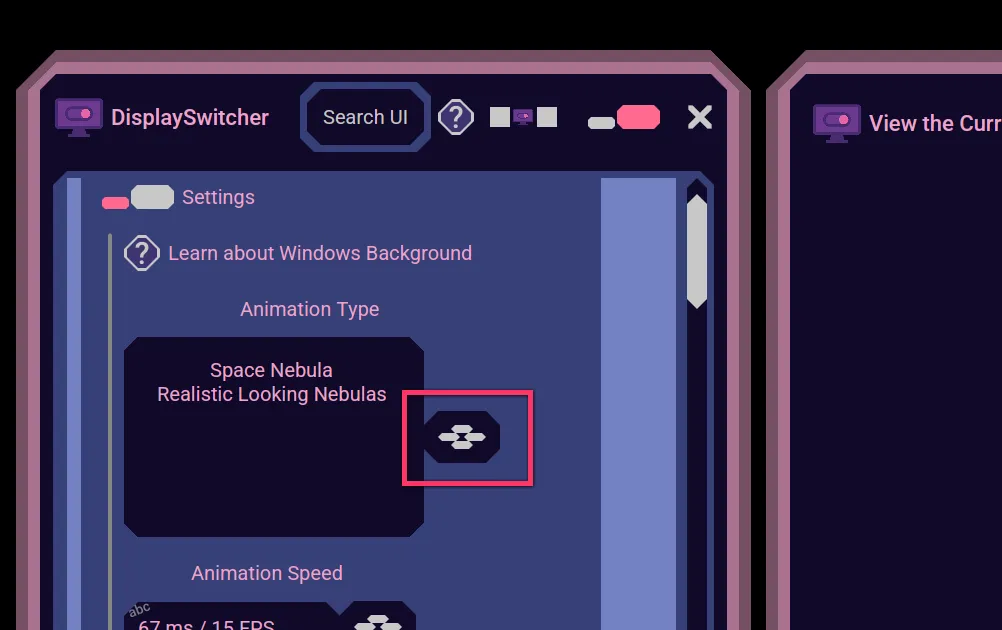
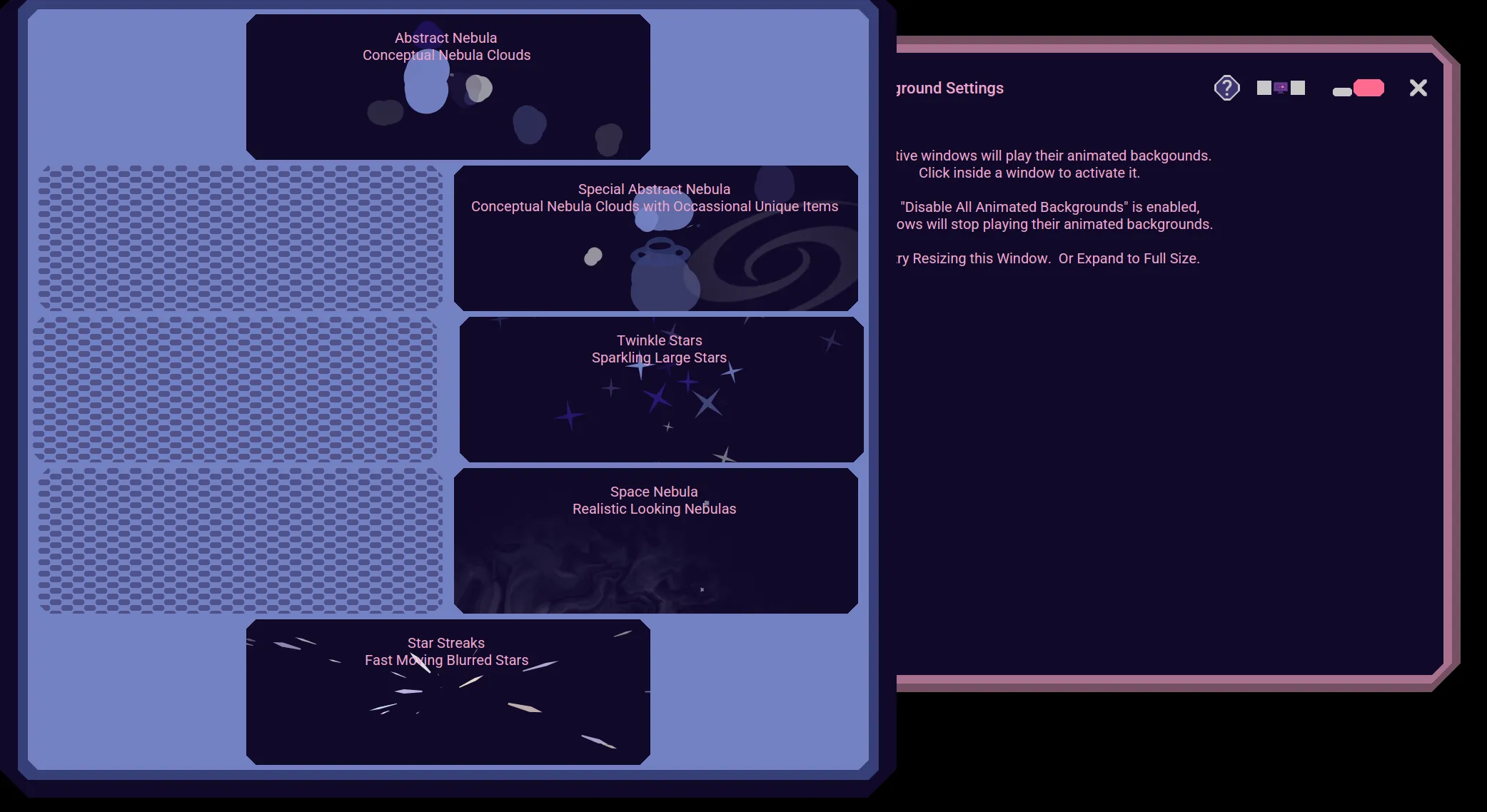
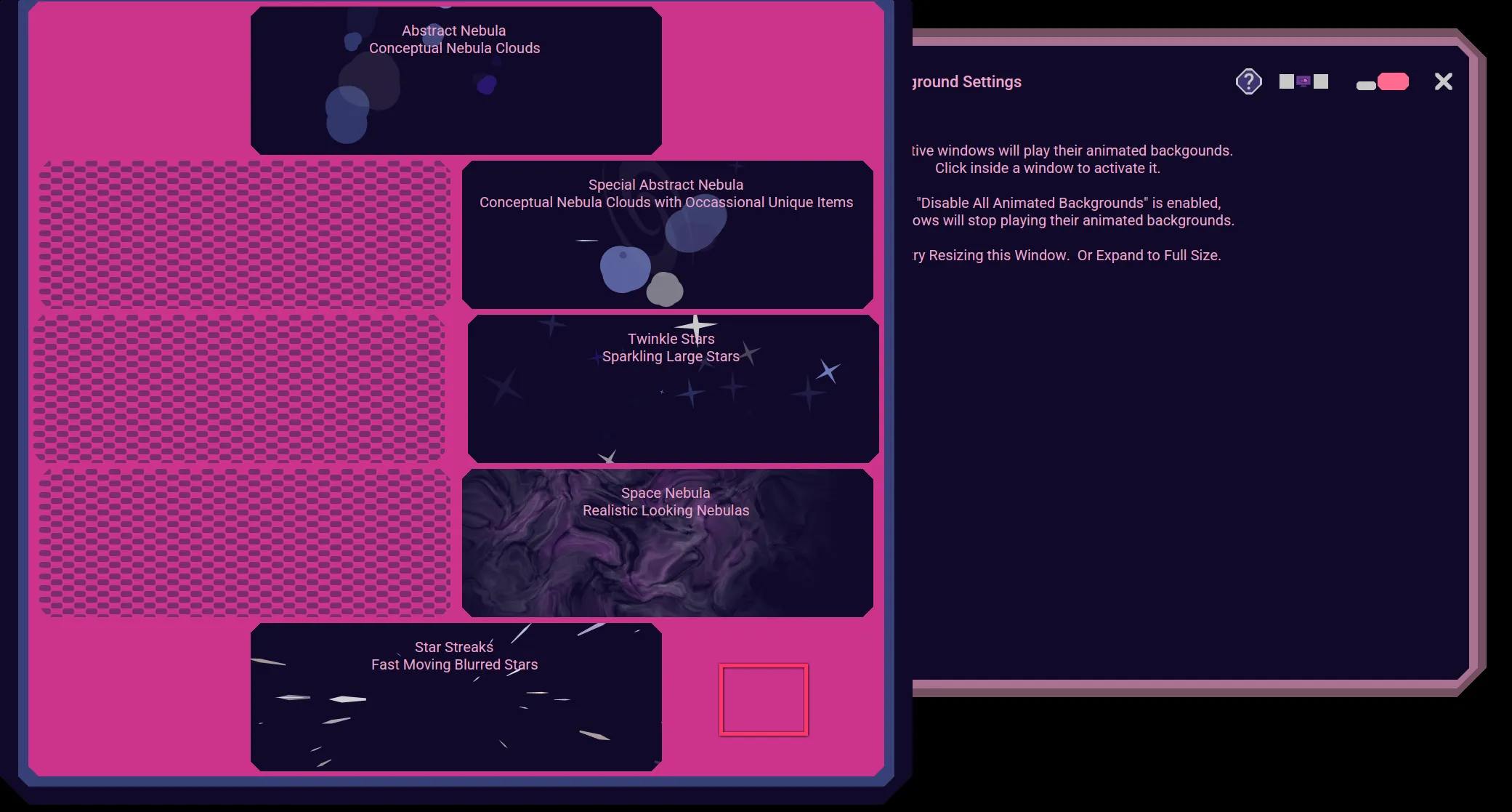
Choose the Type of animation that you prefer. If you change your mind and don't want to select one, then press the ESC key or click on the background to cancel and keep the existing type.
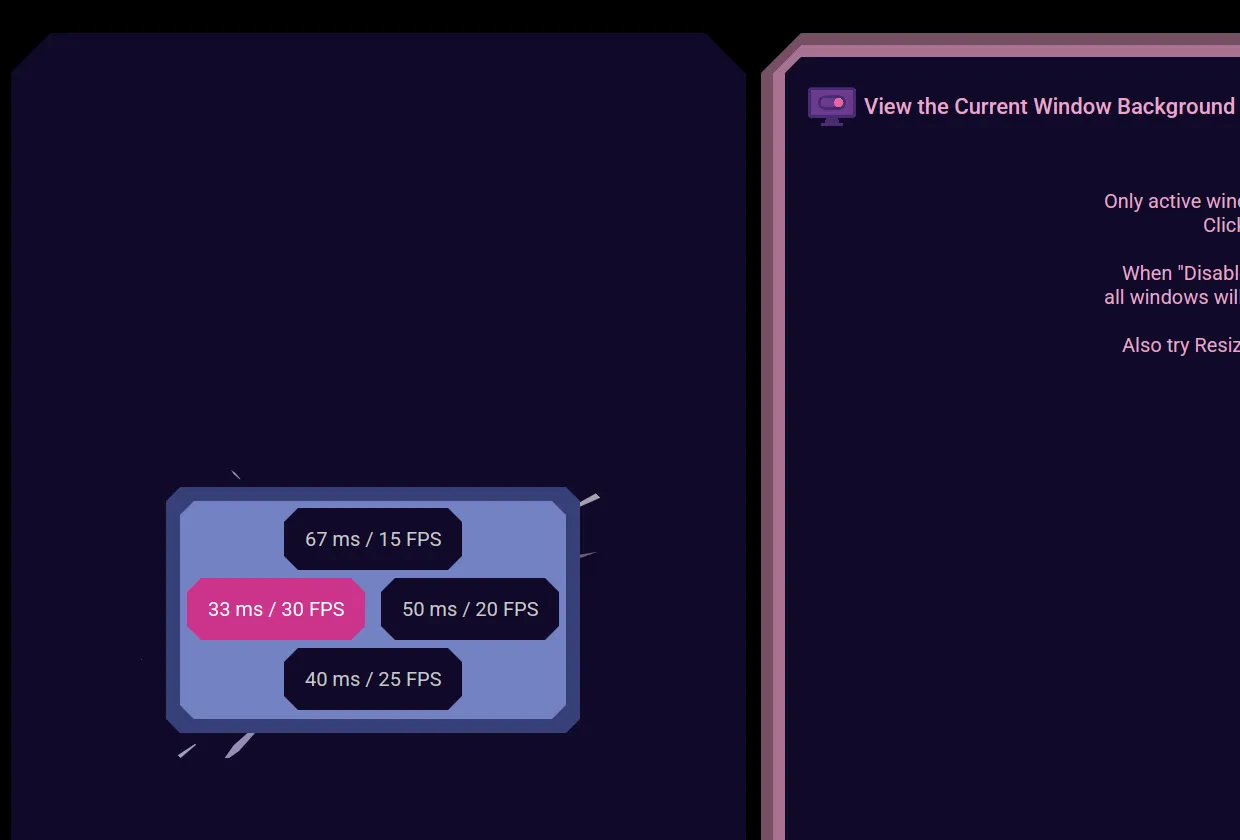
You can also specify how fast you want the animation to run. After changing your choice, you can go click on the test window to see the difference.
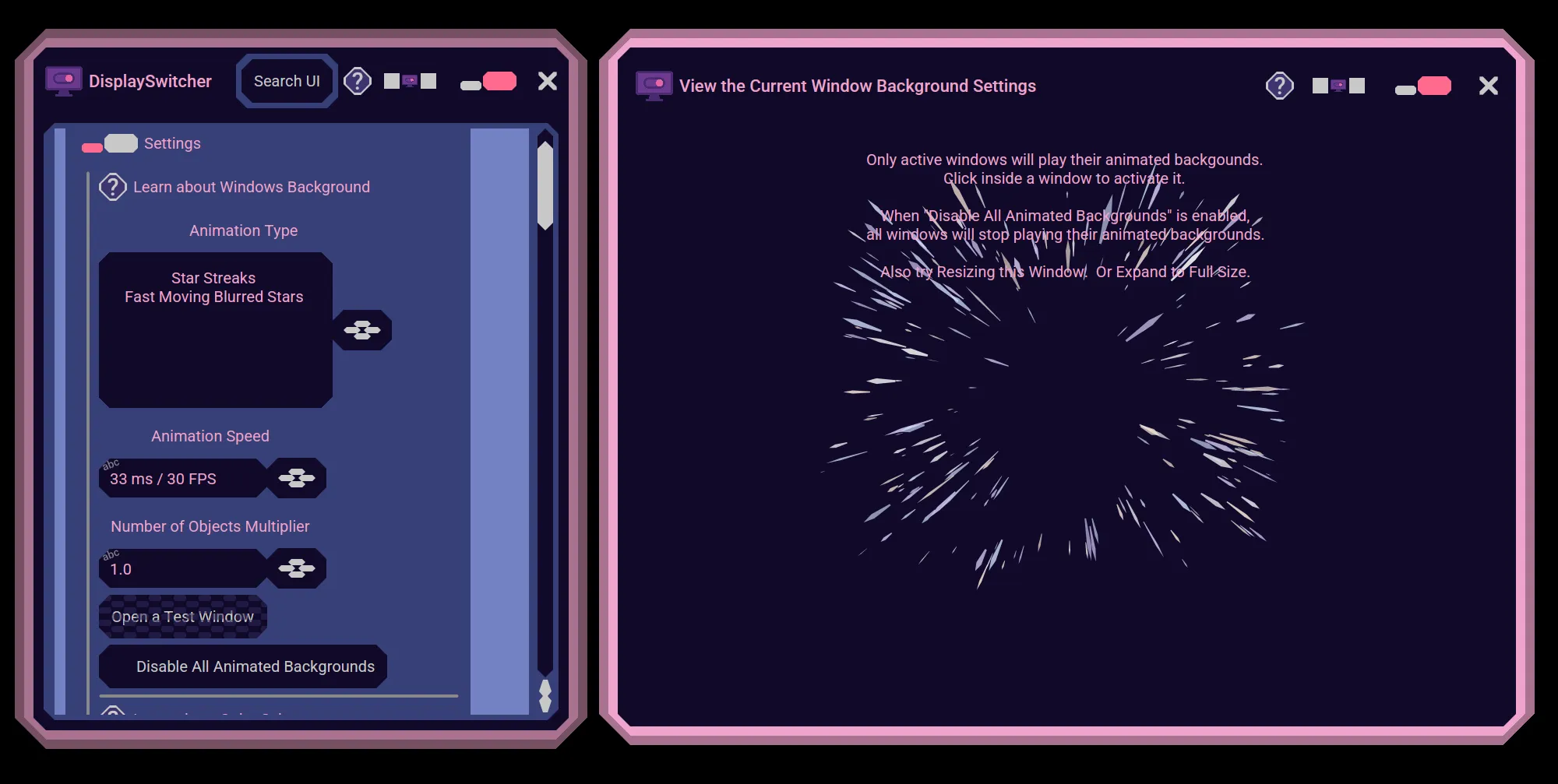
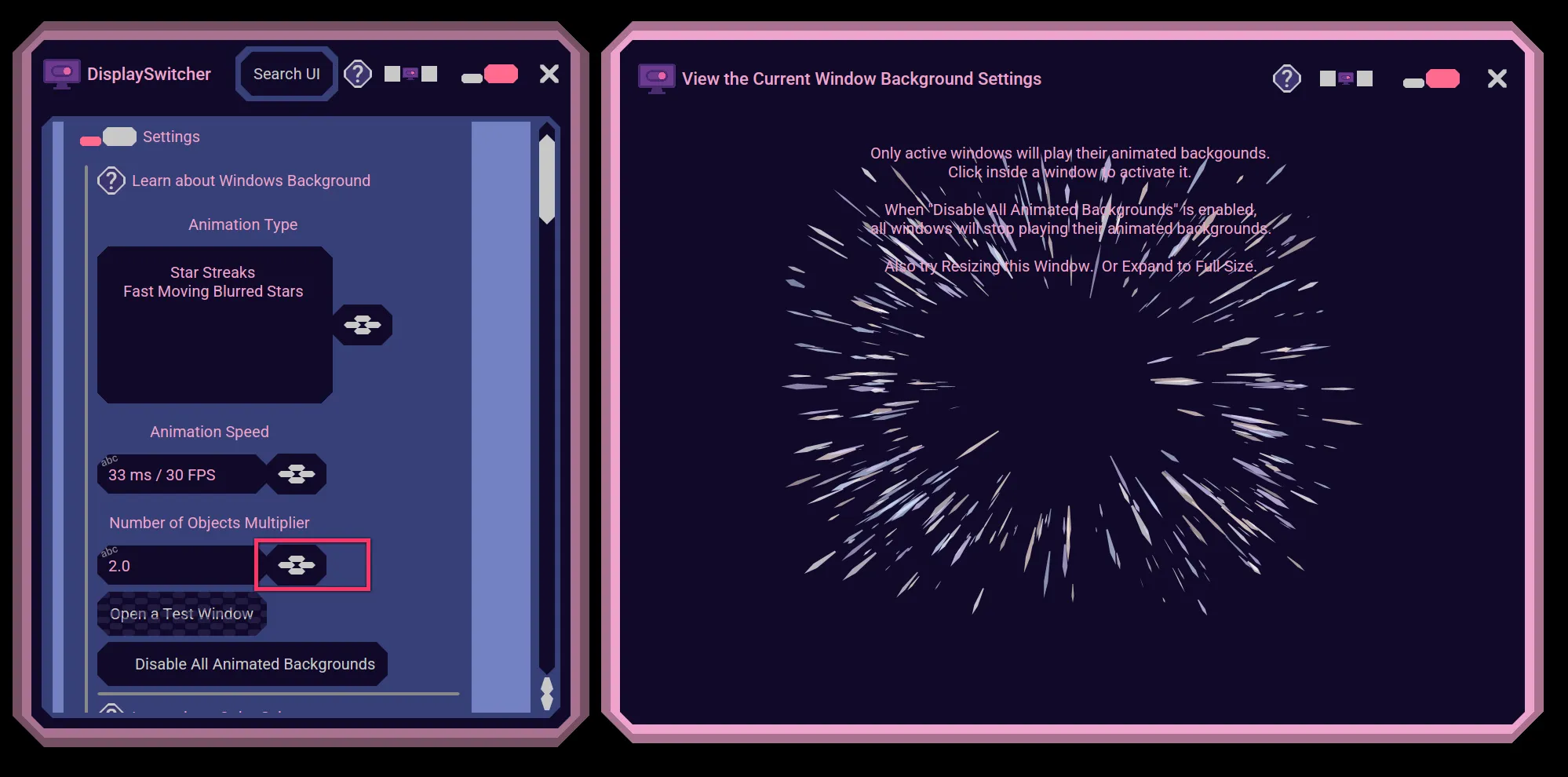
You may also choose how many of the animation objects get generated. Either more or less of them. Again, you can see your changes in effect using the test window.
Background animations use your computer's processing power and memory resources. If you experience a slowness when using the Nebula Software application because your computer doesn't have the processing or memory resources available, then you can choose settings that are less taxing to your computer.
Choose an animation Type that is simpler. Choose a lower animation speed. Choose less number of animation objects.
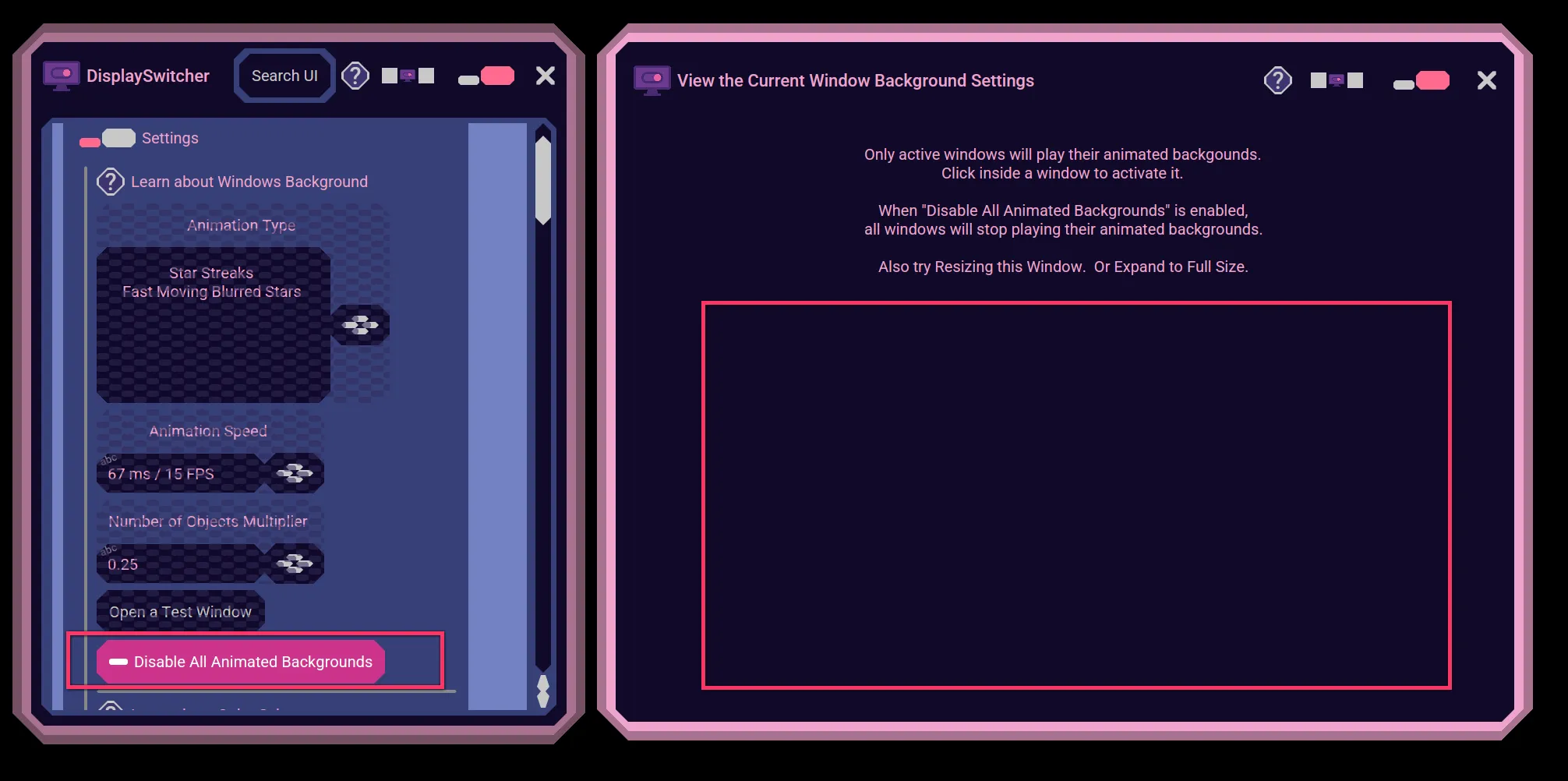
If that is still too slow, or you just don't want animated backgrounds, click the "Disable All Animated Backgrounds" button. It will turn off animated backgrounds and use a simple solid color for the background. Test this in the Test window.
The choices you make here will apply to all the Nebula Software windows, even tooltips and popups. These settings are remembered for the next time you open the application.