Nebula Software Color Chooser
Watch the Overview Videos!
The top window has a Help button. Each section has their own Help buttons. Use them to click the Video link to watch a video that explains how to use the Color Chooser in general, and then each section in details. Also check out the documentation below. Here are what the Help buttons look like.


Overview
This button represents the Nebula Software Color Chooser. When you click it, you are presented with a user interface that allows you to pick a color.

Here is an example of the user interface that may be shown.
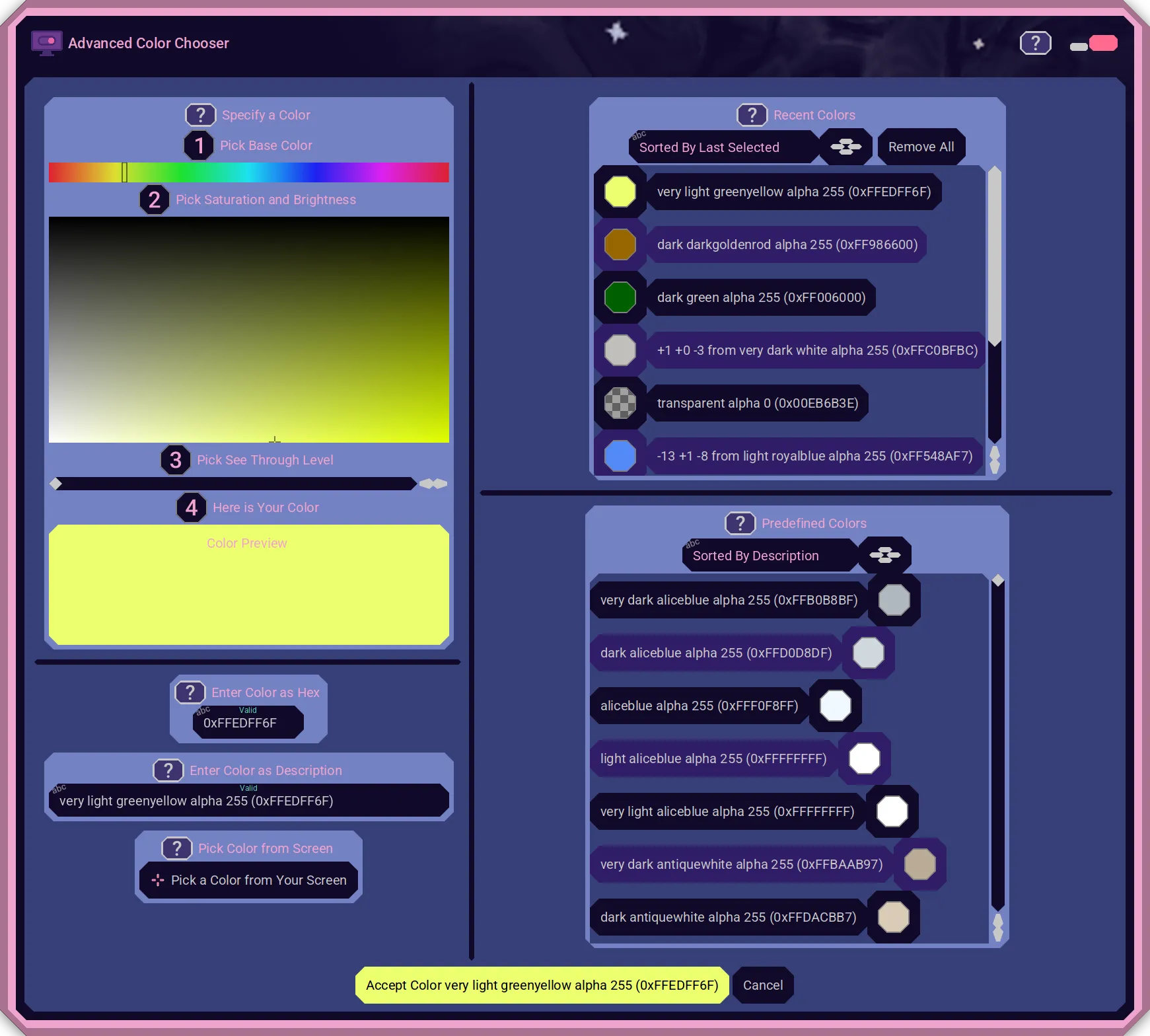
Sometimes the Color Chooser may allow specifying alpha transparency aspects of a color, and sometimes it won't. It depends on the need of the asking application if "see through" of a color is allowed for that particular case or not.
Options for Choosing a Color
The Color Chooser allows several different ways for you to choose a color.
- Recent Colors
- Predefined Colors
- Specify as a base color and then its saturation, brightness, and see threw level.
- As a hexadecimal color code.
- As a textual description.
- Picking a color of a pixel that is on your screen.
Recent Colors
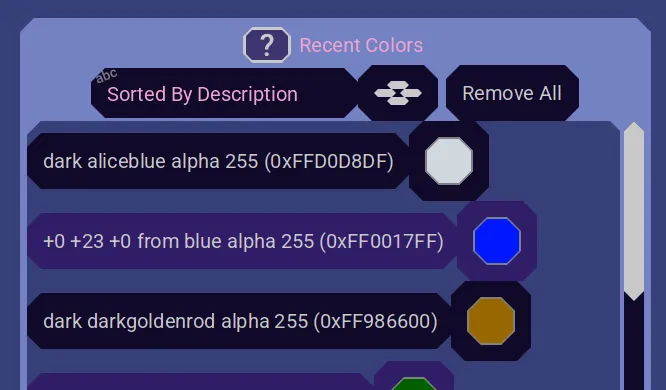
The fastest way to get a color. Select one you have used before!
Double click an entry to pick it immediately and close the Color Chooser.
Single click one to send it to the Base, Saturation, Brightness, See Throughxx UI for you then to tweak to your liking.
Scroll with track bar or mouse wheel.
Want to start fresh? Just click the "Remove All" to clear all entries from your Recent Colors.
Nebula Software applications remember your recent colors, even on application restart.
Sort By
Find the color you are looking for more quickly by using the Sort By feature.
Just click this button.
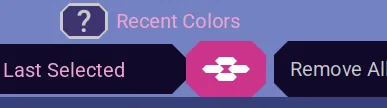
Then select from one of these choices.
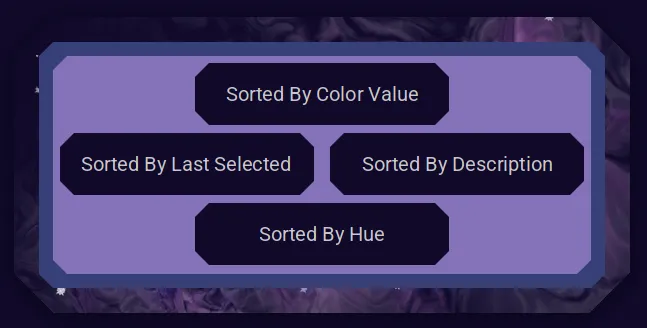
Here are their descriptions.
Sorted By Color Value - The actual 0xAARRGGBB hex value. Color that are the same but differ only in their alpha values (0xAA...) are grouped together. Then colors are sorted with 0x000000 at the top and 0xFFFFFF at the bottom.
Sorted By Description - Here are two color descriptions. +0 +23 +0 from blue alpha 255 (0xFF0017FF) and dark darkgoldenrod alpha 255 (0xFF986600). The base color name, like "blue" and "darkgoldenrod" are what are sorted. If there are multiple "blue" colors, then they are grouped and then sorted by their modifier words, like "dark blue" and "very light blue".
Sorted By Hue - The base color itself, like shades of red or shades of blue.
Sorted By Last Selected - Probably the best choice for Recent Colors is to sort by the last selected time. The last one you used will be at the top.
Predefined Colors
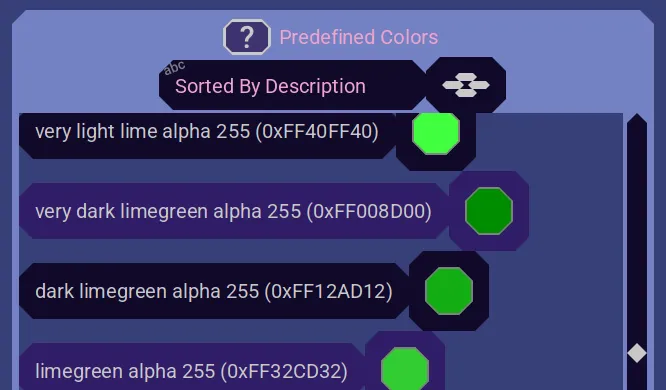
There is an internet standard for websites that defines a set of colors based on a simple name. This Predefined Colors is that list, please the addition of Nebula Software color modifier words, like "dark" or "very light".
Double click an entry to pick it immediately and close the Color Chooser.
Scroll with track bar or mouse wheel.
Single click one to send it to the Base, Saturation, Brightness, See Throughxx UI for you then to tweak to your liking.
Find the color you are looking for more quickly by using the Sort BySort By feature. Predefined Colors support the Sort By options described there, except for Sorted By Last Selected.
Base, Saturation, Brightness, See Through
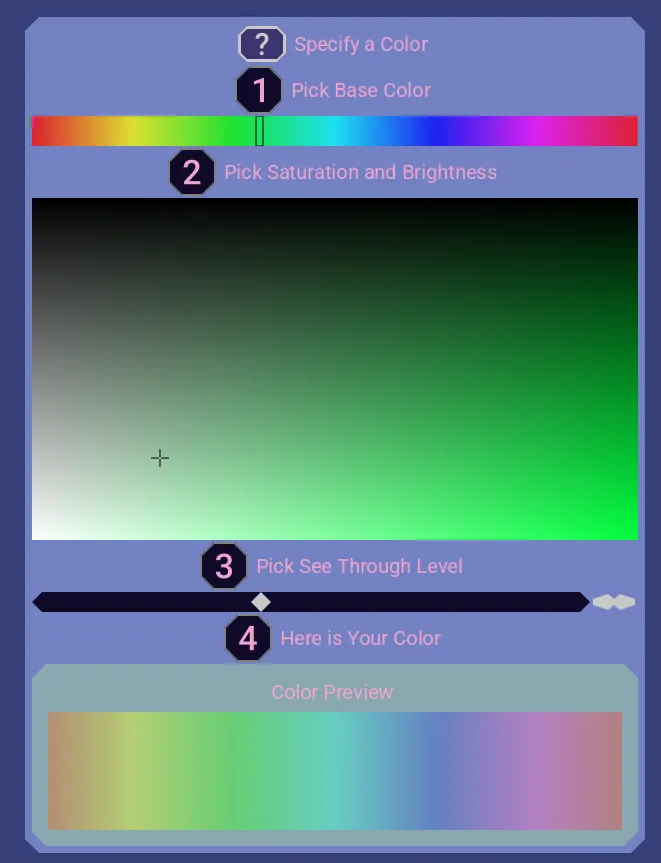
Define your very own color!
First pick the base color, like "red".
Then select from a rectangle the saturation and brightness for your base color. Like more saturation (more color) when you move from the left to the right. And, brighter (closer to white than black) when you move from the top to the bottom.
You may click on the saturation/brightness panel to then be able to use the mouse wheel and keyboard arrow keys to nudge the selection in tiny steps so you can get just the exact color you want!
Finally, if the optional See Through slider is shown, choose the "alpha" transparency value. Like your color is not see through at all at the left, and is totally see through on the right.
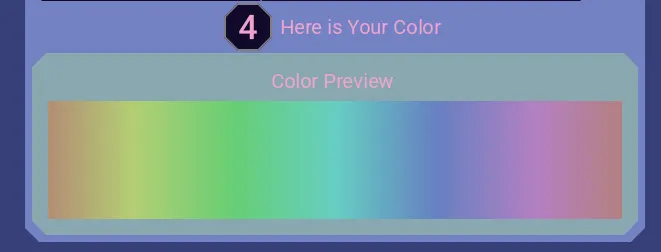
You can see the results of your color in the Color Preview at the bottom of this section. There is a rainbow strip behind your color to help you visualize the see throughness of your color.
Nebula Software applications remember your last selections, even on application restart, so you can start off where you were last time.
Hex Value
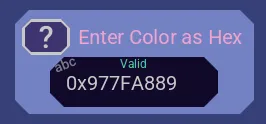
Time to get technical! Copy and paste a hexadecimal RGB (red, green, blue) value from another application, or type one in by hand.
The text entry field states "Valid" at the top when it recognizes a color value.
These are optional to type:
- #
- 0x
- 0X
These all specify full "red" color:
- #FF0000
- 0xFF0000
- 0XFF0000
- FF0000
If the Color Choose is asking for a color that does not allow see through alpha values, then you may still paste a value that has alpha and it will be stripped out for you. Like "0x88555555" will be changed for you to "0x555555".
This field is updated when you select a color it the other UI areas. This lets you copy the hex color value to another program, or start with a color and then manually tweak it.
Nebula Software applications remember your last selections, even on application restart, so you can start off where you were last time.
Textual Description

You thought the Hex Value section was technical. This Textual Description lets you type in a description of the color you want.
Type a base color, like "blue".
Then you can add one of these modifier terms to alter that base color.
- light
- dark
- very light
- very dark
Like, "blue", "dark blue", or "very light blue".
Cool, right?! But wait, it gets even better! You may then prefix that with delta values for red, green and blue. You can give plus or minus values.
For example, "+1 -2 3 very light blue" says to start with "very light blue" color and then add 1 to the red component, subtract 2 from the green component, and add 3 to the blue component.
The "+" sign is optional, but if you want to subtract you must give the "-" sign.
The text entry field states "Valid" at the top when it recognizes a color value.
This field is updated when you select a color it the other UI areas. This lets you copy the color description, like to save it in a text file for later, or start with a color and then manually tweak it.
Nebula Software applications remember your last selections, even on application restart, so you can start off where you were last time.
Here is the full format for reference. Items inside "[]" are optional.
[[+][-]R [+][-] B [+][-]G] from [light | dark | very light | very dark] BaseColorName
Here are some examples.
- blue
- light blue
- dark blue
- very light blue
- very dark blue
- +1 -2 3 from blue
- -1 +2 -3 from dark blue
- 0 0 3 from very dark blue
Pick a Color from Your Screen
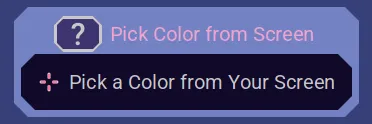
Forget about trying to design your own color or choose it from a long list. Just pick one from your screen!
Click the button to turn on a mode where the Nebula Software application lets you move your mouse over your screen to select a pixel of the exact color you want.
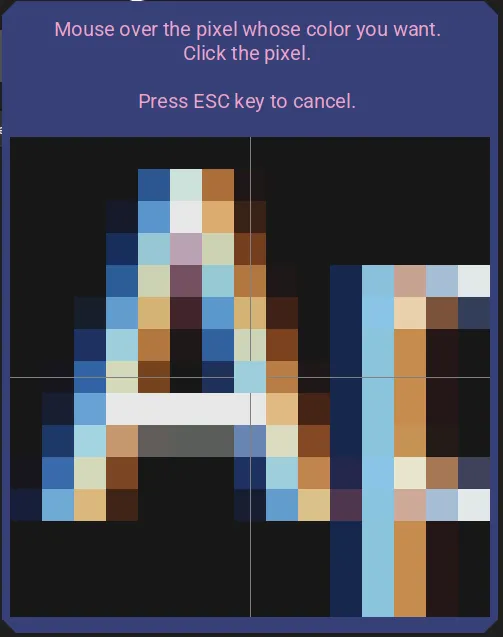
When you select a pixel from your screen, its color is put into the Color Chooser, updating other UI components there. That lets you use that color, or start tweaking it.
Operating System (OS) Permissions
Linux, Mac, and Windows OSes may require you to grant permissions to a Nebula Software application for the Nebula Software application's Pick a Color from Your ScreenPick a Color from Your Screen feature.
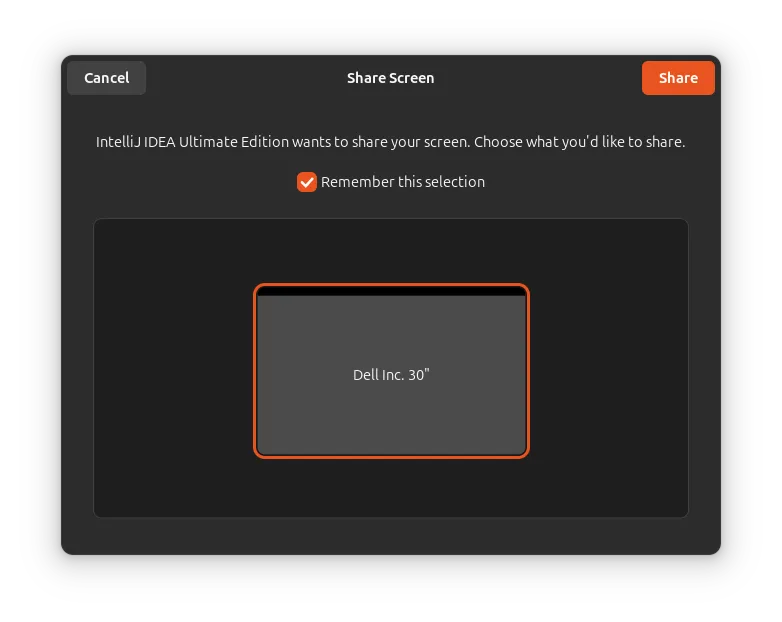
When you activate that feature for the very first time, the OS may present popup windows asking you to grant the Nebula Software application permission to take a screenshot of your screen. Here are some examples of what you might see.
Note that these example screenshots show "IntelliJ IDEA" as the application name, which is the developer tool Nebula Software is using to create Nebula Software applications. Normally it would be a name of the Nebula Software application, like "DisplaySwitcher".
Linux
Pick your monitor for the lower part (only one was present in this screenshot) and then click the "Share" button in the top right. You are done! Go back to grabbing the color of a pixel on your screen!
Mac
macOS has multiple steps.
First you get this popup and must choose "Allow" or "Open System Settings". They both went to the same place (macOS System Settings) when tested.
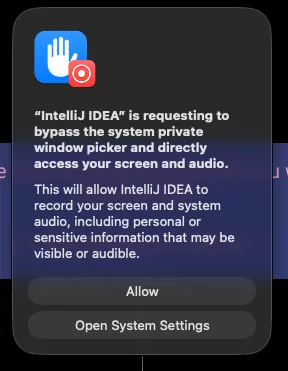
You might also see a popup like this instead of the one above.
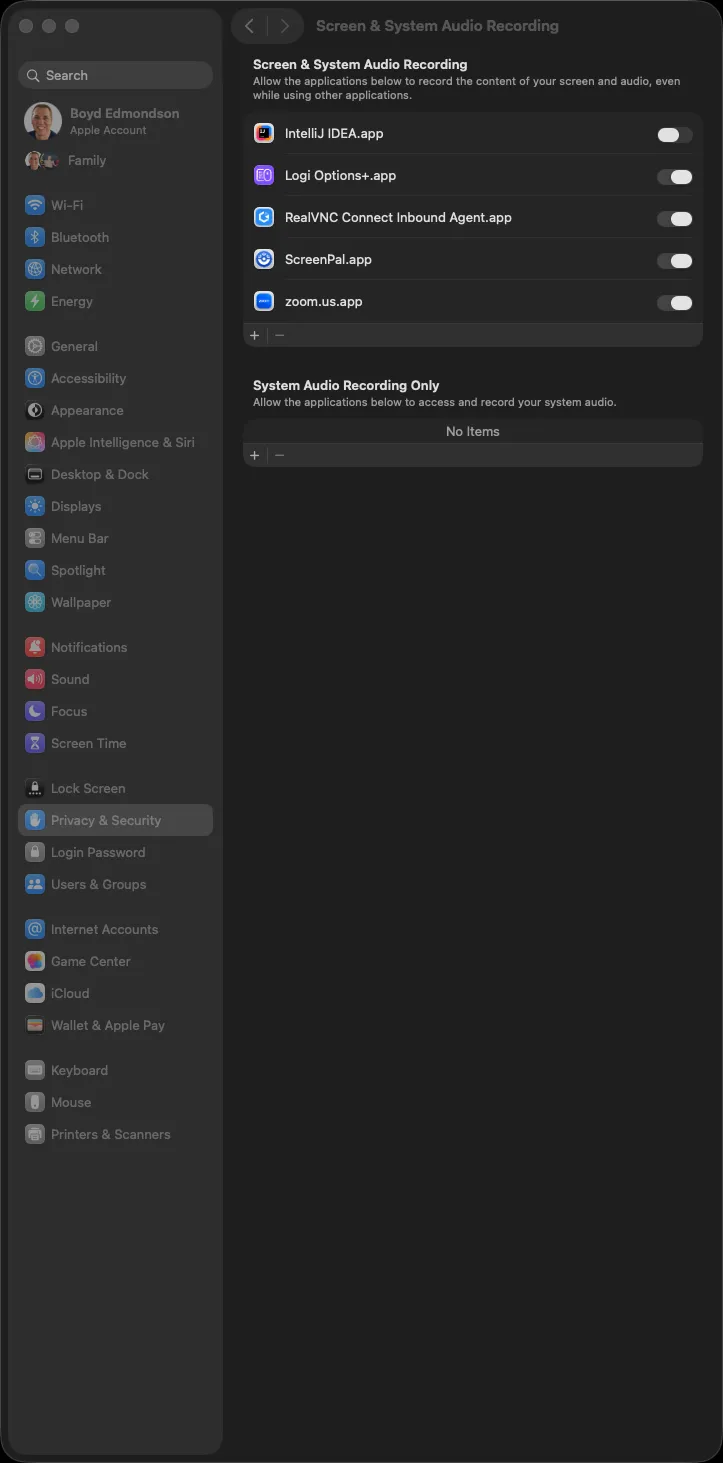
Then you are presented with the macOS Screen & System Audio Recording preferences, where you must find the Nebula Software application, like "DisplaySwitcher", or for this Nebula Software Developer example, "IntelliJ IDEA.app". Then click the button to the right of it to "grant permission" to that application.
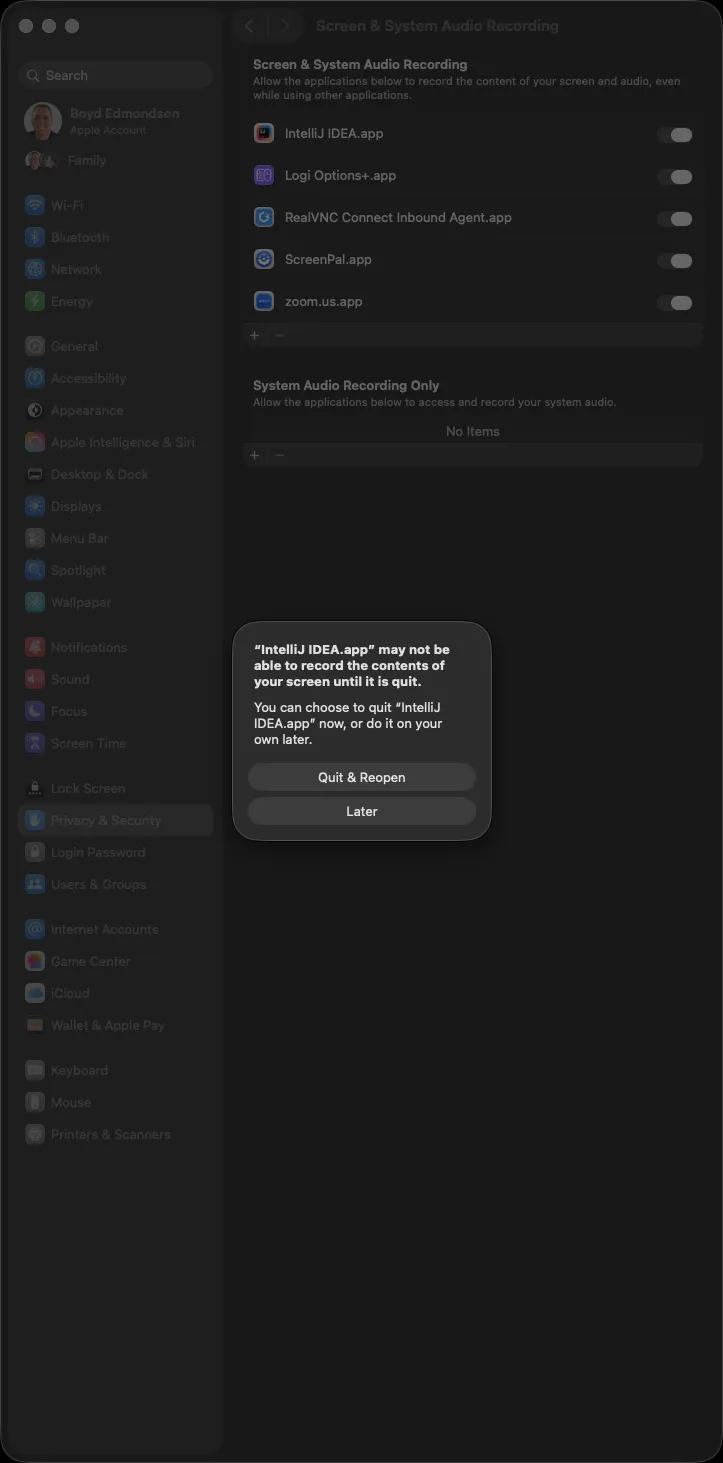
After granting the permission, macOS warns that the application might need to be restarted before its newly granted permission will take effect. In our test, there was no need to restart the Nebula Software application and the Nebula Software application's "Pick a Color from Your Screen" feature then immediately worked.
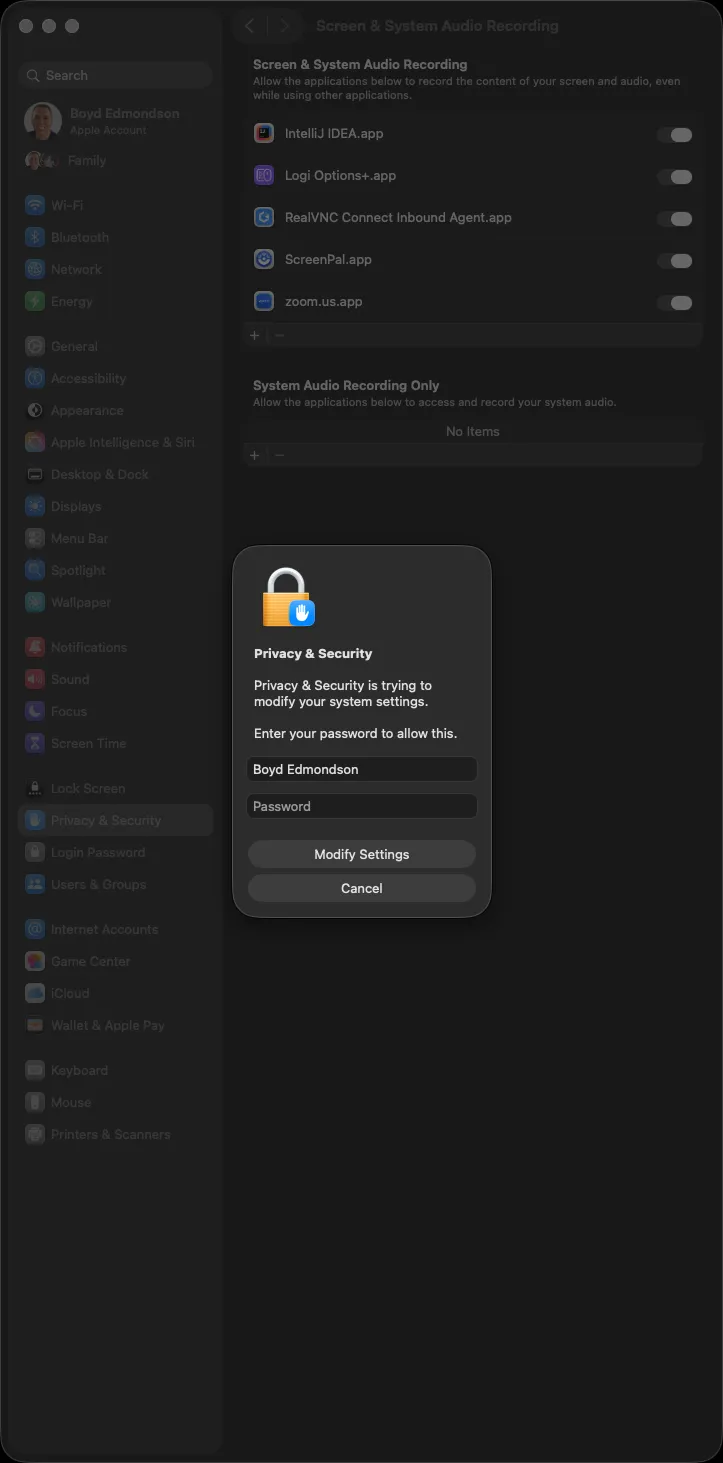
macOS may then request an Administrator's password to allow this change.
Whew! Now you are done with that pesky macOS permission granting. You are done! Go back to grabbing the color of a pixel on your screen!
Windows
Windows OS does not ask you to grant permissions for the Nebula Software application to take a screenshot of your screen.