Right Click Popup
In Nebula Software applications, you may right click with the mouse over various areas to get a popup with choices.
You can cancel the popup by click on its background, or using the escape key.
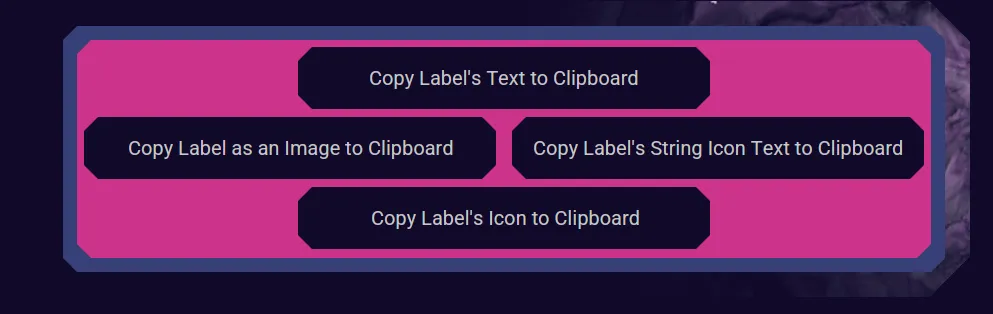
Click on any of these areas to cancel the popup.
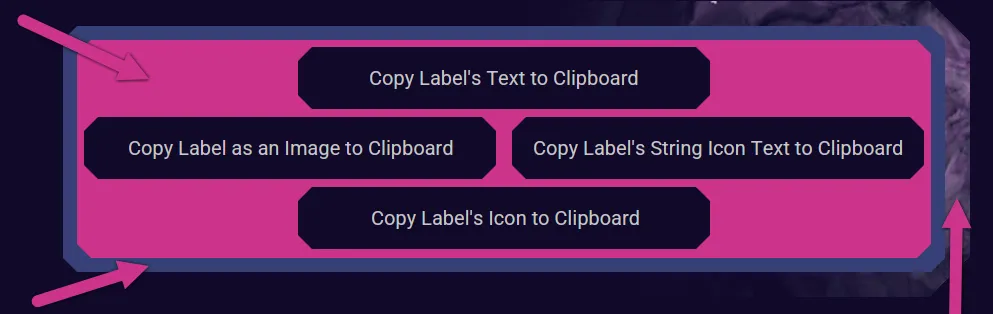
Here are some items that your can right click on and the options they might present.
Buttons
Any button type, such as Button, Toggle Button, Check Box, and Radio Button.
On enabled or disabled buttons, right click to:
Copy Button's Text to Clipboard - If it has text.
Copy Button's String Icon Text to Clipboard - If it has a String Icon.
Copy Button's Icon to Clipboard - If it has an icon.
Copy Button as Image to Clipboard
Save Button as Image to File

Text: "JCheckBox"
Icon:

Image:

Here is a button that has an icon that is a vertical string. It too can be extracted.
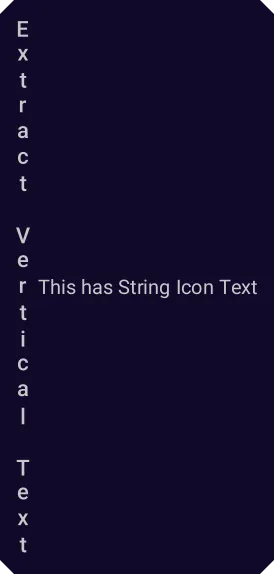
String Icon Text: "Extract Vertical Text"
Icons
Here are some examples of icons:
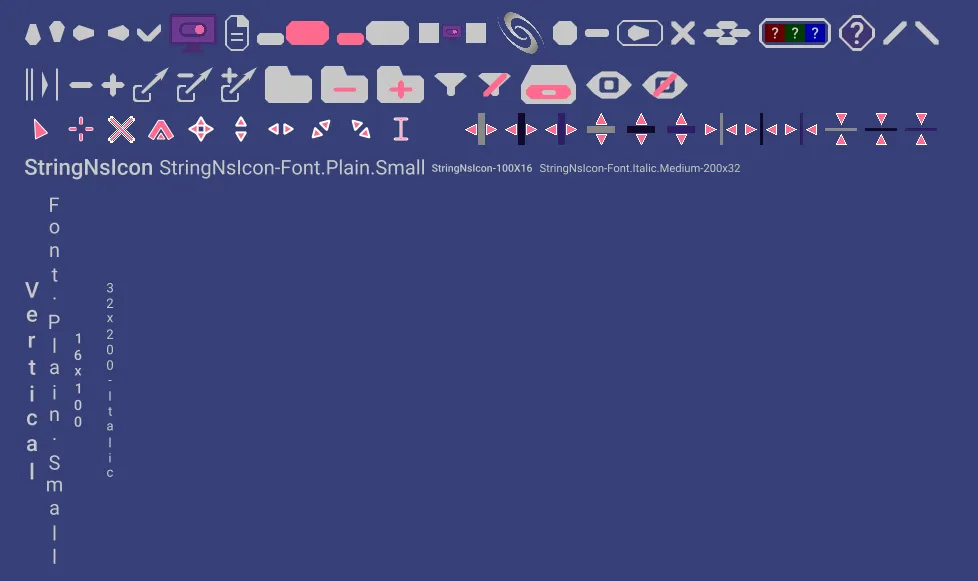
Icons are displayed using Labels, so, enabled or disabled, right click to:
Copy Label's Icon to Clipboard
Copy Label as Image to Clipboard
Save Label's Icon to File
Save Label as Image to File

Any of those choices produces:

Labels
On enabled or disabled labels, right click to:
Copy Label's Text to Clipboard - If it has text.
Copy Label's String Icon Text to Clipboard - If it has a String Icon.
Copy Label's Icon to Clipboard - If it has an icon.
Copy Label as Image to Clipboard
Save Label's Icon to File - If it has an icon.
Save Label as Image to File
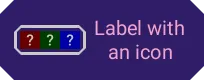
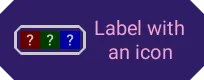
Text: "Label with an icon"
Icon:

Image:
Here is a label that has an icon that is a vertical string. It too can be extracted.
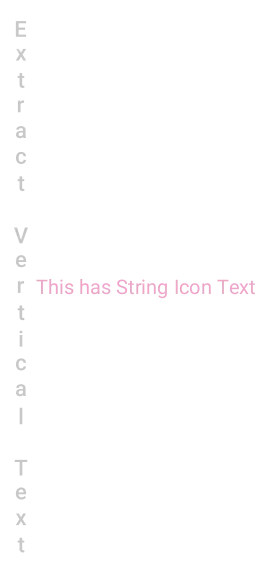
String Icon Text: "Extract Vertical Text"
Lists
Lists include UI items like, Lists, Hierarchy Panes, and File Chooser listings.
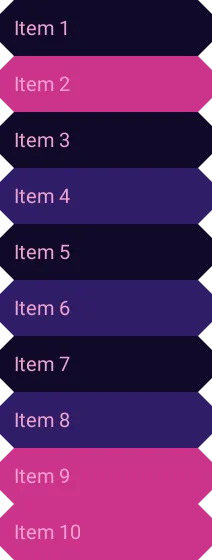
On enabled or disabled lists, right click to:
Copy List Items to Clipboard
Copy Selected Items to Clipboard - If there are selected items.
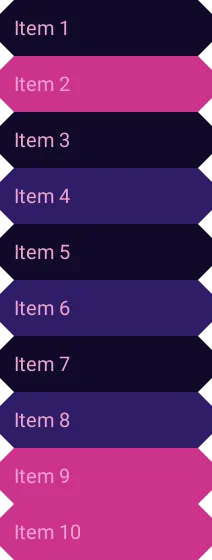
Copy List as Image to Clipboard
Save List as Image to File
List Items: "Item 1 Item 2 Item 3 Item 4 Item 5 Item 6 Item 7 Item 8 Item 9 Item 10"
Selected Items: "Item 2 Item 9 Item 10"
List as Image:
Panels
All types of panels allow capturing their image. Panels include UI components like Animated Background Panel, Cards Pane, Collapsing Panel, Combo Box, Diamond Layout Popup, Layer, Panel, Popup, Scroll Pane, Split Pane, Stack Pane, etc.
Items of the Panel might support right click, such as Buttons, so to get the entire panel click on the background, like here:
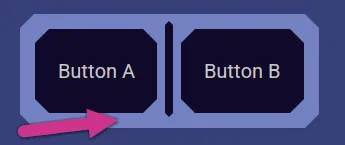
On enabled or disabled panels, right click to:
Copy Panel as Image to Clipboard
Save Panel as Image to File
Panel as Image:
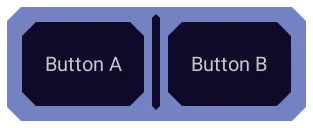
Where you click matters.
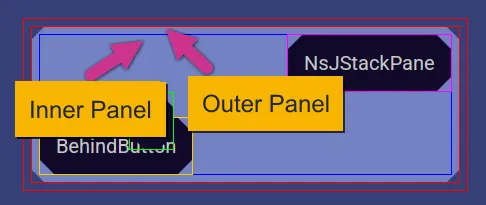
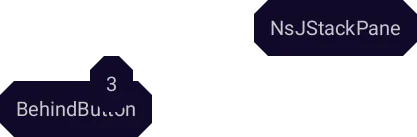
Inner Panel: The inner panel happens to have a transparent background, so you get this...
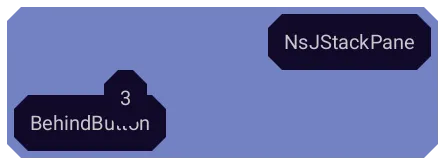
Outer Panel: The outer panel happens to have a solid background, so you get this...
Text Fields
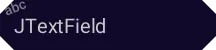
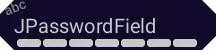
Text fields, like plain text fields, password fields, format restricted fields, and text areas, whether enabled, disabled, not editable, or editable, all have the ability to be right clicked to perform actions.
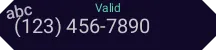
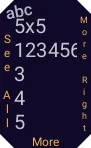
On all text fields (enabled/disabled, editing/not-editing, empty/not-empty), right click to:
Copy Text Field as Image to Clipboard
Save Text Field as Image to File
On text fields that are enabled or disabled, non editable or editable but not currently being edited, and have text, right click to:
Copy All Text to Clipboard
On enabled and editable text fields that are currently being edited, right click to:
Copy All Text to Clipboard - If there is text.
Copy Selected Text to Clipboard (CTRL+C)/(CMD+C) - If there is a selection.
Cut Selected Text to Clipboard (CTRL+X)/(CMD+X) - If there is a selection.
Paste Clipboard Text at Cursor (CTRL+V)/(CMD+V) - If there is text in the clipboard.
Select All Text (CTRL+A)/(CMD+A) - If not empty.
Move to Start (HOME) - If not empty.
Move to End (END) - If not empty.
Undo Most Recent Change (CTRL+Z)/(CMD+Z) - If it has an undo.
Redo the "Undo Recent Change" (CTRL+Z+SHIFT)/(CMD+Z+SHIFT) - If it has a redo.
Escape Edit Mode (ESC)
Text Field Keys
Also see the Text Field Keys document for how you can use the keyboard to manipulate text inside Text Fields.
Windows
Windows, like the main application window, dialog windows, and tool tips, all have the ability to be right clicked to grab an image.
On enabled or disabled windows, right click to:
Copy Window as Image to Clipboard
Save Window as Image to File
Record Window(s) as .nvs Video
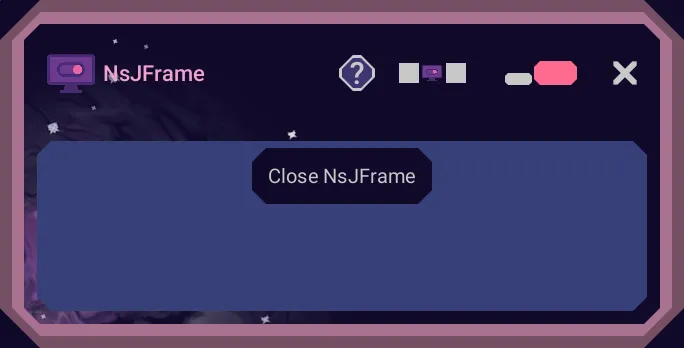
Where you right click matters. Right clicking on the move or resize bands or the title area will allow capturing the entire window image. Like in any of these areas shown as red rectangles.
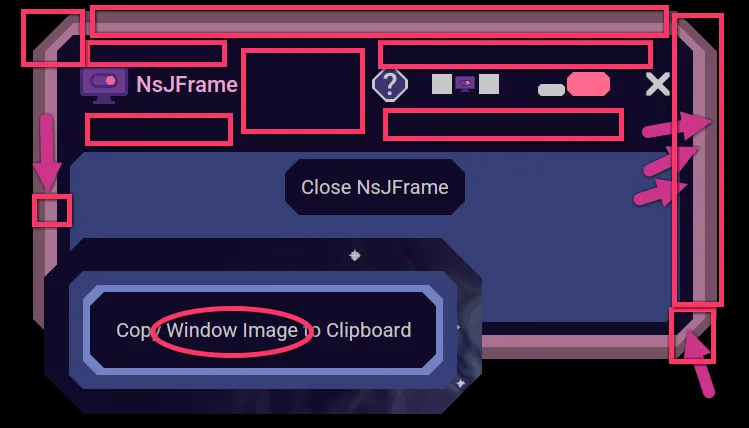
The above right click areas give you the full window image, like:
Clicking on the "Outer" or "Inner" panels will give just the insides of the window. "Outer" is a thin padding around the inner panel and sometimes is the same color as the inner panel, so it isn't always noticeable.
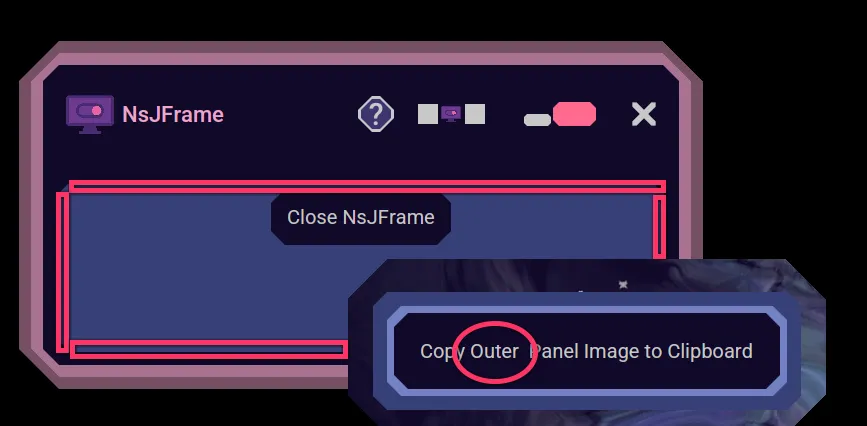
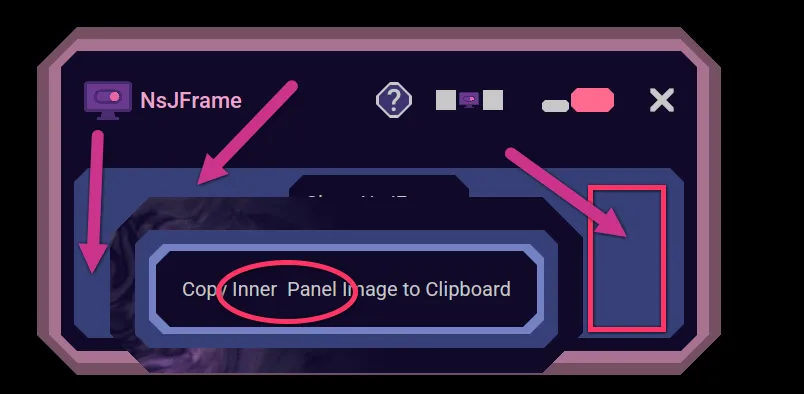
Right clicking on the Outer or Inner panel will give an image like this:

Record Window(s) as .nvs Video
Either from right clicking the edge of any application window and choosing Record Window(s) as .nvs Video in the popup, or from the Help UI section's Record a .nsv Video File button, you can start recording a video of your Nebula Software application windows.
This records all of the windows that may appear from this Nebula Software application while you interact with the application during the recording, including the main window, dialogs, popups, tooltips, etc.
Nothing else on your computer screen is recorded. This protects any sensitive information you may have showing on your computer by just recording only the Nebula Software application windows.
Nebula Software has a proprietary video file format called ".nsv", which stands for "Nebula Software Video". Only Nebula Software can create it. Only Nebula Software can view it.
You may want to record your Nebula Software application to report an issue to Nebula Software. Once you have created your recording, you may use the Play a .nsv Video File to preview your video before you upload it to Nebula Software Support.