Create and Play .nsv Video Recordings
In the Help section there is a subsection that allows you to create video recordings to send to Nebula Software Support.
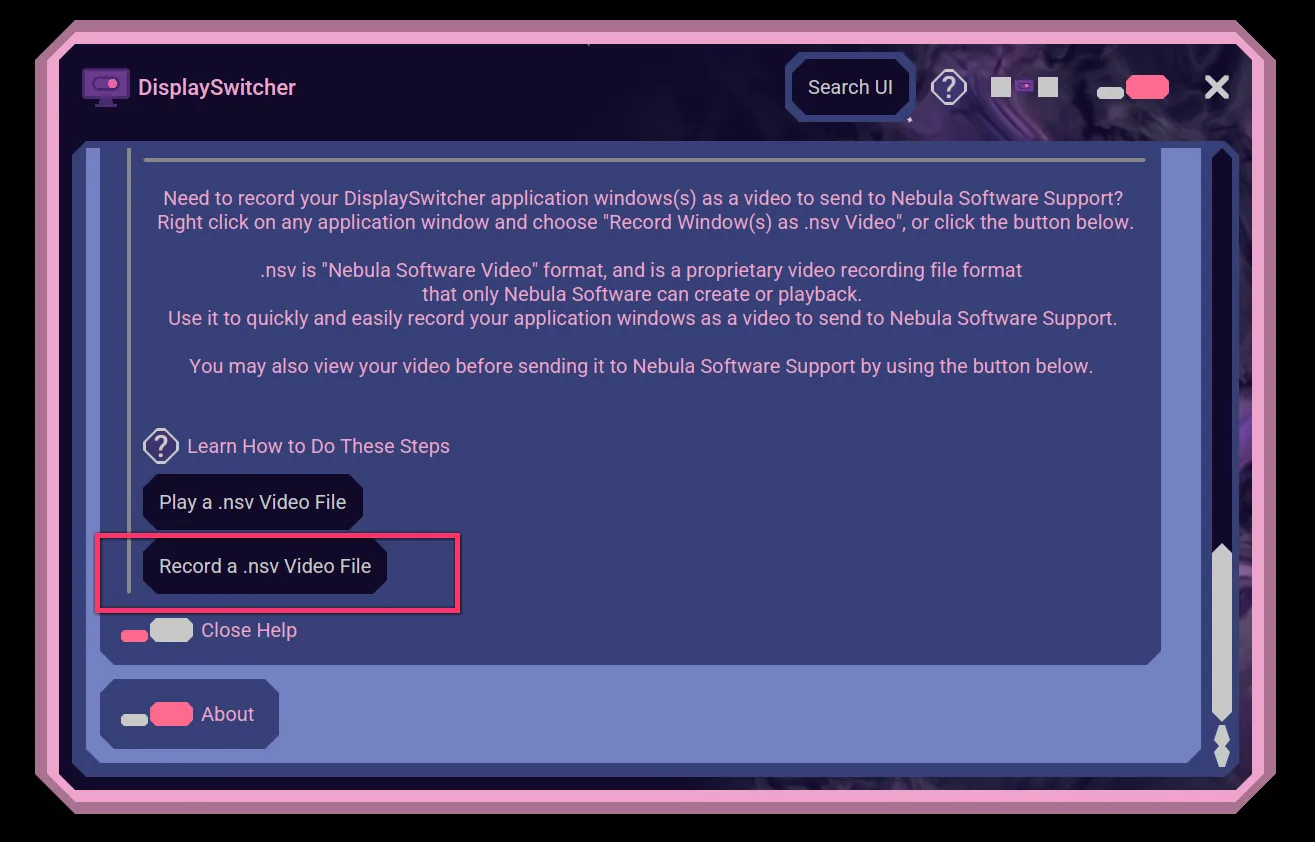
You can start a recording from any Nebula Software window by right clicking its resize or move bands. Or, you can start a recording from the Help section's button.
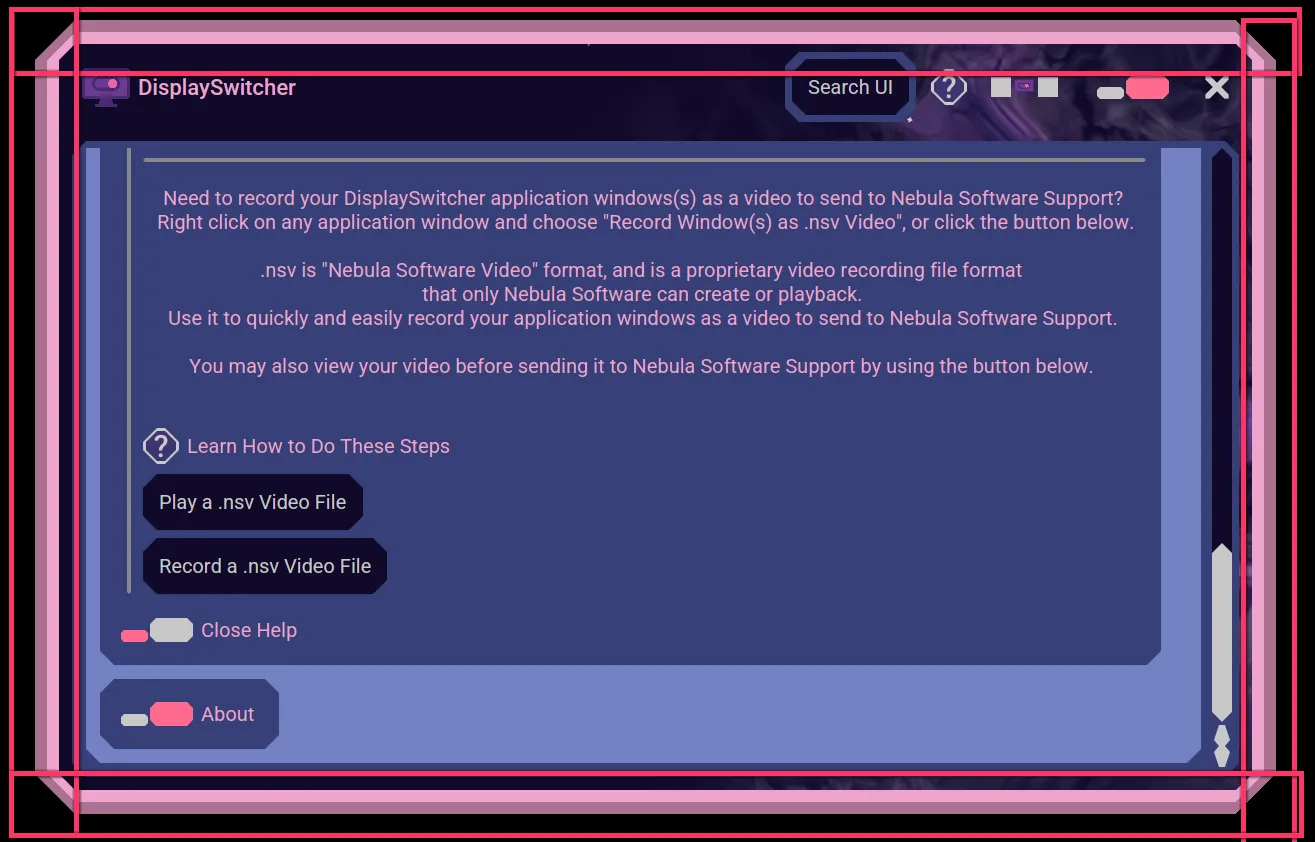
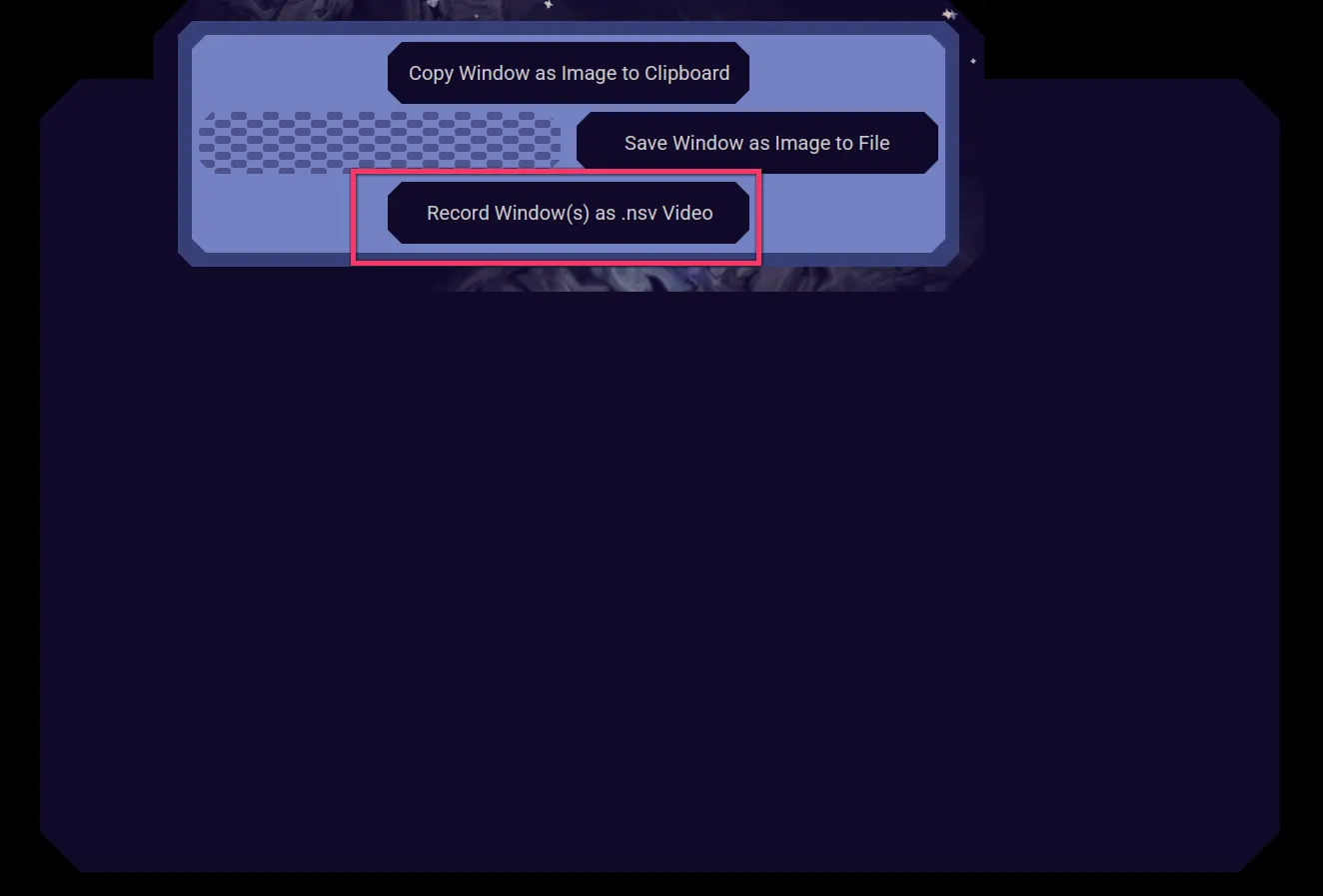
Once started, all the Nebula Software windows for this Nebula Software application are recorded and saved to the Nebula Software proprietary video file format, a file with the ".nsv" extension, which stands for Nebula Software Video. When starting a recording, you are first asked for the file name and location to save to.
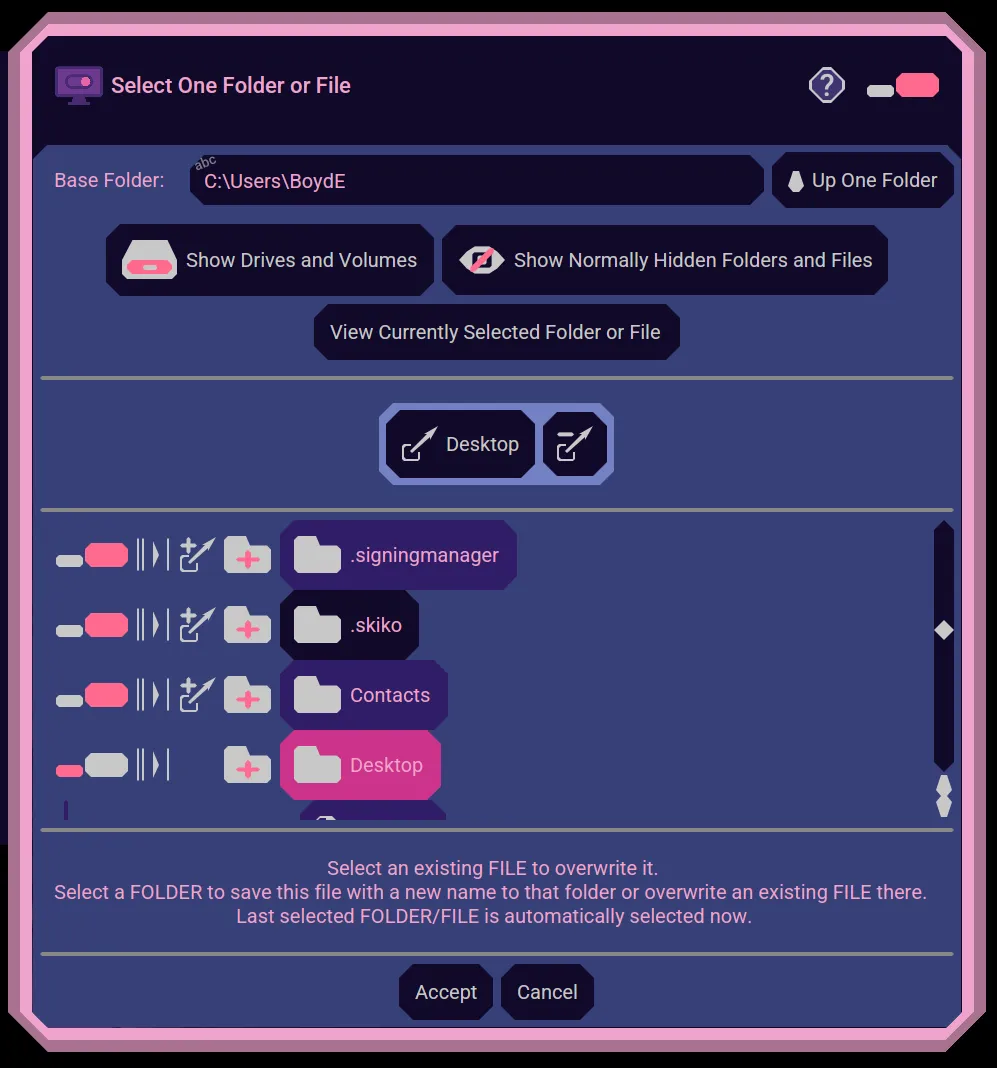
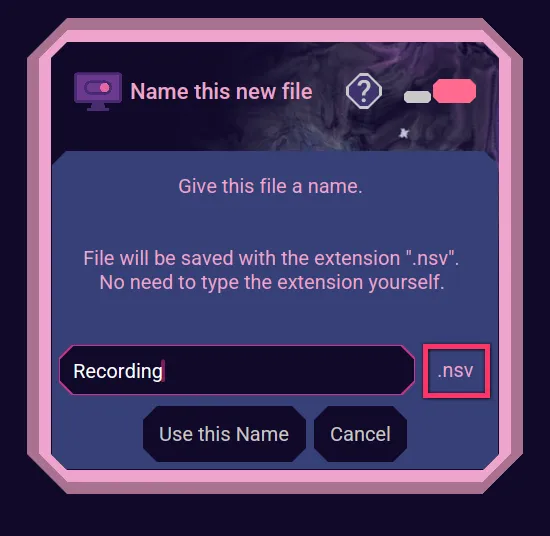
Here we choose our Desktop folder and a file called "Recording". You don't have to type the ".nsv" file extension, because it will be added for you.
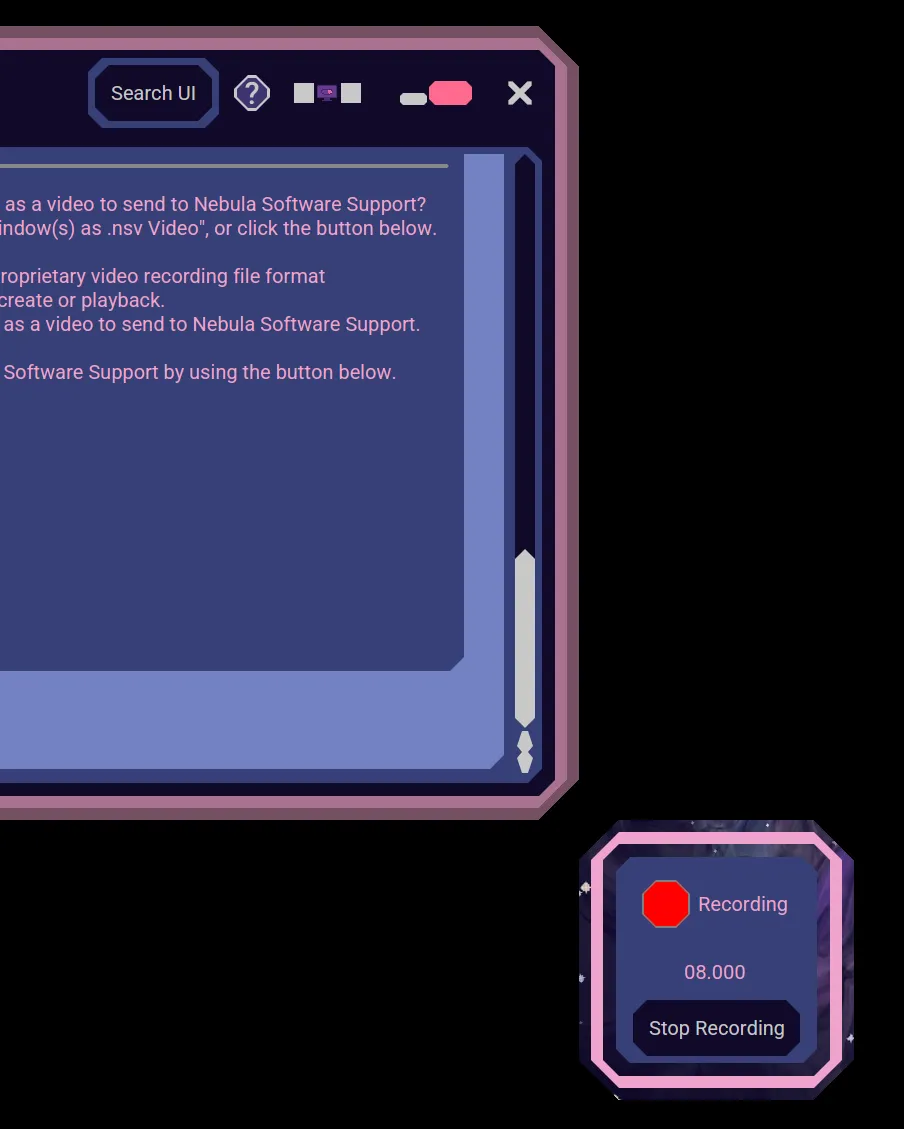
The Recording window appears but it isn't recorded. It is how you stop the recording. You may move it out of your way if you need to.
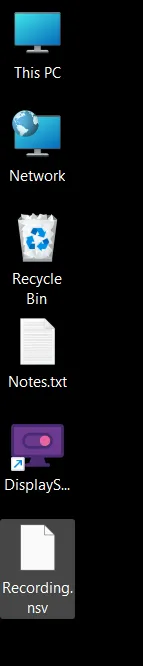
Perform the actions you want Nebula Software Support to see. Then stop your recording. We now have Recording.nsv on our desktop. Before we email it to [email protected], we want to view it to make sure it is what we want.
Use the Play button in the Help section. It will ask you to locate the video recording file that you want to play. We select our Recording.nsv file from our desktop.
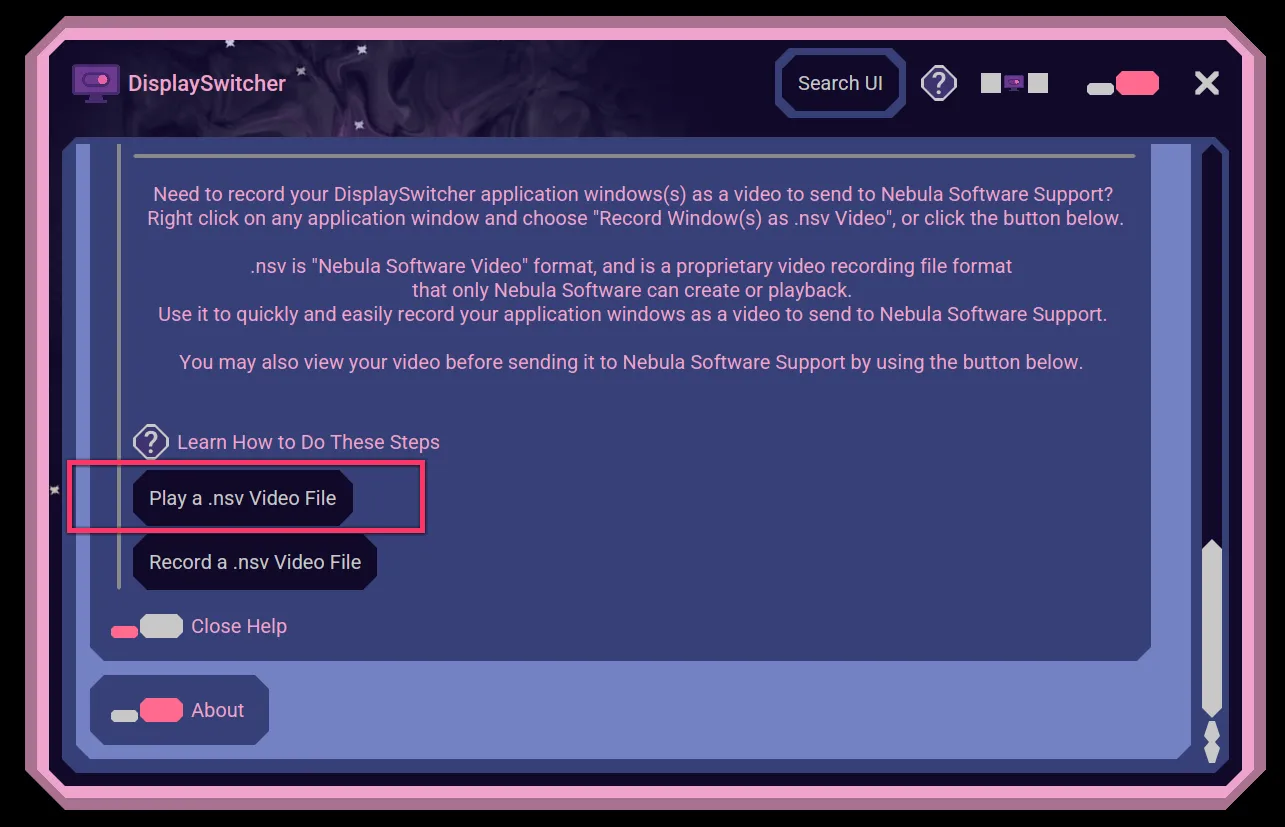
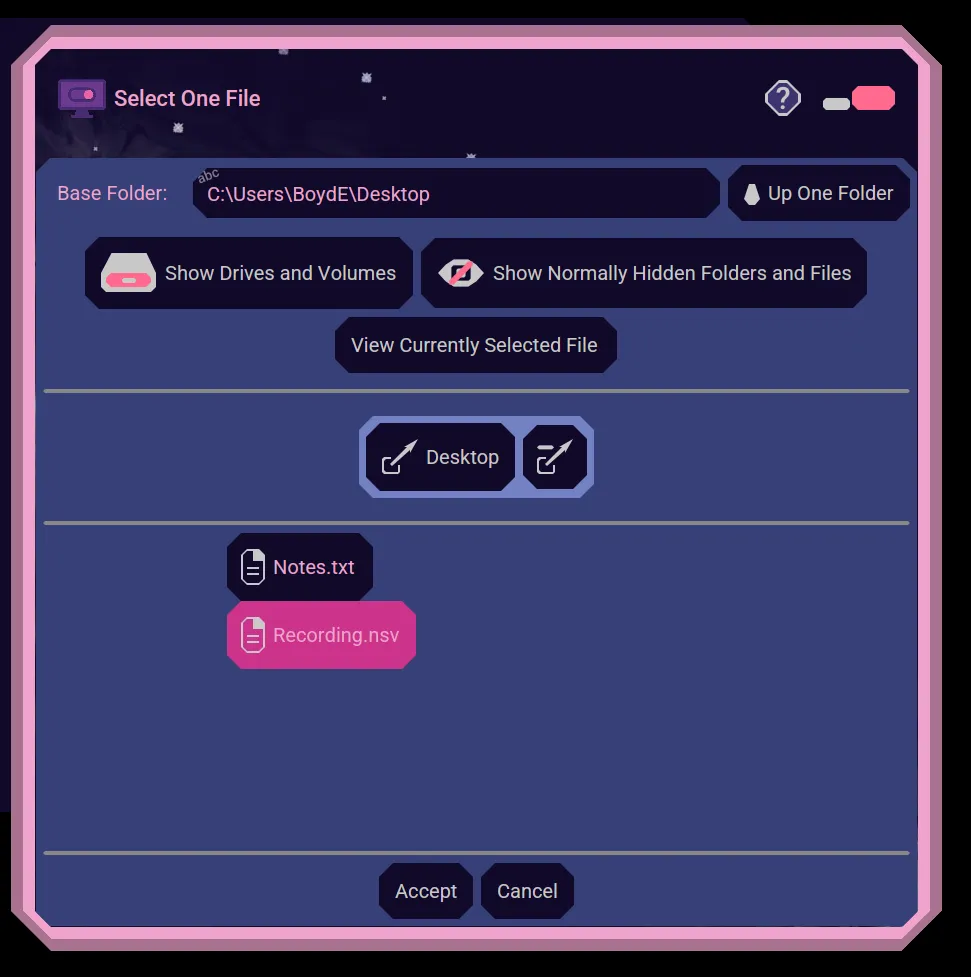
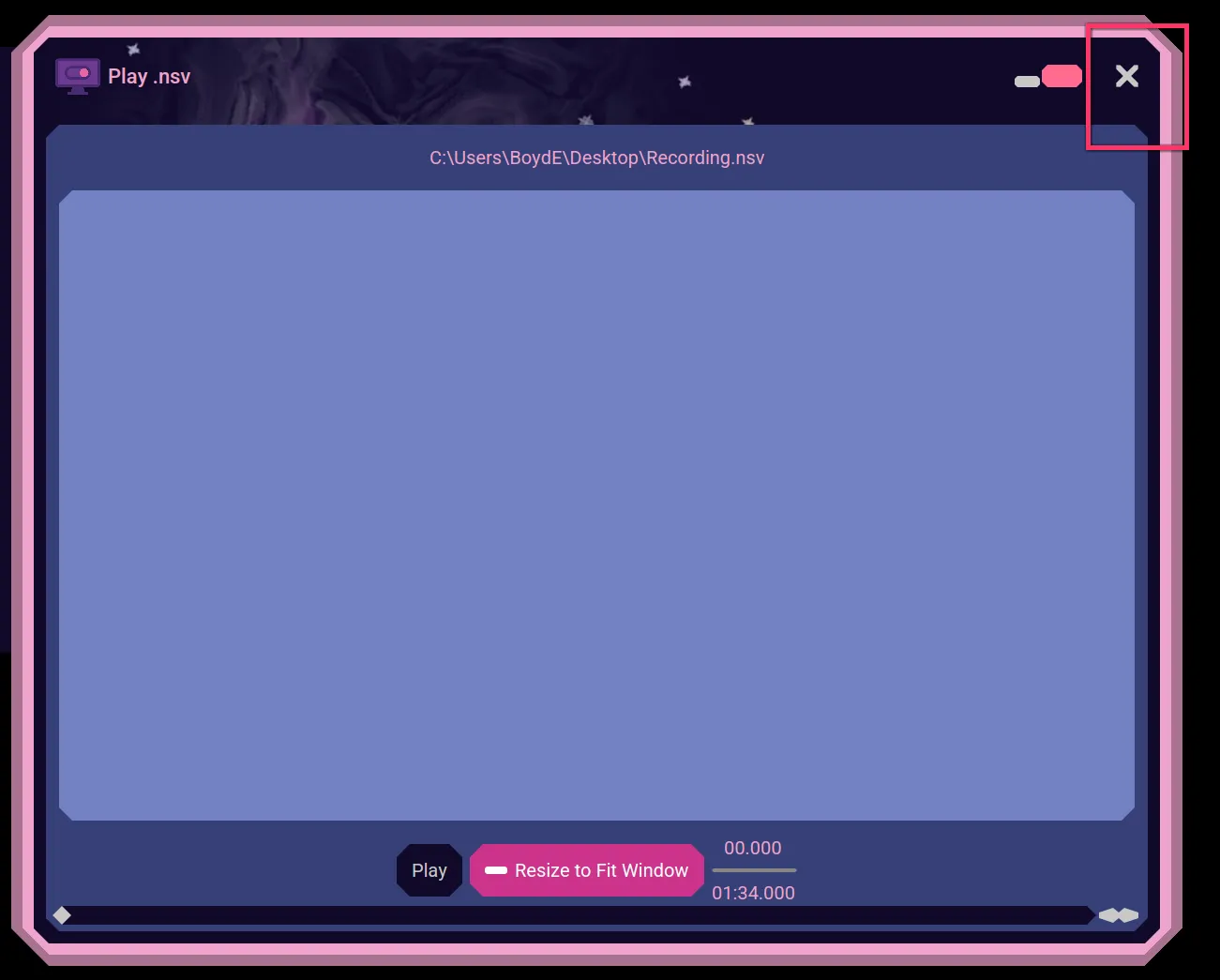
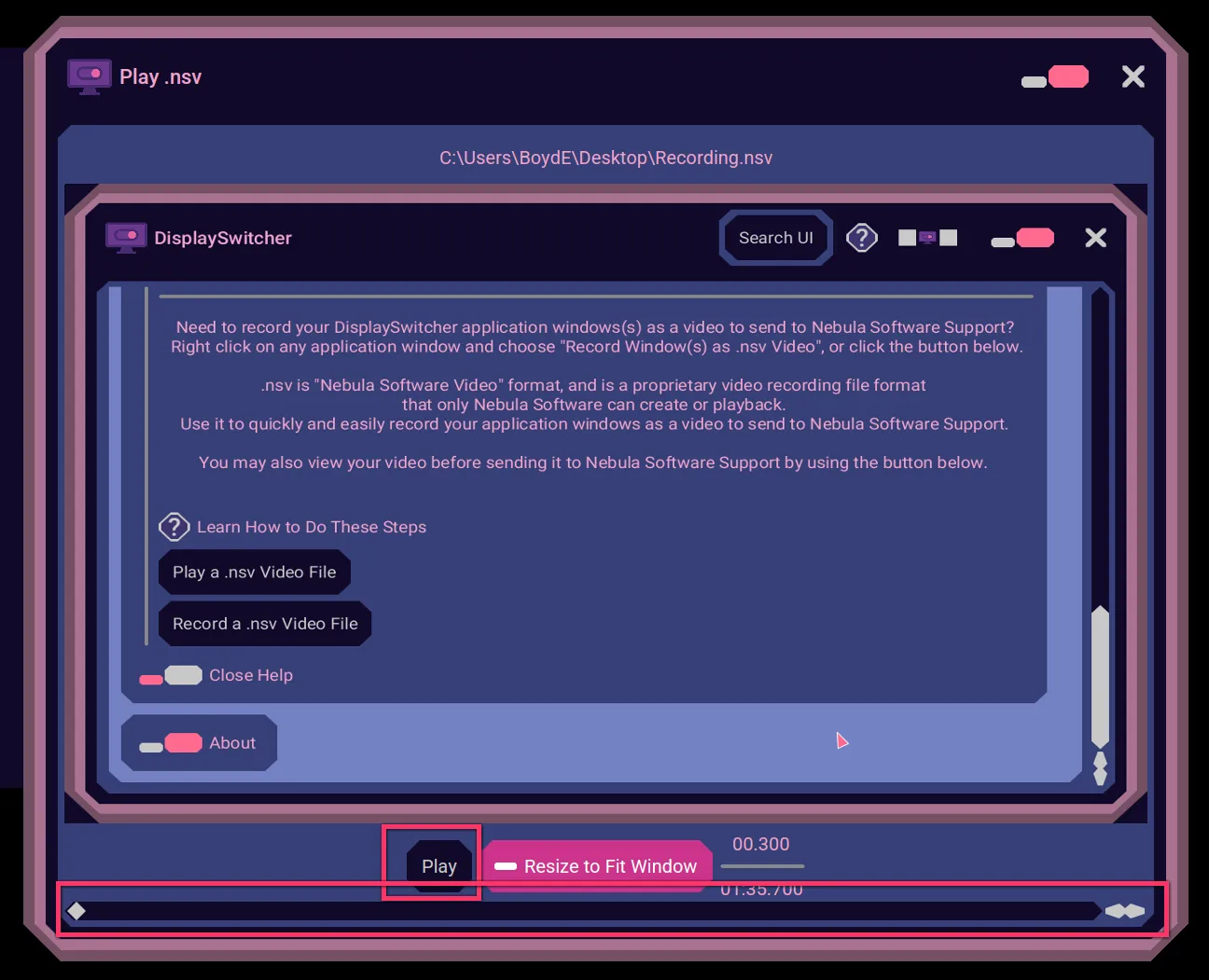
After a file scan, the video player appears. Click the Play button to watch your video.
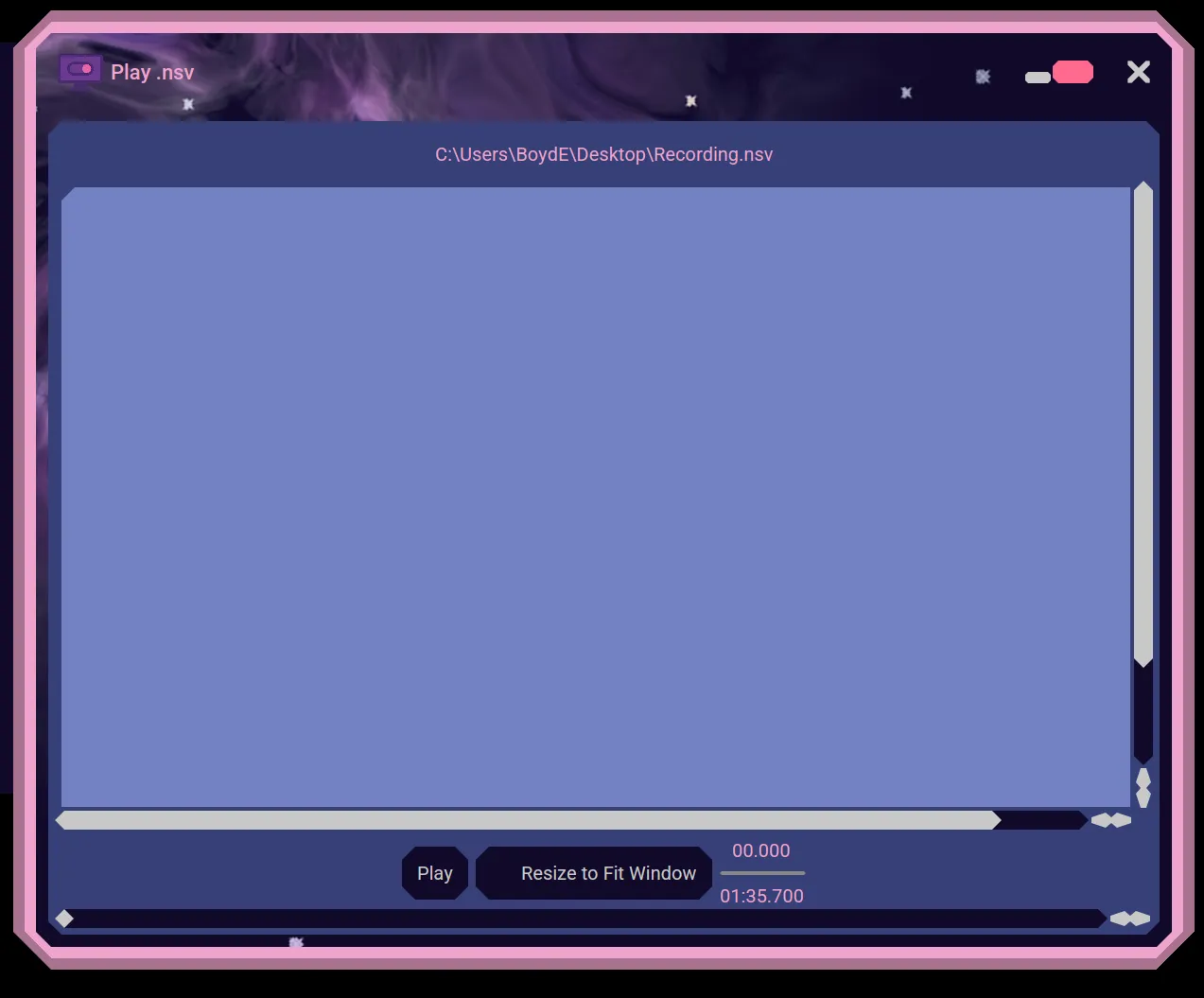
If your video is bigger than your window, then you can use the scroll bars to see more of the video. You may also resize the window to see more of your video. Or, you can use the Resize button to fit the video to the player window size.
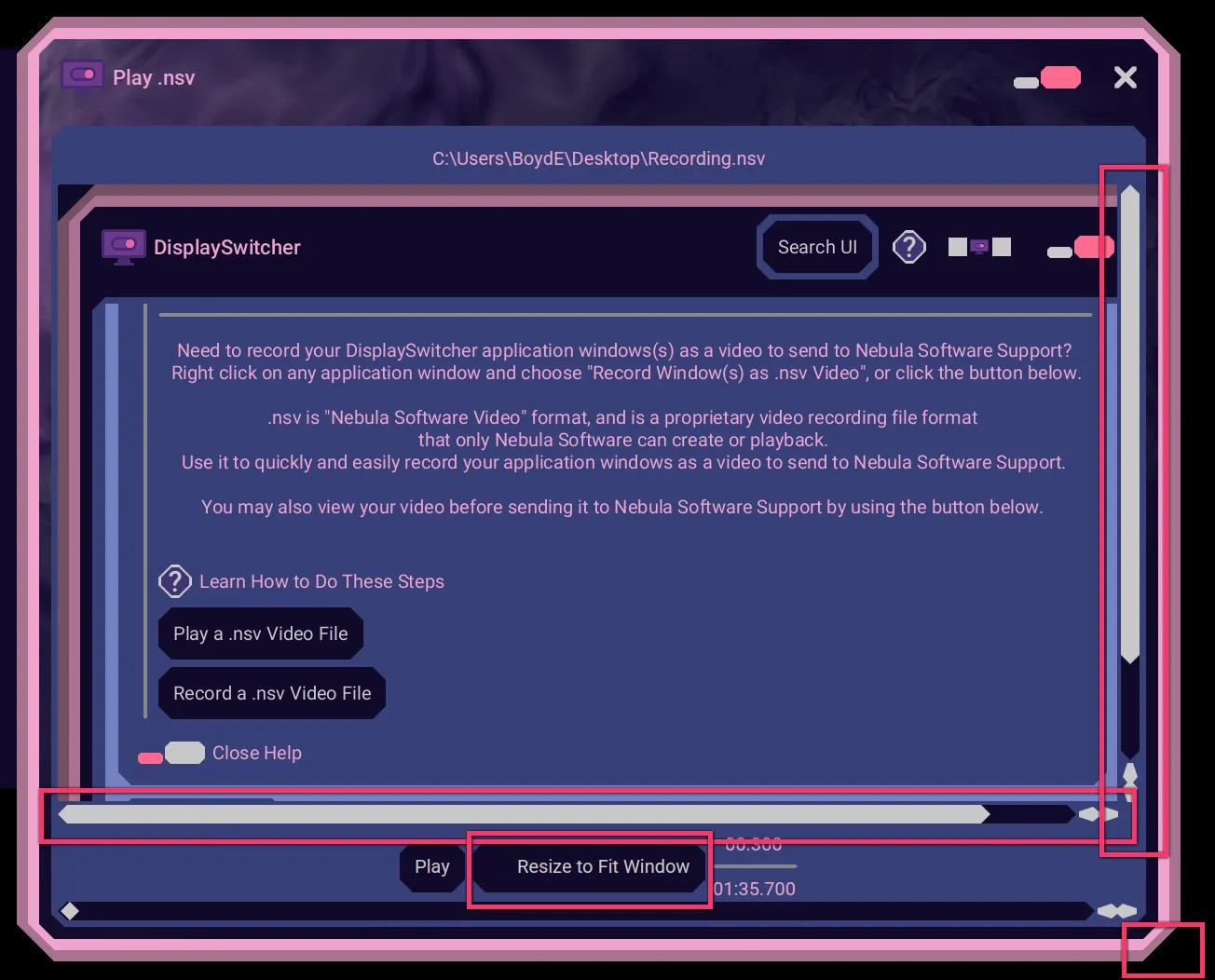
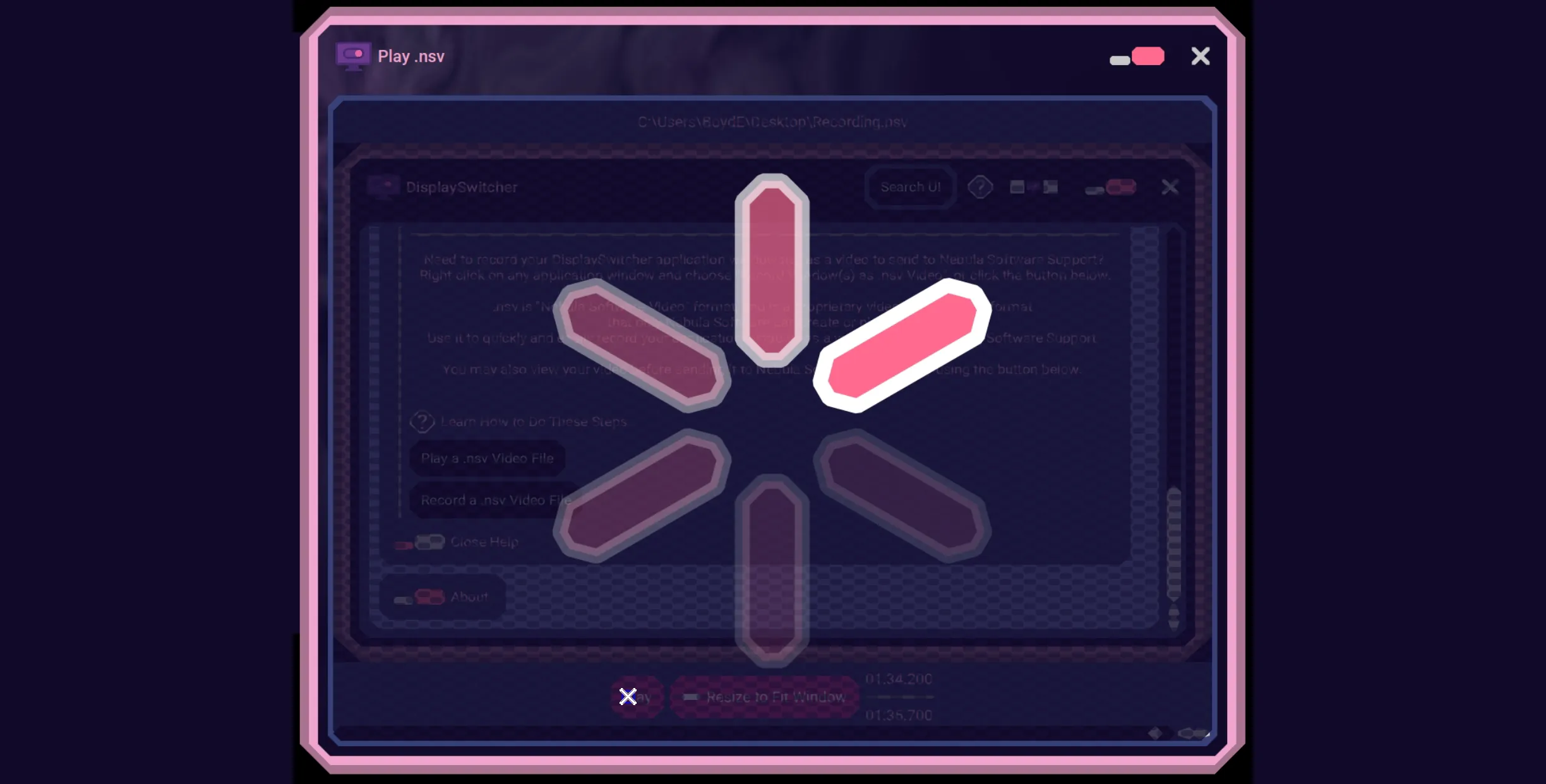
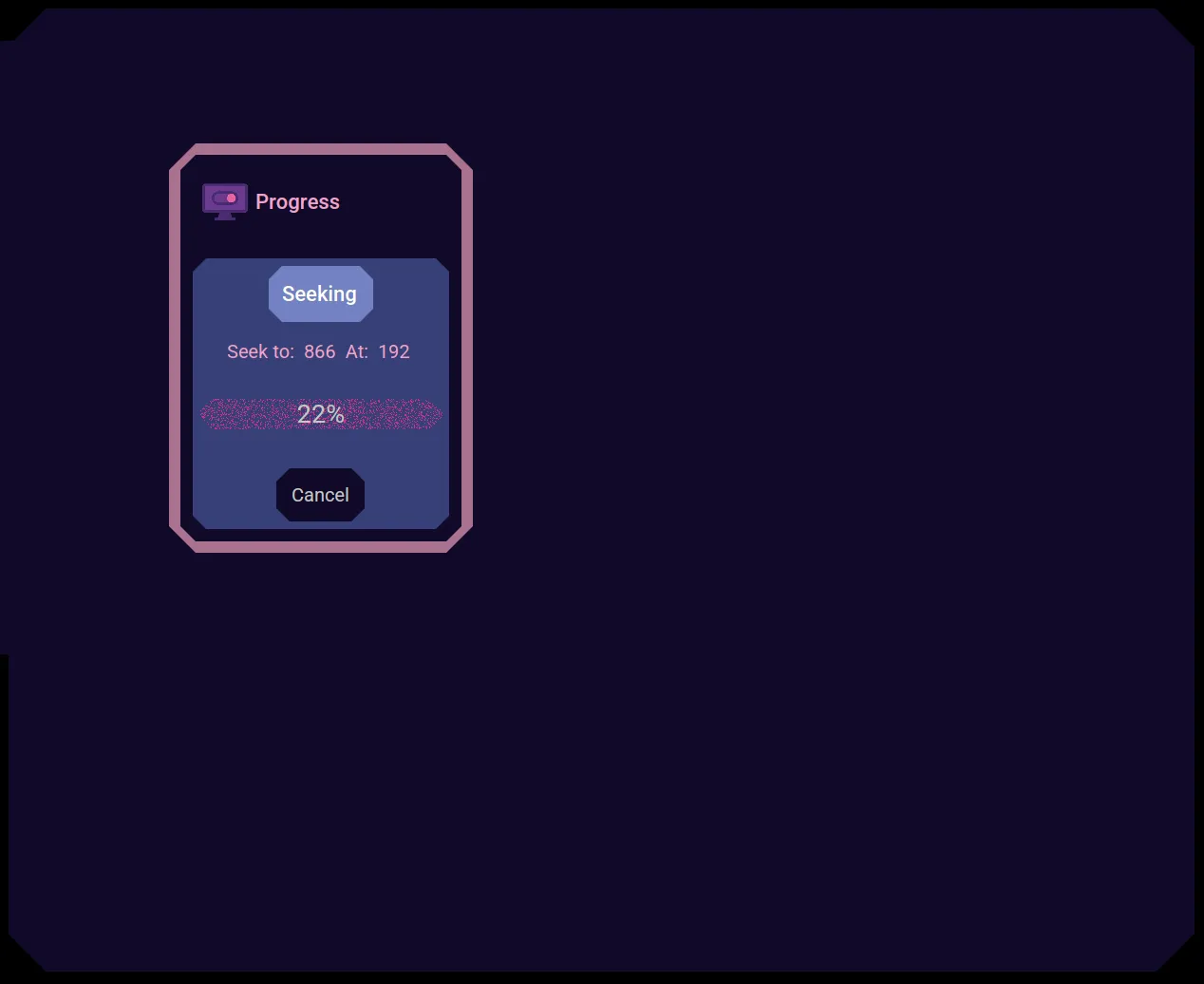
You can pause and restart the video. You may scroll in the timeline to get to a different part of your video. When you finish scrolling, press Play. There may be a momentary pause while the video seeks to your desired location.
When you are satisfied, close the player with the close button in the top right hand corner.